


Keep your team's profiles up to date
- Who
- Managers
- Where
- My Circle, and Team/Org › Members
- Remind
- One person with Nudge, a group with Send reminder
- Fresh means
- Updated within the number of days your organisation sets
Skills data is only useful when it is current. My Circle shows which profiles in your team are fresh, getting dry, dry or still empty, and lets you remind one person or a whole group in one click. A few habits keep it that way.
How it works
My Circle sorts your team's profiles by how recently they were updated:
| Status | Meaning |
|---|---|
| Fresh | Updated recently |
| Getting dry | Not updated for a while |
| Dry | Not updated for longer |
| Seeds | A profile exists, but no skills have been added |
Your organisation sets the number of days for each status. The Profiles card shows how many of your people are in each, and the header shows your circle's Profile completion.
You can remind people in two ways. The Quick reminder panel sends one email to a whole group, for example all your dry profiles. Nudge, on a person's Updates tab, reminds one person about one thing: their profile, an unfinished retrospective, or a certificate that is expiring or has expired.
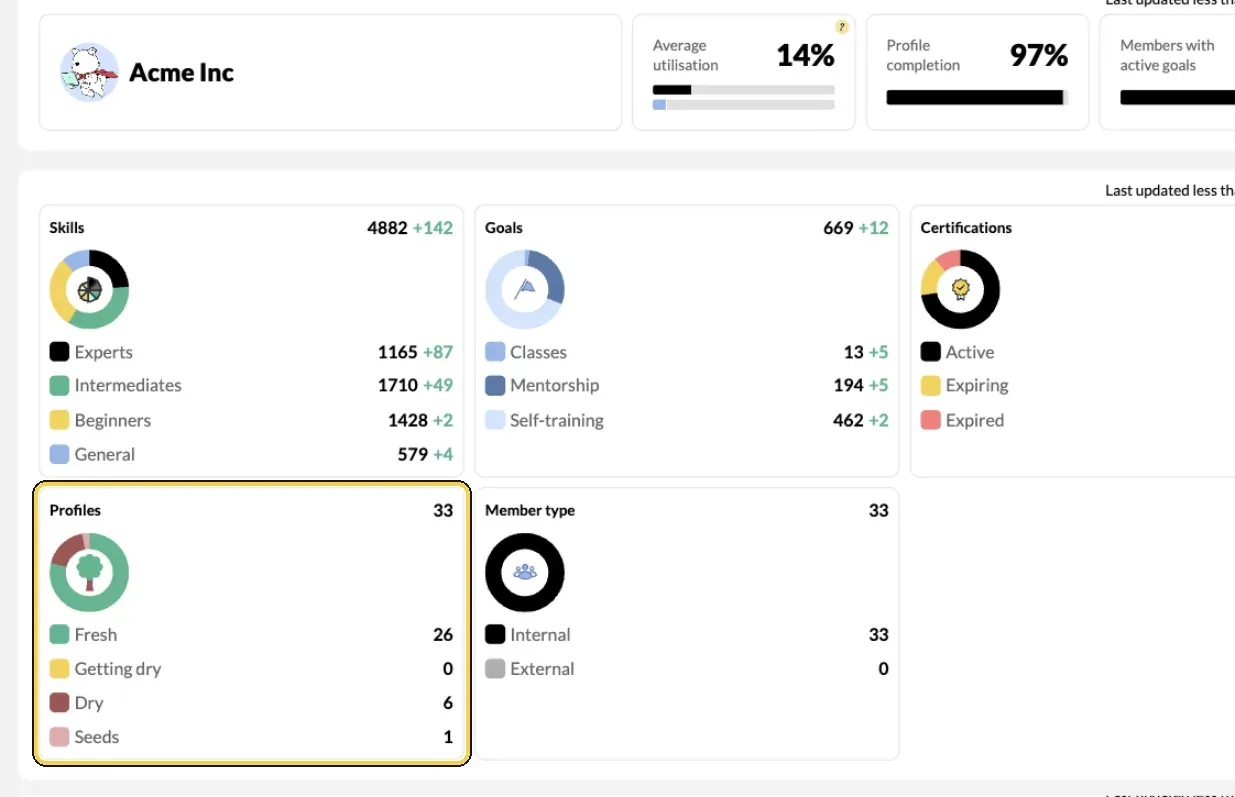
Profile freshness in My Circle.
Steps
See who needs to update
- Open My Circle. Click My Circle in the top menu.
- Read the Profiles card. Note how many profiles are Getting dry, Dry or Seeds.
- Check Profile completion in the header. It shows how complete your team's profiles are, from photo and overview to skills.
Remind people
- Remind a group. In the Quick reminder panel, click Send reminder next to incomplete profiles, dry profiles or profiles getting dry. The line then shows Email reminder sent with the date.
- Remind one person. Click their name under Reporting to you, open Updates and click Nudge next to Profile updated or No skills have been added.
- Nudge about certificates and retrospectives. On the same tab, click Nudge next to an expiring or expired certificate, or next to Last retrospective is incomplete.
Check from the members list
- Open Team/Org › Members. Choose the List view.
- Filter by Manager. Open Filter, choose yourself under Manager, and apply it.
- Sort by Last Skill/Cert Updates. The people who updated longest ago come to one end of the list. Total Skills shows who has added only a few.
Make it a habit
- Ask for retrospectives. A scheduled retrospective asks everyone, at a set interval, whether their skills have changed. Agree the rhythm with your MuchSkills admin. See Run a skills retrospective.
- Use one-to-ones. Ask people to update their profile before each one-to-one, and look at it together. See Hold great one-to-ones.
Check it worked
- Over the following days, profiles move from Dry or Getting dry to Fresh on the Profiles card.
- Profile completion in the header goes up.
Tips
- Explain before you remind. People update when they see why: staffing, development, learning that fits them. Say it once, clearly, before the first reminder.
- Lead by example. Keep your own profile fresh. Your team sees it.
- Pick a moment. After a project ends, a course finishes or a certificate is renewed, a quick update takes less effort and is more accurate.
- Reward accuracy, not volume. A smaller set of honestly rated skills is worth more than a long list of guesses. Rate your skills explains the scale.
Troubleshooting
| What you see | Why | What to do |
|---|---|---|
| The Quick reminder panel is missing | Nobody in your circle has an incomplete, dry or drying profile | Nothing to do |
| Reminder sent, and the button cannot be clicked | Everyone in that group was reminded today | Try another day |
| You can try again in ... seconds | You nudged this person moments ago | Wait and try again |
| There are no employees to display here | Nobody has you as their direct manager in MuchSkills | Ask your MuchSkills admin to check the reporting lines |
| No Export as CSV in Members | Only Owners and Admins can export | Use the filter and sort on screen, or ask your admin for an export |
Frequently asked questions
What counts as a fresh profile?
Your organisation sets it in the Profile Freshness Meter. A profile stays Fresh while it has been updated recently, shows as Getting dry after a set number of days without an update, and as Dry after a further period. Seeds are profiles with no skills yet.
Who gets the email when I click Send reminder?
Only the people in that group in your circle, for example your dry profiles. Nobody outside your circle is emailed.
Can I remind the same people twice in one day?
No. Once everyone in a group has been reminded today, the button shows Reminder sent. Try again another day, or talk to them.
Why is there no Nudge button for some people?
Their profile is fresh, so no reminder is needed.
Can I export a list of my team's profiles?
Owners and Admins can export members as a CSV file from Team/Org › Members. As a manager, filter the Members list by Manager and sort by Last Skill/Cert Updates to see the same picture on screen.
Are there reminders that run by themselves?
Yes. Retrospectives, when your organisation schedules them, and reminders before certificates expire. Nudges you send yourself are always delivered, even if your organisation has switched off other automatic emails.
Someone ignores every reminder. What now?
Raise it in your next one-to-one. Show them what an up-to-date profile does for them: the projects, goals and learning it leads to.