


Find internal candidates for a role
- Who
- Hiring managers, HR and resource planners
- Where
- Team/Org › Analysis, then Discover
- Matches on
- Skills, certificates and badges, with required levels
- Employees see
- Their own fit in My Growth › Gap Analysis
Describe the role as a skill list in Analysis, with required levels and the skills that matter most. MuchSkills then shows how well each person matches it. Narrow the shortlist with filters, check availability in Discover, and talk to the people behind the profiles.
How it works
Finding internal candidates starts with a clear picture of the role. In MuchSkills, you describe the role as a skill list in Team/Org › Analysis: the skills, certificates and badges it needs, the level required for each, and which ones are must-haves. MuchSkills then scores everyone in your organisation against that list.
You get a shortlist of people who match the role, from any department. You narrow it with filters, check who is available in Discover, and then talk to the people behind the profiles.
Internal candidates often know your organisation, your customers and your ways of working already. The data helps you find people you would not have thought of. It does not replace a conversation with the candidate and their manager.
Before you start
- A role list. If your organisation already has role lists, use them. Otherwise create one as described below, or see Run a skill gap analysis.
- Up-to-date profiles. Matching uses the skills people have added and rated. Lists of certificates and badges help for regulated roles.
- For availability: Discover is for Owners, Admins and Analysts.
Steps
Describe the role
- Open Analysis. Click Team/Org › Analysis.
- Create the list. Click Create AI powered list and describe the role, or paste the job description. Check the suggested title and description, then click Save and continue. Or click + to create the list by hand: give it a title, choose the list type Company role and click Create list. The gear button on a list opens its settings, where you can change the type later.
- Add what the role needs. Use the two search boxes at the top of the list: one for skills and badges, one for certifications. With AI, you can ask for suggestions and add them all with + Add all suggestions.
- Set the bar. For each skill, set Reqd. level to the level the role needs. Click the star next to the skills that are must-haves, so they count as prioritised.
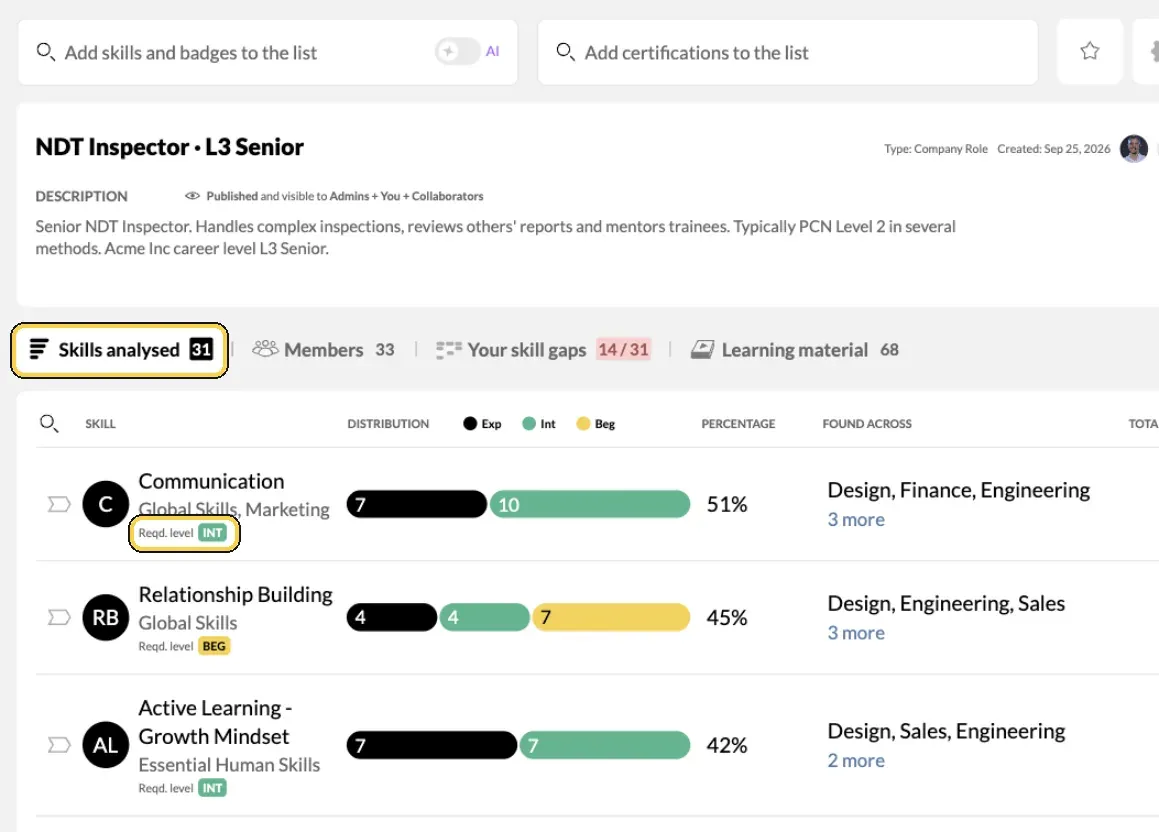
A role list in Analysis, with the required level per skill.
See who matches
- Open the Members tab. It lists the people who match the role, with their prioritised and remaining matches side by side.
- Sort the shortlist. Sort by Important to bring the people who cover the must-haves to the top, or by Expert, Intermediate or Beginner to see who holds the skills at which level.
- Narrow it down. Click Filter. Under Requirements for matching profiles, set Min. competences match from to the smallest number of matches you would accept, and tick Exclude items where require level was not set if you only want skills with a required level to count. Under Competences, choose Only priority competences to focus on the must-haves. You can also filter by department, location, manager, tag or job title.
- Look at each person. Click a person to see how they match each skill, with their own rating and their manager's validation side by side.
Check availability and reach out
- Check who is free. Open Team/Org › Discover, search for a candidate or the key skill, and filter on AVAILABILITY for the months the role starts. The card shows each person's average daily availability and availability per month.
- Read the profiles. Open each shortlisted profile to see experience, certificates and goals. A goal towards a skill in the role is a good sign of motivation.
- Talk to the candidate and their manager. Agree on interest, timing and how the current work is handed over.
Tips
- Publish the list. When you launch a role list, employees see their own fit in My Growth › Gap Analysis. People who are close to the role can then raise their hand, or start working on the gap.
- Keep must-haves few. Three to five prioritised skills make the ranking meaningful. Mark the rest as remaining.
- Look beyond a perfect match. Someone who matches the must-haves at Intermediate and has a goal towards Expert may be the better long-term choice.
- Watch the impact on the team they leave. Before you move someone, check the role list or the Demand report for skills that would become scarce.
- Reuse the list. The same role list works for the next opening, for development talks and for gap analysis.
Troubleshooting
| What you see | Why | What to do |
|---|---|---|
| No skills to analyse against yet | The list is empty | Click Add skills to list and add the skills the role needs |
| The Members tab is empty | The filters are too strict, or no one has added any of the skills | Lower Min. competences match from, or click Reset All in the filters |
| Everyone seems to match | The list has few skills, or no required levels | Set Reqd. level on the key skills and star the must-haves |
| Create AI powered list is not shown, or asks you to upgrade | AI suggestions are not part of your plan | Create the list by hand with +, or choose Create list manually |
| A strong colleague is missing | Their profile lacks the skills, or they rated them lower than you expect | Ask them to update their profile, or ask their manager to validate their skills |
Frequently asked questions
Do I need a list in Analysis, or can I just search?
For one or two skills, a search in Discover is enough. For a role with many skills and levels, a list in Analysis is better: it scores everyone against the whole role at once, and you can reuse it for the next opening.
What is the difference between prioritised and remaining skills?
Prioritised skills are the must-haves for the role. Mark them with the star when you build the list. The remaining skills are nice to have. Candidates are shown with their matches in both groups, so you can see who covers the essentials.
Can I show only people who match a minimum number of skills?
Yes. In the filters on the list, under Requirements for matching profiles, set Min. competences match from. You can also choose Only priority competences, or exclude skills that have no required level.
Can people see that they match a role?
Yes, once the list is published. Every employee sees their fit for published lists in My Growth › Gap Analysis, with their personal gaps and learning material. This often brings candidates forward on their own.
How do I know whether a candidate is free?
Look the person up in Discover, or filter Discover on availability. The card shows their average daily availability and availability per month.
Should I tell the candidate's manager?
Yes. Talk to the person and their manager before you treat anyone as a candidate. MuchSkills shows skills and availability, and the conversation tells you about motivation and timing.
Can AI suggest the skills for the role?
Yes, where your plan includes it. Click Create AI powered list and describe the role, or paste the job description. Review every suggestion before you keep it. Without AI, add the skills yourself.