


Set a development goal
- Who
- Everyone
- Where
- My Growth › Goals
- Board
- Planned, Ongoing, Completed, Archived
- Followed by
- You, your manager and your goal buddy
A goal says which skill you want to grow, or which certificate you want to earn, how you plan to get there and by when. Your goals sit on a board in My Growth, where your manager and your goal buddy can follow them.
How it works
My Growth › Goals is a board with four columns. MuchSkills places each goal for you:
| Column | Which goals |
|---|---|
| Planned | Goals whose start month is still ahead |
| Ongoing | Goals that have started and are not yet achieved |
| Completed | Goals you have marked as achieved |
| Archived | Completed goals you have archived. Click Archived to see them |
Each card shows your current level and your target level, how you plan to get there, your goal buddy and the month you want to achieve it by. A goal past its date shows Goal completion is overdue.
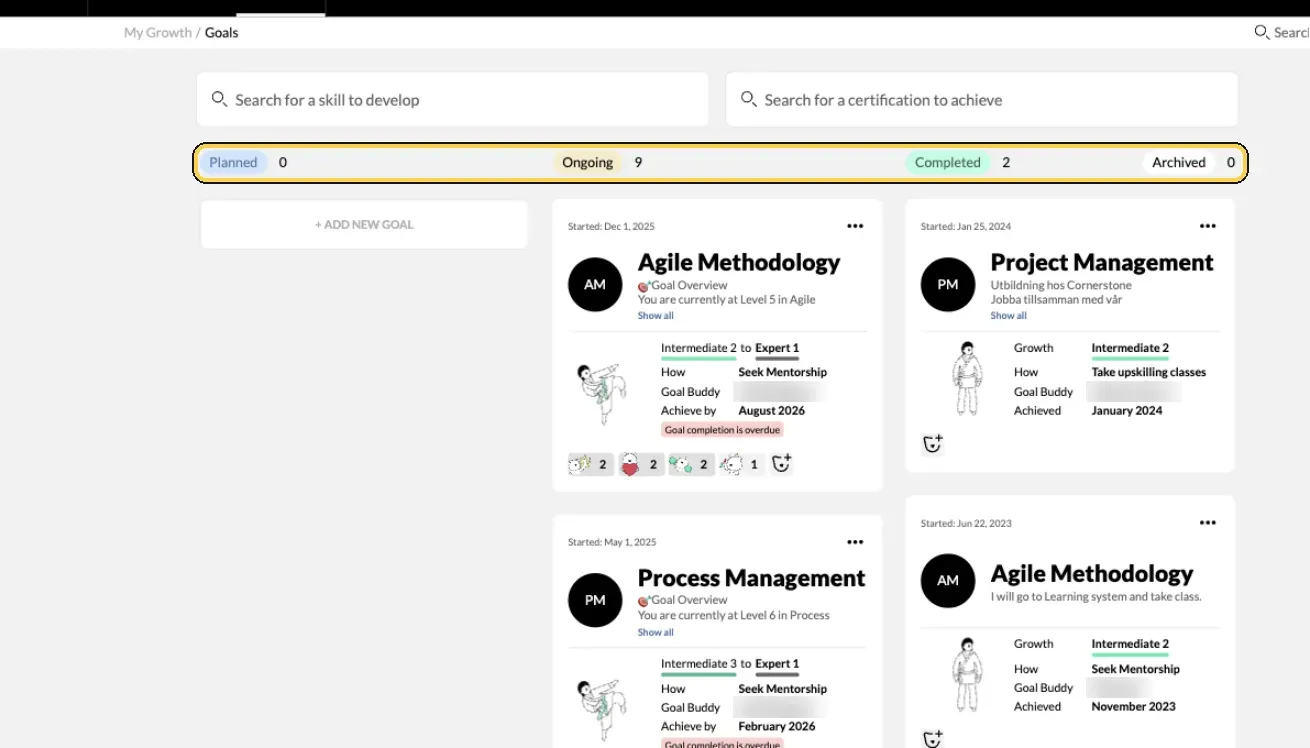
My Growth › Goals.
Steps
Create a goal
- Open your goals. Click My Growth in the top menu, then Goals.
- Choose what to grow. Type a skill in Search for a skill to develop, or a certificate in Search for a certification to achieve, and pick it from the list. You can also click + Add new goal on the board.
- Set your target level. Under What level would you like to get to?, click the step you want to reach. Your Current level shows above it. Rate your skills explains the steps.
- Choose how. Under How would you like to get there?, pick Seek Mentorship, Self-training or Take upskilling classes.
- List the tasks. Under What tasks will help you achieve this goal?, write the concrete steps, for example a course, a project or a book. If you see AI goal helper, it suggests a plan once you have picked a level. Edit it so it fits you.
- Ask for help if you need it. Under Do you need help getting there?, click Yes or No.
- Pick a goal buddy. Under Pick a Goal Buddy, search for a colleague who can support you. This is optional.
- Set the dates. Under When would you like to start & achieve your goal?, choose a Start month and an End month.
- Click Create.
Keep it moving
- Update the goal as you go. Open the menu on the card and choose Edit to change the tasks, dates or buddy.
- Mark it achieved. Open the menu on the card and choose Goal achieved already. In the month the goal is due, you can also click Goal Achieved on the card, or Snooze: 1 Month if you need more time. For a skill goal, check that your level in My Skills now matches what you can do.
- Archive it. When a completed goal no longer needs to be on the board, open its menu and choose Archive.
Check it worked
- The goal appears in Planned or Ongoing, depending on its start month.
- Your manager sees it on your page in My Circle, under Goals.
- If you picked a goal buddy, they find you under Your goal buddies in My Circle.
Tips
- Aim for the next step, not the summit. Moving from Beginner (3) to Intermediate (1) in a few months is a better goal than jumping straight to Expert.
- Start from your gaps. My Growth › Gap Analysis shows the skills your organisation's role lists ask for. See Find your skill gaps.
- Find an expert. The goal form shows how many experts in the skill your organisation has. One of them may make a good goal buddy or mentor.
- Link learning. Courses linked to the skill show in the Learning Library and on the skill's page. See Find and add learning.
- Bring it to your one-to-one. Goals are a good agenda for a conversation with your manager.
Troubleshooting
| What you see | Why | What to do |
|---|---|---|
| Please set a skill level | No target level is chosen | Click a step under What level would you like to get to? |
| Goal completion is overdue | The achieve-by month has passed | Mark the goal as achieved, or choose Edit and set a new End month |
| No Edit or Remove in the card menu | Your manager created the goal | Ask your manager to change it |
| You need to upgrade the plan first | The AI goal helper is not part of your organisation's plan | Write the tasks yourself. Everything else works the same |
| Join a team to generate an AI plan | You are not part of your organisation's team yet | Open your invitation, or ask your manager for one |
| Couldn't generate the plan. Please try again. | The AI goal helper could not create a plan this time | Try again, or write the tasks yourself |
Frequently asked questions
Can I set a goal for a certificate?
Yes. Use the search box Search for a certification to achieve. When you mark the goal as achieved, MuchSkills takes you to My Certifications so you can add the licence.
Why is my goal under Planned and not Ongoing?
Its start month is still in the future. The goal moves to Ongoing by itself when the start month arrives.
How do I mark a goal as done?
Open the menu on the goal card and choose Goal achieved already. In the month your goal is due, the card also shows a Goal Achieved button.
What does Snooze: 1 Month do?
It appears on the card in the month your goal is due and gives you one more month to achieve it.
My manager set a goal for me. Why can't I edit it?
Goals your manager created show their name on the card. Only your manager can change or remove them, so talk to them if it needs adjusting. You can still mark the goal as achieved.
What is the AI goal helper?
When it is available on your plan, it suggests a step-by-step plan once you have chosen your target level. The plan appears under What tasks will help you get there? and you can edit it.
Who can see my goals?
You, your manager in My Circle, your goal buddy, and admins in goal reports.
Where do my old goals go?
Achieved goals move to Completed. From there you can archive them. Click Archived at the top of the Completed column to see archived goals, and Unarchive one if you need it back.