


HiBob
Keep people, managers, departments and time off in MuchSkills up to date from HiBob. You create a service user in Bob, decide what and whom it can see with a permission group, and connect it in MuchSkills.
- Who
- A MuchSkills Owner or Admin, with a Bob Admin
- How it connects
- Self-serve, in Settings › Integrations
- Sync
- Every 5 hours, or on demand with Sync Now
- Access
- Read-only
How to
Before you start
- In MuchSkills: the Owner or Admin role.
- In Bob: a Bob Admin who can create service users and permission groups.
- Decide who to sync first. Bob decides who MuchSkills sees, through the service user's permission group. Start with five to ten people. You can widen the scope afterwards.
- Tell people first. Starting the sync invites everyone in scope to create their MuchSkills profile.
- Check email addresses. The email in Bob should be the address each person uses to sign in to MuchSkills.
Steps
In MuchSkills
- Open the HiBob connector. Go to Team/Org › Settings › Integrations and click Connect on HiBob. Keep this tab open: you paste two values into it as you go.

Team/Org › Settings › Integrations › Connect on HiBob.
In Bob
- Create a service user. In Bob, go to System Settings › Integrations and open Service Users. Create a service user named MuchSkills. Bob shows its ID and token. Copy the ID into HiBob service user and the token into HiBob token in MuchSkills. Copy the token straight away: Bob only lets you copy it when it is generated. HiBob's guide to API service users
- Create a permission group for it. Under System Settings › Account › Permission groups, create a group named MuchSkills and add only the service user as a member. A new group has no permissions, and a service user has none until you add it to a group.
- Give view access to people's data. In the group, click Edit permissions and open People's data › People's fields. Tick View on the Basic info, About, Employment and Work categories. These are the fields HiBob lists as the defaults for reading employee data: name, email, photo, job title, department, site and manager. Leave Edit off, and leave payroll and other sensitive categories closed. HiBob's guide to categories and permissions
- Give view access to time off. In People's data, under Time off › See who's out today, tick See who's out. HiBob's time off permissions
- Choose whose data it sees. In People's data, click Access data for. For a first sync, choose Select people by name, click Edit, pick five to ten people and click Apply. To sync part of the company, use Select people by condition, for example a department or site. Everyone covers all employed people. Save the group.
Back in MuchSkills
- Connect. With both values pasted in, click Connect. The status changes from Waiting for credentials to Api Connected.
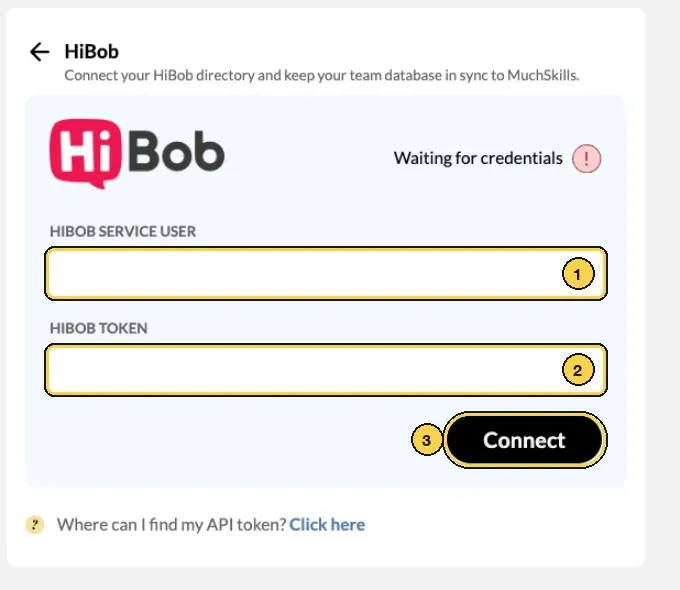
The HiBob form: 1 service user, 2 token, 3 Connect.
- Start the sync. MuchSkills shows how many employees will be synced and invited. Click the number to see their names, email addresses and departments. When the list looks right, click Start Sync.
- Widen the scope. When the first people look right, change Access data for in Bob to everyone who should be in MuchSkills. The next sync brings them in, or click Sync Now.
Check it worked
- The connector shows Data is synced every 5 hours, with Last successful sync and Next scheduled sync.
- On Team/Org › Settings › Integrations, the HiBob tile shows Connected.
- Team/Org › Members lists the people you synced.
- The people you synced have an invitation to create their profile.
Benefits
What you get
- HiBob stays the source of truth. New hires, profile updates and leavers flow from Bob into MuchSkills, with no manual work.
- Availability you can plan with. Time off from Bob shows in Team Builder and My Circle, so staffing reflects who is actually around.
- Managers see their people. Each manager's direct reports appear in My Circle as soon as the sync runs.
Important to know
Important to know
What syncs. Only email and name are required. Sync as many of the other fields as you can, because each one makes MuchSkills more useful.
| Field in MuchSkills | Needed | Used for |
|---|---|---|
| Name | Required | Profiles, search, every view |
| Required | Matching and sign-in | |
| Job title | Recommended | Profiles, roles, Discover |
| Department | Recommended | Departments and filters |
| Manager | Recommended | Reporting lines, My Circle, reports |
| Location | Recommended | Filters |
| Profile photo | Recommended | Profiles and the org chart |
| Time off | Recommended | Availability in Team Builder and My Circle. Dates and percentages only |
The permission group decides who syncs. MuchSkills syncs everyone the service user can see. A dedicated group for MuchSkills lets you change that scope at any time without touching anything else in Bob.
How often. Every 5 hours. Sync Now runs it immediately and Pause Sync stops it until you start it again.
Profile photos. Photos are saved when an account is created and are not updated by the automatic sync. Click Sync Now to pull in changed photos.
Time off arrives as dates and percentages. Policy types and reasons are never imported.
Leavers are deactivated, not deleted. When someone leaves in Bob, or drops out of what the service user can see, MuchSkills deactivates them at the next sync. Their project history and certificates stay on record, which matters for audits.
Tags from HiBob fields. If you want filterable tags in MuchSkills from fields such as team name, contract type or team lead, contact support@muchskills.com. It is optional and can be added at any time.
Keep the token current. If you refresh the service user's token in Bob, paste the new token into HiBob token and click Update Credentials. Deleting the service user stops the sync.
One people sync at a time. If another HR connector is already syncing, Start Sync asks Are you sure? and warns This action will stop your current integration sync. Click Yes, connect only if you want HiBob to take over.
Data MuchSkills does not accept. These are blocked when data arrives and never stored: age or date of birth, salary or other compensation data, performance ratings, and political, religious or health data.
Common errors
Troubleshooting
| What you see | Why | What to do |
|---|---|---|
| Invalid Credentials | The service user's name went into HiBob service user instead of its ID, or the token was copied wrongly or has been refreshed | Paste the ID and a newly generated token, then click Update Credentials |
| Failed to fetch employees. Please check the integration settings and try again. | The service user is not in a permission group, or the group has no View on People's fields | Add the service user to the group, tick View on the categories in step 4, then click Update Credentials |
| No Start Sync button after connecting | The group's Access data for covers no one | Check Access data for in the permission group, then reopen the connector |
| Missing Attributes in API | The group cannot see a field, or some people lack a value, usually email | Tick View on the field named in the message, or fill in the missing values in Bob, then click Sync Now |
| Job titles, departments or managers are missing | The group has no View on Work, or a field was moved to another category in Bob | Check the field's current category under People's fields and tick View on it |
| Time off does not show | See who's out is not ticked in the group | Tick it under Time off › See who's out today |
| Authentication failed multiple times. Please verify your HiBob credentials and permissions are correctly configured. | The service user was deleted, or its token was refreshed | Create or refresh the token in Bob, paste it in and click Update Credentials |
| A photo has not changed | Automatic syncs do not update photos | Click Sync Now |
Frequently asked questions
Which roles do we need?
In Bob, a Bob Admin creates the service user and its permission group. In MuchSkills you need the Owner or Admin role. One person can do both if they hold both roles.
Where do we choose who is synced?
In Bob. MuchSkills syncs everyone the service user can see, and Access data for in its permission group decides who that is. There is no department picker for HiBob in MuchSkills.
Can we start with a few people before syncing everyone?
Yes, and we recommend it. Set Access data for to Select people by name and pick five to ten people. Check the result in MuchSkills, then widen the selection in Bob.
How often does the sync run?
Every 5 hours. An Owner or Admin can run it at any time with Sync Now on the connector.
What happens when someone leaves?
When a person leaves in Bob, or falls outside what the service user can see, MuchSkills deactivates them at the next sync. They disappear from everyday views, and their project history and certificates stay on record. Nothing is deleted.
Does MuchSkills write anything back to HiBob?
No. The service user only needs view permissions. Skills, certifications and development information stay in MuchSkills.
Do employees get an email when we start?
Yes. Starting the sync invites everyone in scope to create their MuchSkills profile, so tell people about MuchSkills before you click Start Sync.
Does the service user count as an employee in Bob?
No. Service users are not tied to employees, cannot log in to Bob, and do not affect headcount or the people directory.
Do you import the reasons for time off?
No. MuchSkills takes only the dates and the percentage of time away. Policy types and reasons, such as sick leave, are never imported.