


Step 7: Use your skills data
Once people have added their skills, the data answers practical questions: which skills you have, where the gaps are, who can do a piece of work and what to hire for or develop. This page shows where each answer lives in MuchSkills and which guide explains it.
- Who
- Owners, Admins, Analysts and managers
- Where
- Team/Org › Analysis, Reports and Discover
- Managers see
- Their own people
- Export
- Export as CSV from reports
How to
How it works
Every organisation is unique, so use the parts that fit your goals. This table shows where each answer lives.
| Question | Where in MuchSkills | Guide |
|---|---|---|
| Which skills do we have? | Team/Org › Overview, and the Reports dashboard | How to use reports |
| How well do we cover a role or a competence? | Team/Org › Analysis, open a list | How to do skill gap analysis |
| Where does each person stand? | My Growth › Gap Analysis for the employee, My Circle for their manager | How to do skill gap analysis |
| Who can do this piece of work? | Team/Org › Discover | How to find people fast with Discover |
| Who is available, and when? | Reports › Utilisation, and Team Builder | How to plan teams using utilisation and availability data |
| Should we hire or upskill? | Reports › Skills › Demand | How to use the Demand Report |
| Which certificates are expiring? | Reports › Certifications | How to manage and track certifications |
| Who is developing which skills? | Reports › Growth, and goals in My Circle | How to set a personal development goal |
Before you start
- People have added their skills (step 5), and your role lists are published (step 3).
- The right people have access. Give HR business partners, L&D leads or resource managers the Analyst role, so they can see all reports without changing settings.
- Tags are set up, if you want to group people across departments, for example by client or by cohort. Create them in Team/Org › Settings › Manage Tags.
- The demo data is gone, so your numbers only count your own people.
Steps
Analyse skills and gaps
- Open a list in Analysis. Go to Team/Org › Analysis and choose a list. Skills analysed shows each skill's Distribution across levels, its Percentage of the organisation and where it is Found Across.
- See people against the list. The Members tab shows how each person matches the prioritised and remaining skills. Sort by Important, Expert, Intermediate or Beginner.
- Narrow it down. Filter by department, location, manager, tag or time range. To see what your team can deliver today, leave beginners out of the view.
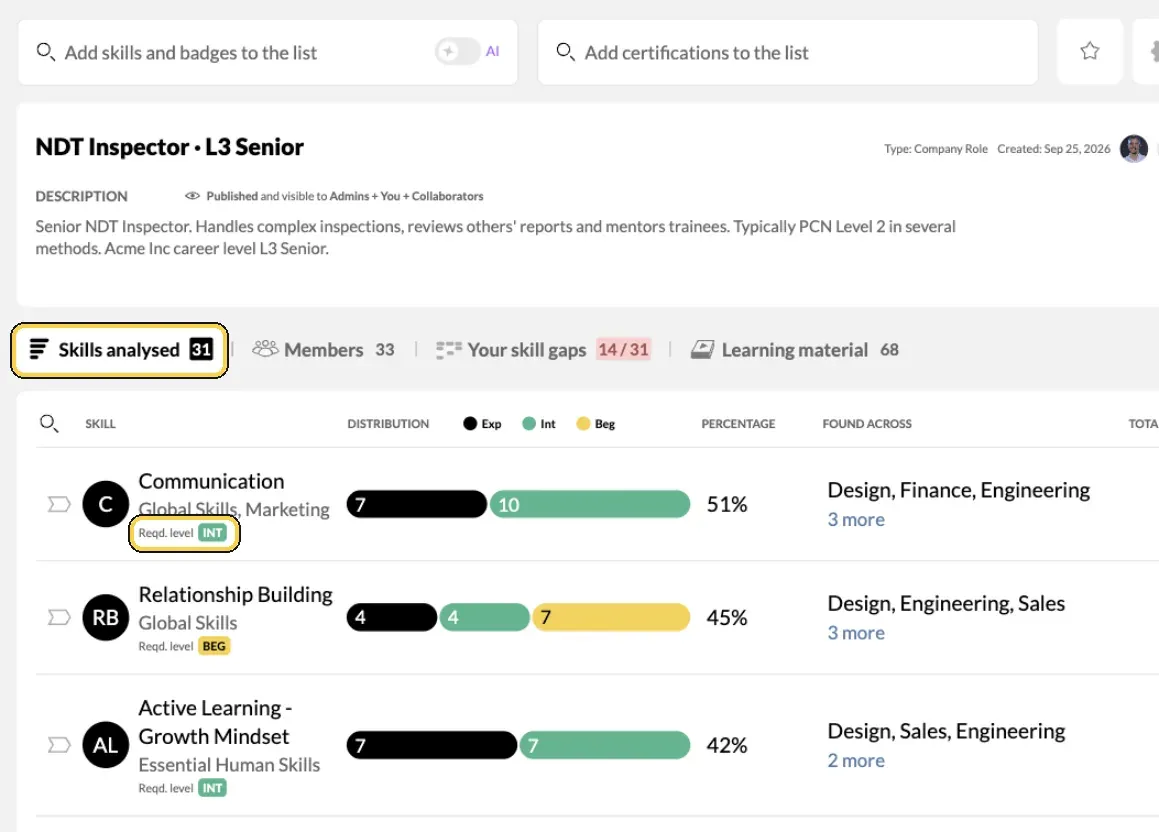
A role list in Analysis, with the required level per skill.
Report
- Open Reports. Go to Team/Org › Reports. The dashboard has the tabs Overview, Skills, Goals and Validated. On the left you find Skills, Certifications, Growth and Utilisation, and Courses when a learning platform is connected.
- Export what you need. Use Export as CSV to take a report into a spreadsheet.
Find people
- Search in Discover. Go to Team/Org › Discover. Quick is a fast keyword search, best when you know the skill. Smart lets you describe who you are looking for, and AI sets the filters. Narrow the results by availability, department, location, role, tags, manager or job title.
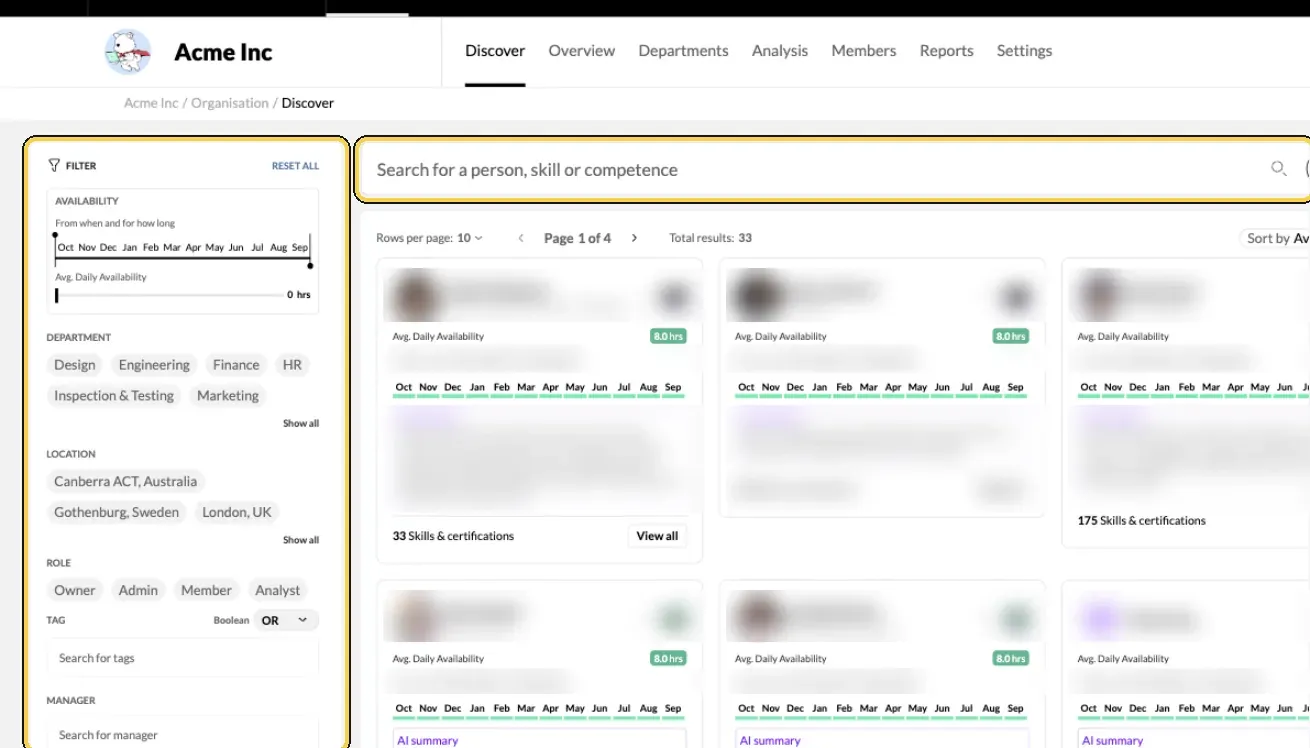
Team/Org › Discover: search and filters. People blurred.
Plan
- Staff a project. In Team Builder, create a team, add the skills and levels the project needs, and see who matches and how much time they have.
- Decide where to hire or upskill. Reports › Skills › Demand compares the skills your projects need with the people who have them, level by level.
- Turn gaps into goals. Employees set goals in My Growth › Goals, and managers use Set a goal in My Circle. Learning material linked to a skill appears next to the gap.
Check it worked
- You can open a role list and see who matches it, and where the gaps are.
- A manager can show the gaps of their own team in My Circle.
- A Discover search returns the people you expected for a skill you know well.
Benefits
What you get
- Gap analysis at every level. Strengths, gaps and growth for individuals, teams, departments or themes such as leadership, for targeted development and long-term planning.
- Role fit for people and projects. You find the best internal candidates for roles and projects, and employees see their own fit for roles across the organisation.
- Learning paths. Gaps in defined roles link to learning material, so people know where to start.
Important to know
Important to know
Filters work the same way everywhere. Department, location, manager, tag and time range behave alike in Members, Overview, Analysis and Reports, so you can look at the same group of people in the same way in each place.
Who sees what. Owners, Admins and Analysts see the whole organisation. Managers see their own people. Members see their own views. See Roles and permissions.
Self-assessed and validated. Team/Org › Overview has the tabs All Skills and Manager validated, and reports separate User added from Validated data, so you can choose which to rely on.
Data in other tools. To bring MuchSkills data into Power BI, Excel or your own systems, see MuchSkills API and API Access and Power BI and Excel.
More guides. How to do strategic workforce planning with skills data, How to find internal candidates, How to build a team using Team Builder, How to use My Circle to coach and grow your team and How to keep employee skill profiles up to date.
Research-based advice. Our manager playbooks help the organisation become more skills- and strengths-focused.
Common errors
Troubleshooting
| What you see | Why | What to do |
|---|---|---|
| A list shows few people | People have not yet rated themselves against it | Remind people to complete the presets for their role |
| Demo people show up in reports | The demo data is still in your organisation | Contact support to remove it |
| Courses is missing from Reports | No learning platform is connected | See Connect any learning platform |
| A manager sees only part of the organisation | Managers see their own people | Give them the Analyst role if they need everyone |
| The Demand Report is empty | No Team Builder project has skill requirements yet | Add skills and required levels to your projects in Team Builder |
Frequently asked questions
Who can see the data for the whole organisation?
Owners, Admins and Analysts. Managers see their own people in My Circle and in reports. Members see their own views and their own gaps.
How do we give an HR business partner access to all reports?
Give them the Analyst role in Manage Members. Analysts see all data, including every report, and have no access to settings.
Can we export the data?
Yes. Reports have Export as CSV. For regular exports into other tools, use the MuchSkills API, or follow the Power BI and Excel guide.
Where do employees see their own gaps?
In My Growth › Gap Analysis, against every published role and competence list, with learning material for the skills they lack.
How do we find people for a project?
Use Discover for a quick search by skill, certificate or availability. Use Team Builder when you want to set the skills and levels a project needs and see who matches.
How do we decide whether to hire or upskill?
Use the Demand Report under Reports. It compares the skills your projects need with the people who have them, level by level.
How do we keep the data current?
Use retrospectives, reminders from My Circle and regular one-to-ones. Step 6 explains all three.