


Request an integration
If your system is not in the MuchSkills integrations list, you can usually still connect it. Check the hub pages for your type of system first. If nothing fits, send us the details on this page and we build a custom connector with you.
- Who
- A MuchSkills Owner or Admin, with your system's administrator
- How it connects
- Custom set-up, part of your implementation
- Includes
- A technical session with our CTO
- Contact
- support@muchskills.com or the chat in MuchSkills
How to
How it works
Systems connect to MuchSkills in four ways. The integrations list in MuchSkills shows which way applies to each system it names.
| Way | What it means | Who does the set-up |
|---|---|---|
| Self-serve connector | A form in Team/Org › Settings › Integrations, with a Connect button | You |
| On request | We switch the connector on for your organisation, then you add the credentials | Us first, then you |
| Custom set-up | We connect to your system's API with read-only access you give us | We build it with your team |
| MuchSkills API | Your own code or integration platform reads and writes MuchSkills data | Your developer or partner |
Systems that show Contact us to get started using followed by their name are on request or custom. Systems that are not in the list at all can usually be connected through a custom set-up.
Before you start
Check the page for your type of system first. Each one explains the routes that exist today:
- HR and identity systems: How HR integrations work
- Learning platforms: Connect any learning platform
- Project, planning and utilisation tools: Connect any utilisation source
- Getting data out of MuchSkills: MuchSkills API and API Access and Power BI and Excel
- User provisioning: SCIM and OAuth 2.0 integration guide
Steps
Check what exists
- Look in MuchSkills. Go to Team/Org › Settings › Integrations. If your system has a Connect button, follow its help page. If it shows Contact us to get started using and its name, go to step 3.
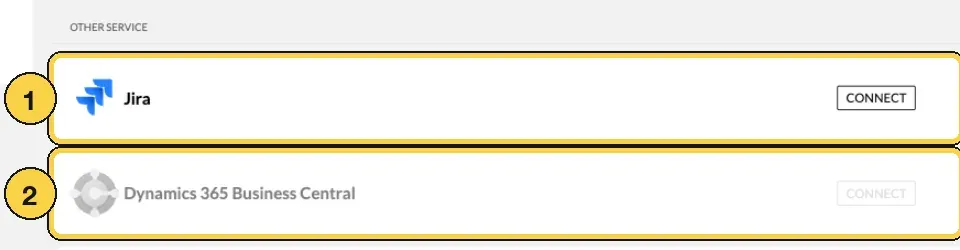
1 a self-serve connector with Connect, 2 a connector we set up with you.
- Read the hub page. If your system is not listed, open the hub page for its type above. It may already describe a route, such as the API or a file import.
Ask for an integration
- Send us the details. Email support@muchskills.com or use the chat in MuchSkills with:
- the system's name, and whether it runs in the cloud or on your own servers
- a link to its API documentation
- the data you want to move, and the direction: into MuchSkills, out of it, or both
- who should be in scope, for example all employees or one country
- the sign-in methods the system offers, such as an API key, OAuth 2.0 client credentials or a service user
- a technical contact on your side
- Do not include passwords, keys or tokens. If you are not a customer yet, use the contact form.
- Get our answer. We reply with the route that fits and what your team needs to prepare.
- Join the technical session. Your system administrator and our CTO agree the data, the mapping and how access works.
- Give read-only access. Your team creates the access we agreed and shares the credentials through a secure channel we agree, never by plain email.
- Check a first sync. We sync a handful of people or records. You check them in MuchSkills, then we switch the sync on for everything in scope.
Check it worked
- You have our written answer with the route and what to prepare.
- After the first sync, the people or records in scope appear in MuchSkills.
- You know who to tell when something changes on your side.
Benefits
What you get
- One place for skills data. Your other systems feed MuchSkills, so nobody keeps a second copy by hand.
- A connection built for your set-up. Field names, scope and filters follow how your system is configured.
- A partner for changes. When your system changes, we adjust the connector with you.
Important to know
Important to know
Many unlisted systems can connect. The integrations list shows the connectors we have built. Many more systems connect through a custom set-up.
Read-only by default. Custom connectors read from your system. Nothing is written back unless we agree it with you.
Credentials travel safely. Always through a secure channel we agree in advance, such as a password manager share.
Data MuchSkills does not accept. These are blocked when data arrives and never stored: age or date of birth, salary or other compensation data, performance ratings, and political, religious or health data.
Start before the connector is ready. Import people from a CSV file with Import Members from CSV file in Team/Org › Settings › Manage Members (available on request: ask support to switch it on), and switch to the integration when it is live.
Building it yourself. With the MuchSkills API, your own developer or integration partner can build the connection. All plans include API access.
Common errors
Troubleshooting
| What you see | Why | What to do |
|---|---|---|
| Your system shows Contact us to get started using and its name | It is connected on request or with a custom set-up | Email support@muchskills.com or use the chat |
| Your system is not in the integrations list | There is no ready-made connector for it yet | Check the hub page for its type, then send us the details in step 3 |
| You need MuchSkills data in another tool | That is a job for the MuchSkills API | Follow MuchSkills API and API Access, or Power BI and Excel |
| A custom sync stopped after a change on your side | Field names, credentials or the API version changed | Tell us what changed and send new credentials securely if needed |
Frequently asked questions
Our system is not listed in MuchSkills. Can we still connect it?
Usually, yes. Many systems that are not in the app, such as Paycor and Paycom, connect through a custom set-up. Send us the details on this page and we tell you what is possible.
What should we send in the first message?
The system's name, a link to its API documentation, the data you want to move and in which direction, who should be in scope, and a technical contact. Do not send passwords, keys or tokens in that message.
Is the custom set-up part of our implementation?
Yes. A custom set-up includes a joint technical session between your system administrator and our CTO, as part of your MuchSkills implementation.
Can we build the integration ourselves?
Yes. All plans include API access. An Owner or Admin creates an API client under Team/Org › Settings › API Access, and your developer or integration partner builds on it.
Does MuchSkills write data back to our system?
Custom connectors read from your system. Nothing is written back unless you ask for it and we agree it with you.
Can we start using MuchSkills before the integration is ready?
Yes. Import people from a CSV file in Manage Members while the integration is prepared. People keep their MuchSkills data when you switch to the integration.
What happens when our system changes?
MuchSkills runs the sync once it is live. Tell us before you change field names, credentials or the API version on your side, so the sync keeps working.