


Credly
Bring the certificates your people hold as Credly badges into MuchSkills. You connect your organisation's Credly Workforce account with its Organisation ID and an API token. Badges from employees who have accepted your Credly connection then appear as certificates on their profiles.
- Who
- A MuchSkills Owner or Admin, with a Credly organisation admin
- How it connects
- Self-serve, in Settings › Integrations
- You need
- Your own Credly Workforce licence
- Coverage
- Employees who accept your Credly connection
How to
How it works
Credly Workforce lets an employer connect to its employees' Credly accounts. Once an employee accepts, Credly shares the badges they have earned from other issuers with the employer. MuchSkills matches each employee by email address and adds their accepted badges as certificates, with the issuer, the issue and expiry dates and a verification link, next to the certificates people add in MuchSkills. Badges issued by your own Credly organisation, and pending badges the employee has not accepted, are not imported.
Before you start
- In MuchSkills: the Owner or Admin role.
- In Credly: a Credly Workforce licence for your organisation, and an organisation admin who can open Developers in Credly.
- Connected employees. Only people who have accepted your organisation's connection in Credly are visible. Plan how you invite and remind them.
- Check email addresses. The email on each person's Credly employee record should be the address they sign in to MuchSkills with.
Steps
In MuchSkills
- Open the Credly connector. Go to Team/Org › Settings › Integrations and click Connect on Credly. The form has two fields: Organisation ID and Credly API Token. Keep this tab open.

Team/Org › Settings › Integrations › Connect on Credly.
In Credly
- Copy your Organisation ID. Sign in to Credly as an organisation admin and open Developers. Copy your Organization ID, a long identifier in GUID format, into Organisation ID in MuchSkills.
- Create an API token. In the same Developers section, create a new authorization token for MuchSkills. Copy it straight away and paste it into Credly API Token. Credly tokens expire after 180 days by default, so note the expiry date. Credly's guide to authorization tokens
Back in MuchSkills
- Connect. Click Connect. The status changes from Waiting for credentials to Api Connected.
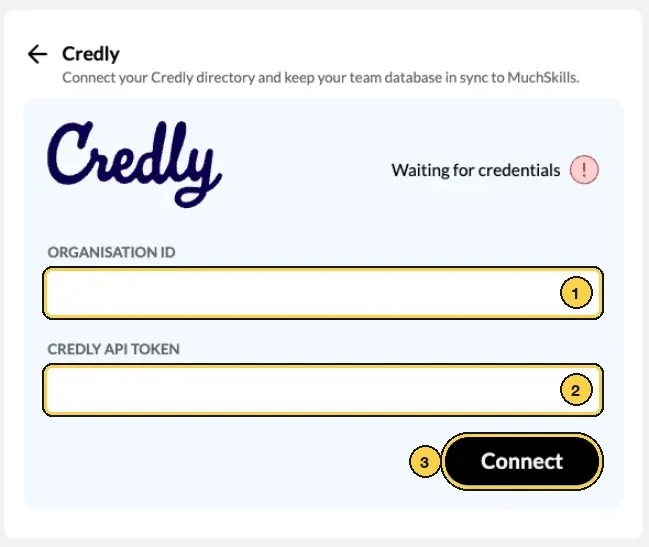
The Credly form: 1 Organisation ID, 2 Credly API Token, 3 Connect.
- Start the sync. Click Start Sync. MuchSkills reads the badges of every employee who has accepted your connection. After that it syncs once a day, overnight.
Check it worked
- The connector shows Last successful sync and Next scheduled sync.
- A person who accepted your Credly connection sees their badges under My Skills › My Certifications.
- The certification reports in Team/Org › Reports list the synced certificates next to the others.
Benefits
What you get
- Less typing. Certificates that already exist as Credly badges arrive without anyone entering them.
- The issuer's dates. Issue and expiry dates come from the badge, so expiry alerts and reports work from the right dates.
- One record for audits. Credly certificates sit with certificates from every other source, with the full change history kept.
Important to know
Important to know
Coverage is never 100%. Credly only shares badges from employees who accept your organisation's connection. Keep the other ways of adding certificates open, and remind people to accept.
Not every vendor issues through Credly. Atlassian and Monday.com, for example, do not. Add those certificates in MuchSkills or through the API.
The licence is yours. The connector needs your own Credly Workforce subscription.
Keep the token current. Credly tokens expire after 180 days by default. Put the date in your calendar. When the token expires, the sync stops until you paste in a new one.
Large removals pause the sync. If a sync would remove many certificates at once, MuchSkills stops and asks you to confirm. This protects your records when something changes in Credly by mistake.
Removed badges end the certificate. When a badge is removed in Credly, the certificate in MuchSkills ends at the next sync. Nothing is deleted from history: every certificate keeps its change log, including for people who have left.
Your own badges are not imported. Badges your organisation issues through Credly stay in Credly. If you also want them in MuchSkills, add them as certificates in MuchSkills or through the API.
Common errors
Troubleshooting
| What you see | Why | What to do |
|---|---|---|
| Invalid Credentials | The Organisation ID or token was copied wrongly, or the token has expired | Create a new token in Credly, paste it in and click Update Credentials |
| Authentication failed multiple times | The token expired or was deleted in Credly | Create a new token and click Update Credentials |
| Some people have no Credly certificates | They have not accepted your connection in Credly, or their Credly email differs from their MuchSkills email | Remind them to accept, and align the email addresses |
| One badge is missing for a connected person | The badge is still pending in their Credly account, was issued by your own Credly organisation, or the vendor does not issue through Credly | Ask the person to accept the badge, or add the certificate in MuchSkills |
| Sync was paused because a large batch of certifications would be removed at once. | Many badges disappeared from Credly since the last sync | Check your Credly data. If the removals are expected, apply them with the button in the message |
Frequently asked questions
Do we need a Credly licence of our own?
Yes. The connector reads from your organisation's Credly Workforce account, which you license from Credly. MuchSkills does not supply it. Without Credly Workforce there is nothing for the connector to read.
Why do we not see every employee's badges?
Each employee decides whether to accept your organisation's connection in Credly. Credly only shares badges from people who have accepted. Some people never do, so coverage is never 100%. Keep the other ways of adding certificates open for everyone else.
Which certificates come through Credly?
Badges your connected employees have earned and accepted from other issuers on Credly, for example AWS, Microsoft, Cisco, IBM and Red Hat. Each arrives with the issuer, the issue and expiry dates and the badge's verification link. Badges issued by your own Credly organisation, and badges an employee has not accepted yet, are not imported. Some vendors, such as Atlassian and Monday.com, do not issue through Credly.
How do we add certificates that are not on Credly?
The same ways as always. Employees add them in My Skills › My Certifications, managers add or validate them in My Circle, and Admins add them in bulk from Manage Members. You can also push them from another system through the MuchSkills API.
How often does it sync?
Once a day, overnight, and straight after you connect. The connector shows when it last synced and when it syncs next. An Owner or Admin can also run it at any time with Sync Now.
What happens when a badge is removed in Credly?
At the next sync, the certificate in MuchSkills ends. Its history is kept, so you can still see that the person held it and when.
What happens if many badges disappear from Credly at once?
MuchSkills pauses the sync and asks you to confirm before it removes a large batch of certificates. Check your Credly data first, then apply the removals only if they are expected.
Does MuchSkills change anything in Credly?
No. MuchSkills reads badge data from your Credly organisation. It does not issue badges or change your Credly settings.
Who can see the synced certificates?
The same people who see any other certificate in MuchSkills: the employee, their manager in My Circle, and Admins and Analysts in Reports.