


Add your certifications
- Who
- Everyone
- Where
- My Skills › My Certifications
- Proof
- Up to 10 links or files per licence, 10 MB per file
- Reminders
- 90, 60 and 30 days before expiry and on the day, to you
Your certificates show colleagues and managers what you are qualified for, and MuchSkills reminds you before one expires. Find the certificate, add the licence details and attach your proof.
How it works
Your certificates live in My Skills › My Certifications. Each certificate holds one or more licences. A licence has its own licence number, issue date, expiry date and proof, so a renewal is a new licence on the same certificate and your history stays intact.
MuchSkills shows the status of each licence: Credential valid., Credential expiring. or Credential expired. You get an email 90, 60 and 30 days before a certificate expires, and on the day. Your manager sees the status in My Circle and the reports.
Certificates can reach your profile in other ways too. They all end up in the same list:
- From a preset or role list your organisation prepared. See Add skills from presets.
- From a goal. When you mark a certification goal as achieved, MuchSkills takes you here to add the licence.
- From your manager, who can add or validate a certificate for you in My Circle.
- From your organisation, which can add certificates in bulk or sync them from Credly.
Steps
Add a certificate
- Open My Certifications. Click My Skills in the top menu, then My Certifications.
- Click Add Certification.
- Search for it. Type in the search box: the certificate name, the exam code, the issuer or a short name all work, for example "AWS Solutions Architect", "PL-300" or "PMP". The number of matches shows above the results.
- Pick your certificate from the results.
- Add the licence details. Enter the Licence Number if you have one and the Issue Date. Enter the Expiration Date, or tick This item does not expire.
- Attach your proof. Under CREDENTIAL URLs, paste a link to your credential, or click Upload file to attach the certificate itself. Click Add another link or file for more.
- Click Save, then Done.
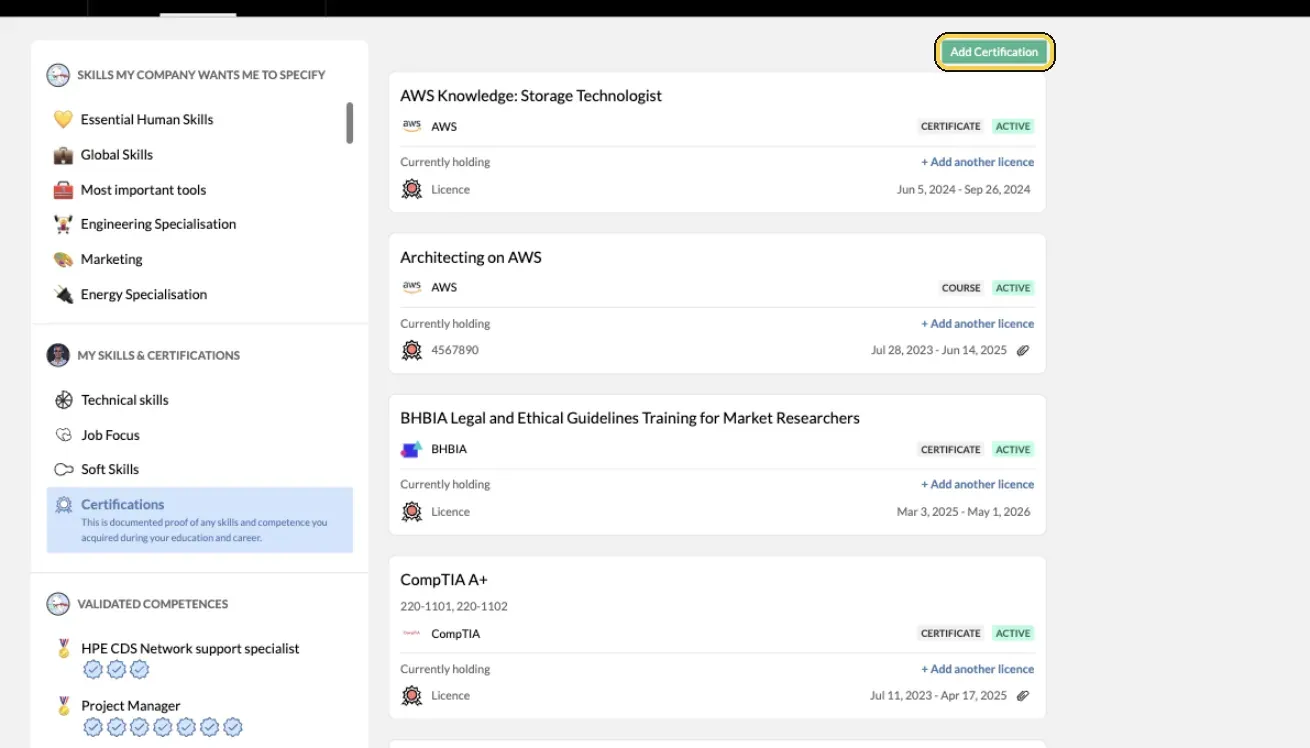
My Skills › Certifications.
If your certificate is not in the list
- Click Can't find what you're looking for? under the search box.
- Fill in the request. Enter the Issued Organisation and Certification Name, choose the type (Certificate, Exam, Course, Accreditation, Membership or Other), add a link to the certificate or the issuing organisation, and say whether it is still active or retired.
- Click Confirm, then Yes, Add. The certificate shows as Pending Approval and appears in your profile automatically once it is approved.
When you renew a certificate
- Open the certificate in My Certifications.
- Click Add another licence. Enter the new dates and attach the new proof, then click Save and Done. The newest licence is marked Current, and the earlier one stays in your history.
Check it worked
- The certificate shows under Your certificates, with the seal Credential valid. when you hover over it.
- It appears on your profile under Certifications.
- Where colleagues hold the same certificate, you see how many others in your team have it.
Tips
- Upload the certificate itself. A PDF or screenshot of the certificate is the proof your manager or an auditor will ask for.
- Enter the real expiry date. Reminders and the status depend on it.
- Need it for a role? Your organisation's role lists show which certificates a role asks for. See Find your skill gaps.
- Working towards one? Set it as a goal in My Growth › Goals. See Set a development goal.
Troubleshooting
| What you see | Why | What to do |
|---|---|---|
| This certification has already been added | The certificate is already in your list | Open it and click Add another licence for a new period |
| This certificate already has a licence with the same dates | You entered dates that match an existing licence | Check the dates, or edit the existing licence instead |
| You can only add up to 10 URLs or files | The licence already has 10 links or files | Remove one, or combine documents into one PDF |
| File size must be less than 10mb | The file is larger than 10 MB | Save it smaller, for example as a compressed PDF, and upload again |
| No certificates match your search | The name, code or spelling differs from the database | Try the exam code, the issuer or a shorter name. If it is still missing, use Can't find what you're looking for? |
| Welcome to My Certifications with Create a team/org | You are not part of your organisation's team in MuchSkills yet | Open your invitation, or ask your manager for one |
Frequently asked questions
My certificate is not in the list. What do I do?
Click Can't find what you're looking for? and fill in the request form with the issuing organisation, the certificate name and a link. The certificate shows as Pending Approval and appears in your profile automatically once it is approved.
Which files can I upload as proof?
Images, PDF, Word, PowerPoint, Excel, OpenDocument files, RTF, plain text and saved emails (.msg and .eml). You can add up to 10 links or files to each licence, and each file must be smaller than 10 MB.
When am I reminded that a certificate is about to expire?
MuchSkills emails you 90, 60 and 30 days before the expiry date, and on the day it expires. The reminders go to you only. Your manager sees the status in My Circle and the reports, and can also send you a reminder from there.
I renewed a certificate. Do I add it again?
No. Open the certificate and click Add another licence, then enter the new dates and proof. The earlier licence stays in your history.
My certificate never expires. What do I enter?
Tick This item does not expire instead of entering an expiration date. You will not get expiry reminders for it.
What does Validated by mean on my certificate?
Your manager or an admin has checked the certificate and confirmed it. Their name shows next to it.
Who can see my certificates?
Colleagues in your organisation see them on your profile. Your manager sees them in My Circle and can open the proof you attached. Admins see them in certification reports.
My certificates are on Credly. Do I need to add them here?
If your organisation has connected Credly and you have accepted its connection in your Credly account, your badges appear in My Certifications by themselves. Add anything that is not on Credly here.