


Enforce single sign-on and two-factor authentication
Two switches on the Security & SAML screen tighten how people log in to MuchSkills. Enforce SAML makes single sign-on the only way in for your email domains. Enforce two-factor authentication makes everyone who logs in with a password confirm it with an authenticator app.
- Who
- A MuchSkills Owner or Admin
- Where
- Team/Org › Settings › Security & SAML
- Enforce SAML
- Needs single sign-on set up and switched on
- Two-factor authentication
- Applies to password logins, with an authenticator app
How to
How it works
Three switches on Team/Org › Settings › Security & SAML decide how people log in.
| Switch | What it does | Available when |
|---|---|---|
| Enable SAML | People with an email on your domains can log in through your identity provider | An email domain is added and IDP Metadata URL is filled in |
| Enforce SAML | People with an email on your domains can only log in with SAML/SSO. Admins can still log in using password | Enable SAML is on |
| Enforce two-factor authentication (2fa) for your team | Everyone who logs in with a password must also enter a code from an authenticator app | Always |
Two-factor authentication in MuchSkills protects password logins. People who log in with single sign-on or Log in with Google do not set it up in MuchSkills. Their identity provider's own checks apply.
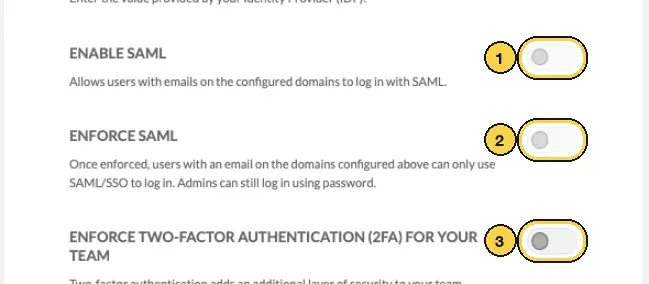
1 Enable SAML, 2 Enforce SAML, 3 Enforce two-factor authentication.
Before you start
- In MuchSkills: the Owner or Admin role. Only these roles can open the Security & SAML screen.
- For Enforce SAML: single sign-on is set up, Enable SAML is on and your test users can log in. The guides for Microsoft Entra ID, Okta, Google Workspace and other SAML providers cover this.
- For two-factor authentication: people need a phone with an authenticator app, such as Google Authenticator, Authy, Duo Mobile or 1Password.
- Tell people first. Say what changes and when, so nobody is surprised at their next login.
Steps
Enforce single sign-on
- Check that single sign-on works. Log in as a test user through Continue with SAML on the MuchSkills login page.
- Give everyone access in your identity provider. Assign the MuchSkills app to every person and group on your domains who uses MuchSkills. People without access cannot log in once you enforce.
- Switch on Enforce SAML. On Security & SAML, switch on Enforce SAML. Changes save as you make them.
- Tell people how to log in. They enter their work email on the login page and click Continue, then Continue with SAML. A password no longer works for them.
Enforce two-factor authentication
- Switch on Enforce two-factor authentication (2fa) for your team. On the same screen, switch it on.
- People set it up at their next visit. Everyone who logs in with a password sees a banner, Activate two-factor authentication, with the button Activate now. They link an authenticator app by scanning the QR code, enter the code the app shows, and click Validate.
- Follow up. In Team/Org › Settings › Manage Members, a 2FA label next to each password user shows green when they have set it up and red when they have not. Remind the people in red.
Check it worked
- A test user on your domains who tries a password sees This email is enforced to log in using SAML/SSO.
- Once you have linked your own authenticator app, your next password login asks for a code from it.
- In Team/Org › Settings › Manage Members, the 2FA labels turn green as people set it up.
Benefits
What you get
- One way in for your domains. Your identity provider's policies, such as multi-factor authentication and access reviews, apply to every MuchSkills login on your domains.
- Stronger password logins. Admins and anyone outside your domains need a code as well as a password.
- A clear view. The labels in Manage Members show who logs in with single sign-on, who with Google, and who has set up two-factor authentication.
Important to know
Important to know
Admins keep a password route. With Enforce SAML on, Admins can still log in using a password. That keeps you in control if your identity provider has an outage. Enforce two-factor authentication as well, so those password logins also need a code.
Only your domains are affected by Enforce SAML. People whose email is on another domain, such as contractors or partners, keep logging in with a password or Google. Two-factor authentication applies to them if you enforce it.
People can switch it on themselves. Anyone who logs in with a password can turn on two-factor authentication in Profile Settings › Account, under Two-factor authentication, with Authenticator app.
Lost phones. On the code screen, I can't connect using a 2FA code opens an email to support@muchskills.com. Support helps the person get back in.
Switching back. Both switches can be turned off again on Security & SAML by an Owner or Admin.
Common errors
Troubleshooting
| What you see | Why | What to do |
|---|---|---|
| This email is enforced to log in using SAML/SSO | Enforce SAML is on and the person tried a password | Click Continue with SAML and sign in with your identity provider |
| This email is not configured to use SAML/SSO | The email is not on a domain listed under Email domains, or Enable SAML is off | Log in with a password, or ask support to add the domain |
| Enforce SAML cannot be switched on | Enable SAML is off | Switch on Enable SAML first. It needs a domain and an IDP Metadata URL |
| Someone cannot log in after you enforced SAML | They are not assigned to the MuchSkills app in your identity provider | Assign them, or a group they belong to |
| The code is incorrect | The code was mistyped or has expired, or the phone's clock is wrong | Type the current code. Set the phone's date and time to update automatically |
| Wrong key while setting up | The code entered does not match the QR code that was scanned | Scan the QR code again and enter the new code |
| A person has no two-factor option in their account settings | They log in with single sign-on or Google | Nothing to do in MuchSkills. Set up multi-factor authentication in their identity provider |
| Someone lost the phone with their authenticator app | Their codes are on that phone | They click I can't connect using a 2FA code to email support |
Frequently asked questions
Who is affected when we enforce SAML?
Everyone with an email address on the domains listed under Email domains. They can only log in with SAML/SSO. People with other email addresses, such as contractors, log in as before. Admins can still log in with a password.
Could we lock ourselves out?
Admins can still log in with a password when SAML is enforced, so an Admin can always reach the Security & SAML screen and switch enforcement off.
What do people see after we enforce two-factor authentication?
People who log in with a password see a banner asking them to activate two-factor authentication. They link an authenticator app by scanning a QR code and entering the code it shows. From then on, each login asks for a code.
Which authenticator apps work?
Any compatible authentication app, such as Google Authenticator, Authy, Duo Mobile or 1Password. MuchSkills shows a QR code to scan.
Does two-factor authentication apply to people who log in with Microsoft, Okta or Google?
No. Two-factor authentication in MuchSkills protects password logins. People who log in with single sign-on or Log in with Google use the sign-in checks of that provider, so set multi-factor authentication up there.
What if someone loses their phone?
On the code screen they click I can't connect using a 2FA code, which opens an email to support@muchskills.com. Support helps them get back in.
Can people turn on two-factor authentication without us enforcing it?
Yes. Anyone who logs in with a password can turn it on for their own account in Profile Settings › Account.
Can we enforce both at the same time?
Yes, and it is a good combination. SAML covers everyone on your domains, and two-factor authentication covers every remaining password login, including your Admins.
How do we see who has set up two-factor authentication?
In Team/Org › Settings › Manage Members, each person who logs in with a password shows a 2FA label once you enforce it: green when they have set it up, red when they have not.