


Step 2: Set up your skills taxonomy
Your skills taxonomy is the set of categories and skills people choose from when they build their profile. MuchSkills comes with built-in categories, including more than 12,000 technical skills. You add categories for the skills that are specific to your organisation in Manage Skills.
- Who
- An Owner or Admin, with HR or L&D
- Where
- Team/Org › Settings › Manage Skills
- Upload
- CSV file, up to 100 skills per file
- Built in
- More than 12,000 technical skills
How to
How it works
People build their profile in My Skills. What they can choose there comes from your taxonomy, which has two parts.
- Built-in categories that every organisation has: Job Focus, Soft Skills, Technical skills and Certifications. Technical skills holds more than 12,000 software tools, programming languages and other technical skills, kept up to date by MuchSkills.
- Your own categories, which you create in Manage Skills. Employees find them in My Skills under Skills my company wants me to specify.
MuchSkills also comes with a starter taxonomy to inspire you, with categories such as Essential Human Skills, Global Skills and specialisations like Dev & Tech or Cloud & Infra. You can edit, rename, remove or replace any part of it, so the categories match what your organisation needs, whether that is leadership, technical expertise or industry knowledge.
| Put it in | When the skill is | Examples |
|---|---|---|
| Technical skills (built in) | A software tool, programming language or technical tool | Python, Figma, Kubernetes |
| One of your own categories | Specific to your organisation or your industry | Industry experience (Banking, Retail), engineering specialisations (CAD Modelling, Risk Assessment), customer knowledge, your own products or services, clients, service offerings, languages, preferences and interests |
Before you start
- Start from what you have. A competence framework, existing skill lists or role descriptions. If you are starting from scratch, read our playbook What is a skills taxonomy and how do you create one?
- Work from roles if that is easier. Define the skills for each role first, then group all of them into categories. This example skill list per role and competence includes skill definitions you can copy and adapt.
- Leave technical skills out of your own categories. They are already built in.
- Write a one-line description for each skill. People see it when they choose the skill.
- Note which departments each skill is for, if some skills only apply to part of the organisation.
Steps
Create a category
- Open Manage Skills. Go to Team/Org › Settings › Manage Skills. You see your categories with their Visualisation, Department and who created them.
- Create the category. Click Create Skill Category. Give it a name, for example Domain Expertise, and a Description.
- Choose how people map it. Under Visualisation Type, choose Sector Chart or Bubbles and click Select. The table under Important to know helps you choose. Click Save and continue.
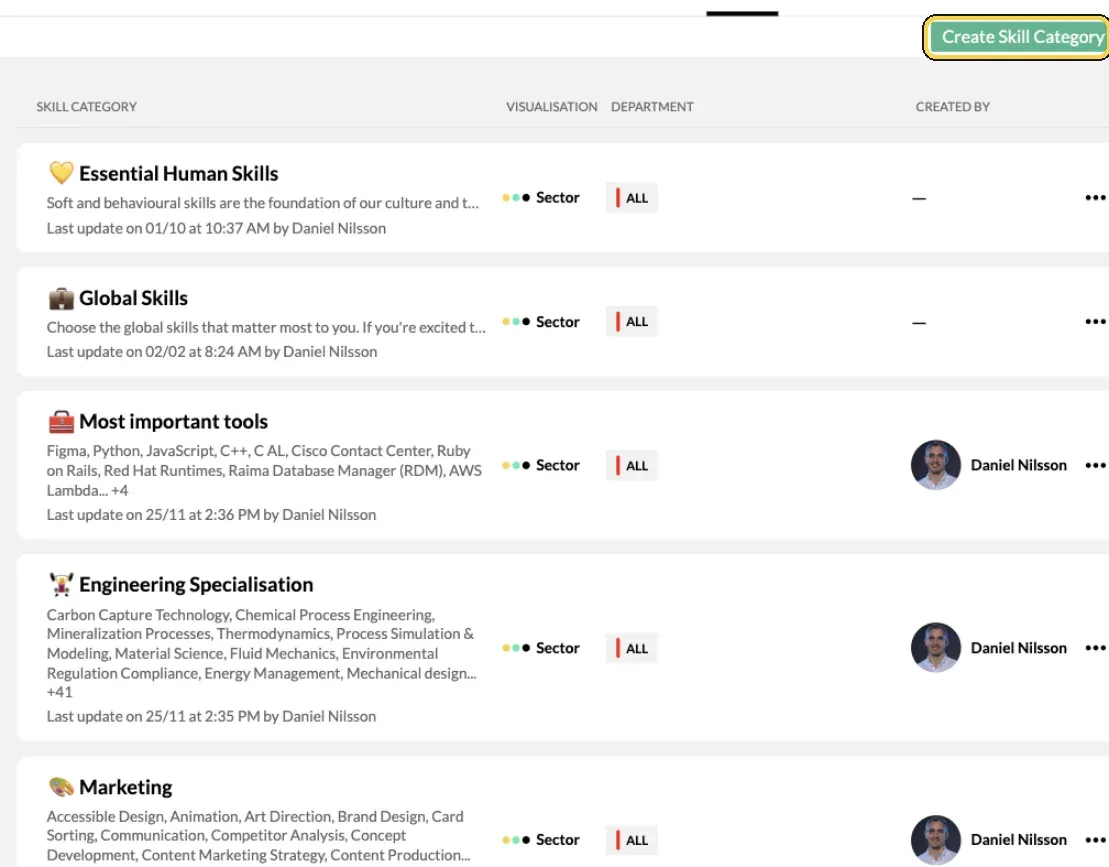
Team/Org › Settings › Manage Skills.
Add skills
- Add skills one by one. In the category, type the skill in Name of skill and add its Description. If the skill already exists in the MuchSkills database, it is suggested as you type.
- Or start from a template. Click + Add template and choose a ready-made list, for example for industry experience or languages. Edit it afterwards to fit.
- Choose departments. In Department(s), keep all departments to show a skill to everyone, or choose the departments whose members should be asked about it.
Upload many skills from a file
Want to see a finished taxonomy first? Download our example skills taxonomy for a fictional company, Acme Inc: 12 categories and 371 skills, with a sheet per category in the upload format.
- Download the template. Click the three dots at the top right of the category and choose Download template. The file has two columns, Name and Description.
- Fill it in. One skill per row, with its description. Keep the two column headings exactly as they are, and keep to 100 skills per file.
- Upload it. Open the same menu, choose Upload CSV file (max 100 skills) and pick your file. MuchSkills confirms how many skills were added, for example 12 skills were successfully added.
Tidy up and set the levels
- Review the starter categories. Open each category to rename it, change its description or remove skills you do not need. To remove a whole category, use Delete Category.
- Set what the levels mean, if you need to. In the Settings sidebar, click Edit skill level descriptions under Manage Skills. Choose a Skill Category, pick a starting point such as MuchSkills default (for hard and technical skills), Soft skills default, Industry Experience Default, Yrs of experience default or Languages Default, and adjust the wording.
Check it worked
- Manage Skills lists your categories, each with its Visualisation and Department.
- Open My Skills yourself. Your categories appear under Skills my company wants me to specify, and + Add/Edit shows the skills you added.
Benefits
What you get
- One language for skills. Everyone chooses from the same list, so a skill has the same name across the organisation.
- Profiles that fit your business. People map the capabilities your organisation needs, from industry experience to your own products.
- Levels you can compare. Sector-chart categories use the nine-step scale, so a level means the same thing everywhere.
Important to know
Important to know
Sector chart or bubbles. Choose when you create the category.
| Visualisation | Use it for | How people use it |
|---|---|---|
| Sector Chart | Skills that can be measured or compared, such as problem solving, project management or Python. This suits almost every category | People rate each skill on the nine-step scale, from Beginner to Expert. See Rate your skills |
| Bubbles | Things that cannot be measured on a scale, such as working from home, international travel or games people like to play | People click, tap or drag a bubble to make it bigger and show where their focus is |
Leave technical skills to us. The built-in Technical skills category already covers software and development languages. Adding them to your own categories as well confuses people.
Who can add skills to your categories. Only Owners and Admins, in Manage Skills. If an employee tries to add a skill to one of your categories, MuchSkills asks them to contact an Admin. In the built-in categories, employees can request a new skill by pressing Enter, and MuchSkills validates it before it becomes available.
Descriptions. When a skill has no description, MuchSkills tries to generate one for you. Read the generated descriptions before you launch.
Help is a chat message away. Ask us for advice on structuring your taxonomy, or email support@muchskills.com.
Common errors
Troubleshooting
| What you see | Why | What to do |
|---|---|---|
| Your file must have "Name" and "Description" column headers. | The headings in the file were changed or removed | Download the template again and keep the two headings as they are |
| Your file contains more than 100 skills. Please reduce the number and try again. | The file has more than 100 rows of skills | Split it into files of up to 100 skills and upload each one |
| We couldn't upload your .csv file. Please check the format and try again. | The file is not a CSV file, or was saved in another format | Save it as CSV (comma separated) and upload it again |
| This skill already exists in the category | The skill is already in this category | Nothing to do |
| Category name is already taken | Another category has the same name | Choose a different name |
| An employee is asked to contact the Admin | They tried to add a skill to one of your categories | Add the skill in Manage Skills, or decide it does not belong |
Frequently asked questions
What is a skills taxonomy?
A structured list of the skills your organisation needs, grouped into categories. It gives everyone the same words for the same skills, which is what makes search, analysis and planning work.
Should we add programming languages and software to our own categories?
No. They are already in Technical skills, which holds more than 12,000 technical skills that MuchSkills keeps up to date. Adding them to your own categories as well confuses people.
Sector chart or bubbles?
Sector chart for skills that can be measured or compared, which is almost every category. People rate them on the nine-step scale. Bubbles for things that cannot be measured on a scale, such as preferences or hobbies.
How many skills can we upload at once?
Up to 100 skills per CSV file. Split a longer list into several files and upload them one after the other.
Can a skill be shown only to some departments?
Yes. Choose those departments in the Department(s) column for the skill. Leave it on all departments to show it to everyone.
Can we change what the levels mean?
Yes. Use Edit skill level descriptions in Manage Skills to set what each level means, for the whole organisation or for one category.
What happens when an employee cannot find a skill?
In the built-in categories, they can request a new skill by pressing Enter, and MuchSkills validates it. In your own categories, only an Owner or Admin can add skills, so MuchSkills asks the employee to contact an Admin.
Can we get help building our taxonomy?
Yes. Chat with us or email support@muchskills.com. Our playbook on skills taxonomies explains the method we use with customers.