


Step 6: Train your managers
Managers turn profiles into conversations. After the launch, hold a one-hour session that shows managers how to use My Circle, validate their people's skills, use retrospectives and hold better one-to-ones. This page gives you the plan, the material and a follow-up email.
- Who
- An Owner, Admin or HR lead, with all managers
- When
- After managers have completed their own profiles
- Format
- A one-hour session, then a follow-up email
- Material
- Manager training slides and the guides linked below
How to
How it works
Every manager with direct reports gets My Circle in the top menu. It shows their direct reports, and the people below them, with their skills, goals, certifications, profile freshness and availability. Managers use it to keep profiles current, validate skills and prepare one-to-ones.
| Managers want to | They use | What it gives them |
|---|---|---|
| See their team at a glance | My Circle | Skills (Experts, Intermediates, Beginners), Goals, Certifications (Active, Expiring, Expired) and Profiles (Fresh, Getting dry, Dry, Seeds) |
| Keep profiles current | Quick reminder panel and Nudge in My Circle | Reminders to people with incomplete, dry or drying profiles |
| Make skill data trustworthy | Validate a competence and Add a certificate on a person's card | Validated competences, certificates and levels on each profile |
| Prepare one-to-ones | View skills summary, the gap analysis, Change log and Skill changes | Talks based on what each person can do and wants to develop |
| Plan growth | Set a goal | Development goals the manager and employee agree on |
Before you start
- Managers have their own profile. They joined a week before everyone else (step 5) and completed it.
- Reporting lines are right. In Team/Org › Members, switch to Hierarchy and check that each manager has the right people.
- Two decisions are made. Whether managers see the employee's own level while they validate (DISPLAY USER LEVEL FOR VALIDATION in Team Settings), and whether you use retrospectives, and how often.
- The session is booked. One hour, with all managers.
- The material is ready. The manager training slides and the employee self-reflection template (downloads as a Word file).
Steps
Prepare
- Set up retrospectives, if you will use them. Go to Team/Org › Settings › Manage Retros and click Get started. Set how often they go out: Every one or more month(s), on the first Monday, the last Friday or a specific date. They go to All Members by default; use the filter to limit them to some departments. Switch the toggle to Active and confirm with Yes, confirm. Reminders start going out from then on.
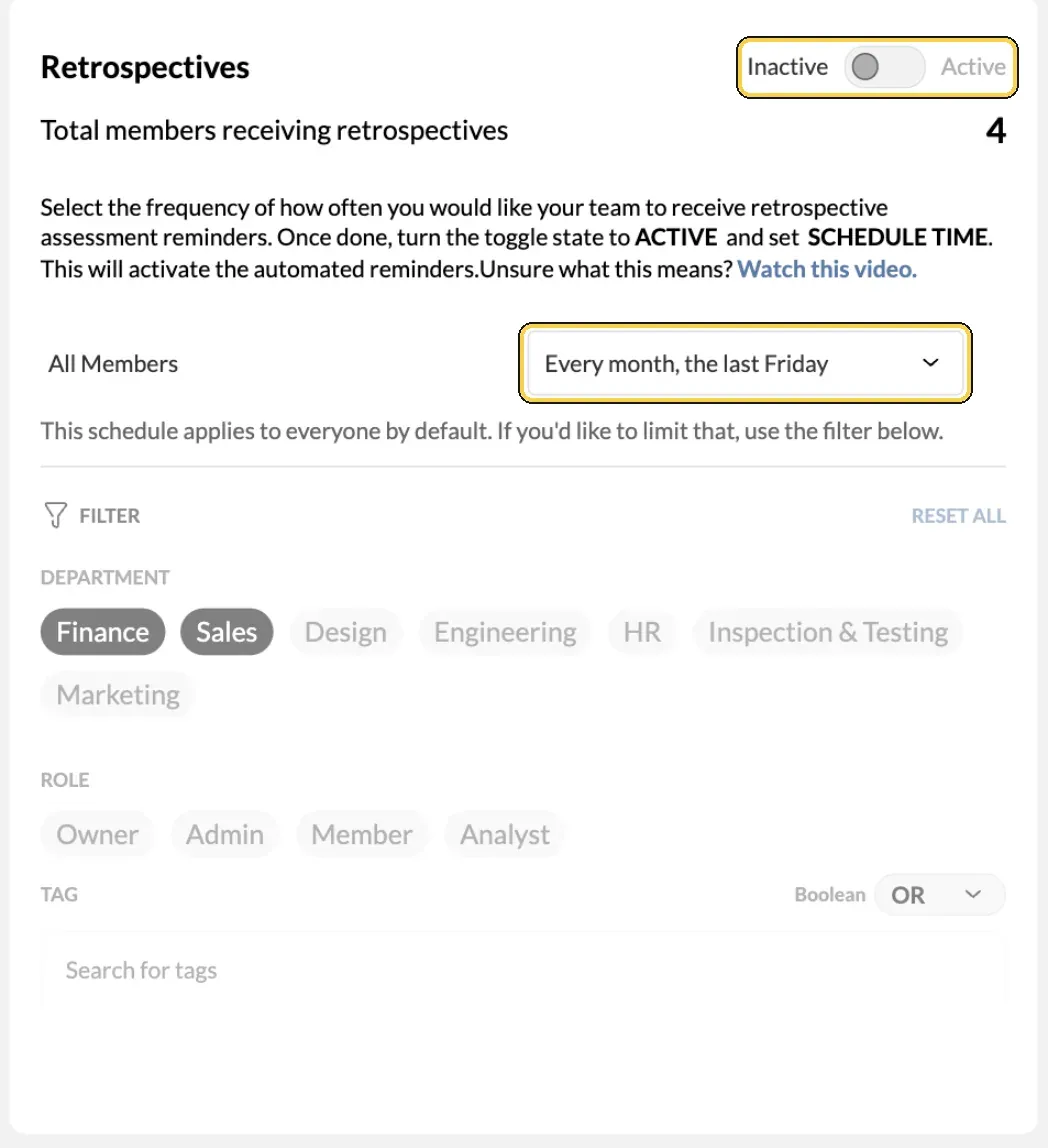
Team/Org › Settings › Manage Retros.
- Set what counts as a fresh profile, if the defaults do not suit you. In Manage Members, click Edit Profile Freshness meter and set after how many days a profile turns Unattended and Ignored.
Run the session
- Show My Circle. Open My Circle and walk through the overview: skills by level, goals, certifications and profile freshness. Click a person to show their card.
- Show how to keep profiles fresh. In the Quick reminder panel, Send reminder emails everyone with an incomplete, dry or drying profile. Nudge reminds one person, for example about an expiring certification.
- Show validation. On a person's card, Validate a competence confirms a competence or certification, and Add a certificate adds a certificate for them. A validated skill shows who validated it and at which level. When manager and employee chose the same level, MuchSkills shows Validation Match.
- Show how to prepare a one-to-one. Click the person and choose View skills summary to go through their skills together. Use the gap analysis to compare their skills with the roles relevant to them, and Change log and Skill changes to see what has changed since the last talk. Set a goal records what you agree.
- Agree the next steps. Each manager books a one-to-one with every direct report about two weeks after the training, then one every quarter. Ask employees to update their profile and fill in the self-reflection template before the meeting.
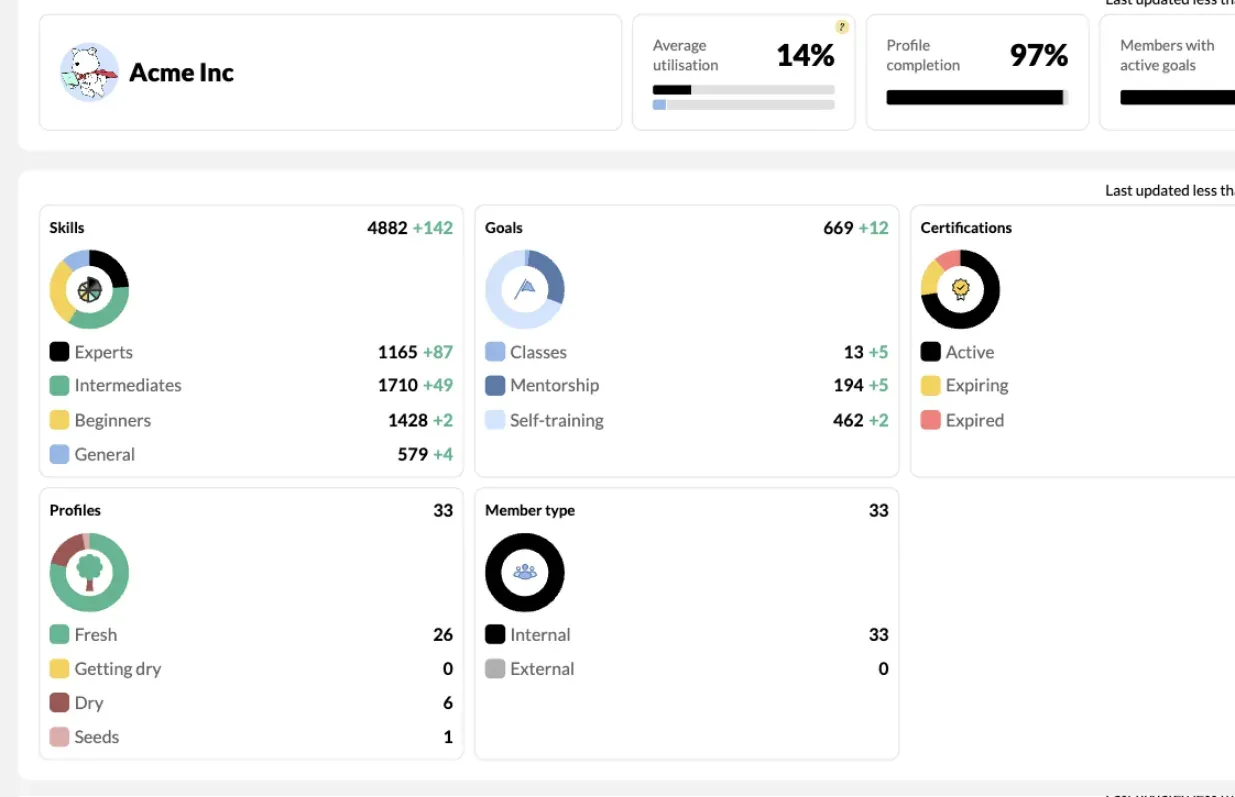
My Circle: your team at a glance.
Follow up
- Send the follow-up email below within a day or two, with the recording if you made one.
Follow-up email template
Copy it, add the recording link if you have one, and sign it with your own name.
Subject: Next steps after our MuchSkills manager training
Hi managers,
Thank you for attending our MuchSkills training. Below are the resources we went through and the next steps.
Focus on strength-based conversations
- 16 key employee engagement questions: a guide to meaningful, strengths-focused conversations.
- The one-to-one process: the recommended steps.
- Email to send before a one-to-one, so your people know what to expect.
- Employee self-reflection template (Word file): ask your people to fill it in before you meet.
Explore your team's skills and gaps
- How to use reports to track and analyse your team's skill data.
- How to use My Circle to coach and grow your team.
- How to keep employee skill profiles up to date.
More guides
- How to find people fast with Discover and how to find internal candidates.
- How to build a team using Team Builder.
- Manager playbooks: research-based advice.
Next steps
- One-to-ones: book one with each of your direct reports, and use the templates and questions above.
- Research your team's skills: filter and analyse your team in MuchSkills, and start spotting skill gaps.
- Questions: if you would like more training or have questions, let me know.
Thank you again for taking part.
Check it worked
- Every manager opens My Circle and sees their people.
- Over the following weeks, more profiles show as Fresh and fewer as Seeds or Dry.
- The Validated tab of the Team/Org › Reports dashboard shows validated skills and badges.
- If you use retrospectives, Manage Retros shows Total members receiving retrospectives.
Benefits
What you get
- Managers who use the data. My Circle becomes part of how they lead their teams.
- Trusted skill levels. Validations show which levels a manager has confirmed.
- Better conversations. One-to-ones built on each person's skills, gaps and goals.
Important to know
Important to know
Managers see their own people. A manager sees their direct reports and the people below them, in My Circle and in reports. Only direct managers and Admins can validate competences for a person. See Roles and permissions.
Retrospectives send emails. Once Active, reminders go to everyone in scope on your schedule. You can also send a reminder straight away from Manage Retros. MuchSkills asks you to confirm (You are about to send out a retrospective reminder), and your regular schedule stays as it is. Retrospective emails follow the Automated emails setting in Team Settings.
Employees need skills first. An employee can only take a retrospective after adding skills in My Skills.
The manager training slides cover the one-to-one process in detail, including how to open the talk, review the profile together in My Circle, discuss gaps and agree actions.
Common errors
Troubleshooting
| What you see | Why | What to do |
|---|---|---|
| A manager's My Circle shows There are no employees to display here | No one has this manager set as their direct manager | Set Direct Manager in Manage Members, or fix the manager field in your HR system |
| A manager cannot validate someone | They are not that person's direct manager | Fix the reporting line, or ask an Admin to validate |
| Retrospective emails do not arrive | Retrospectives are Inactive, or Automated emails is off in Team Settings | Switch retrospectives to Active and check Automated emails |
| An employee sees No retrospective to take | Retrospectives have not been activated | Activate them in Manage Retros |
| An employee is told to complete their skills profile first | They have not added skills yet | Ask them to add skills in My Skills |
Frequently asked questions
Who counts as a manager in MuchSkills?
Anyone with direct reports. Reporting lines come from your HR sync, SCIM, file import or the Direct Manager field, and they decide what each manager sees.
What can managers see?
Their direct reports and the people below them, in My Circle and in reports. Managers have no access to settings unless they are also an Admin.
Who can validate skills?
Direct managers and Admins. A validation records the level the manager gives. When manager and employee chose the same level, MuchSkills shows a validation match.
Can managers see the employee's own level while they validate?
Only if an Admin turns on DISPLAY USER LEVEL FOR VALIDATION in Team Settings. Decide this before the training.
What are retrospectives?
Recurring reminders that ask employees whether they have worked with the skills in their profile, and let them update their levels. An Admin sets the schedule in Manage Retros.
How often should managers hold one-to-ones?
The manager training material suggests a first one-to-one with each direct report about two weeks after the training, then one every quarter.
How do managers remind people to update their profile?
My Circle has a Quick reminder panel for incomplete, dry and drying profiles, and a Nudge button for each person.