


Manage departments
- Who
- An Owner or Admin
- Create in
- Team/Org › Settings › Team Settings
- Explore in
- Team/Org › Departments
- From HR systems
- Synced with every HR sync that sends a department
Departments group your people the way your organisation is structured. They power filters everywhere in MuchSkills, the department cards in Team/Org › Departments, department-only skills and certificate lists, and syncing by department. This guide shows where departments come from and how to manage them.
How it works
Each person belongs to one department. Departments are used across MuchSkills:
| Where | What departments do |
|---|---|
| Filters | Narrow Members, Overview, Analysis, Reports, Discover and the org chart to one or more departments |
| Team/Org › Departments | One card per department with its members and top skills |
| Manage Skills | Offer a custom skill to some departments only. See Create custom skill categories |
| Manage Certifications | Make a certification list available to some departments only |
| Manage Retros | Send retrospectives to some departments only |
| HR syncs | Sync only the departments you choose, where the connector offers it |
Departments come from two places, and you can use both:
- Team Settings: Owners and Admins type them in.
- Your HR system: when your HR sync sends a department for each person, MuchSkills creates it and keeps people in it up to date. See How HR integrations work.
Before you start
- Role: Owner or Admin.
- Check your HR sync. If your HR system sends departments, let the sync create them and avoid typing them by hand.
- Use your official names. Name departments the way your organisation does, so people recognise their own.
Steps
Create departments
- Open Team Settings. Go to Team/Org › Settings › Team Settings. You can also click Create Department on Team/Org › Departments, which opens the same page.
- Type the department. Click the Departments field and type a name.
- Press Enter. The department is added. Repeat for each one. Changes save on their own and Your settings were updated appears.

Departments in Team Settings.
Put people in departments
- Open Manage Members. Go to Team/Org › Settings › Manage Members.
- Choose the department. In a person's Department column, click Choose department, type to search and pick the department. Choose No department to clear it.
- Or let people choose. People can pick their own department in Profile Settings › Teams.
Rename a department
- Open Departments. Go to Team/Org › Departments.
- Click the department's name on its card. A pen icon shows it can be edited.
- Type the new name and press Enter.
Remove a department
- Open Team Settings. Go to Team/Org › Settings › Team Settings.
- Click the cross on the department in the Departments field.
- Confirm. Remove department? explains that employees will no longer be associated with this department and that this action cannot be undone. Click Yes, Remove.
Explore departments
- Open Departments. Go to Team/Org › Departments. Each card shows the department's number of members and its Top 10 skills.
- Pick a skill category. Use the menu next to Top 10 to switch category, for example from Technical skills to one of your custom categories.
- Click a skill to see who in the department has it, and at which level.
- Click the member count to open Team/Org › Members filtered to the department.
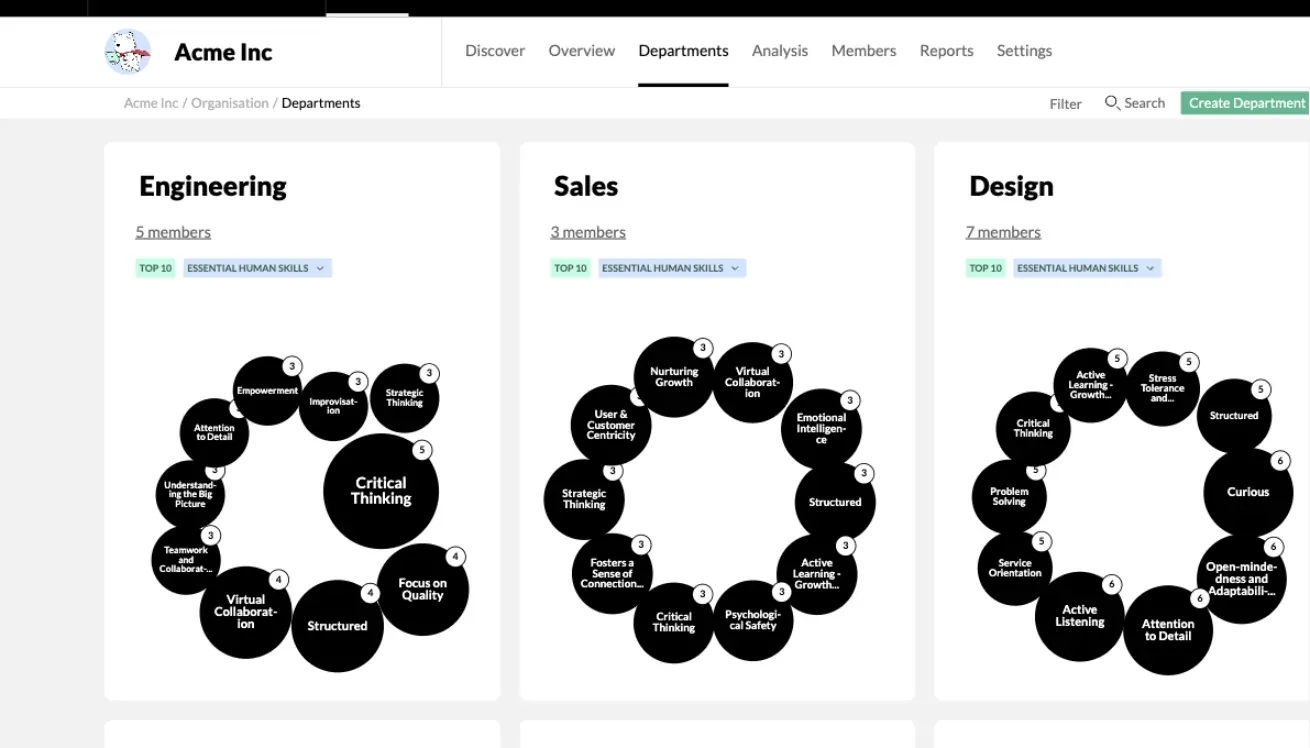
Team/Org › Departments.
Check it worked
- Team/Org › Departments shows a card for every department.
- Manage Members shows each person's department.
- The Department filter in Team/Org › Members lists your departments.
Departments from an HR sync
- Departments arrive with the sync. They are created at the first sync and kept current every 5 hours, or at once with Sync Now.
- Change them in your HR system. A sync icon next to Department on a person's profile shows it comes from your HR system, which stays the source of truth.
- Choosing departments to sync. Connectors with Sync by department list the departments found in your system. Only people in the departments you tick are synced.
- Unticking a department off-boards its people. After the first sync, removing a department from the selection deactivates everyone in it. MuchSkills asks you to confirm, and it can't be undone from that screen.
- Syncing by group. Connectors that sync by group, such as Microsoft Entra ID and Okta, don't create departments.
Tips
- Use departments for structure and tags for everything else. Client teams, projects and programmes change more often than departments.
- Set departments before you add department-only skills. A skill limited to a department is only offered to people in it.
- Compare departments with filters. The same filter on an analysis list shows the skill gap for each department.
Troubleshooting
| What you see | Why | What to do |
|---|---|---|
| Does your team work in smaller groups? on Team/Org › Departments | No departments exist yet | Add them in Team Settings, or start your HR sync |
| Hmm. Looks like this department has no members. What would you like to do? | Nobody is in the department | Click Manage Members and assign people |
| A department isn't in the Department menu in Manage Members | The menu only lists existing departments | Create the department in Team Settings first |
| A department name or a person's department changes back | It comes from your HR system | Make the change in your HR system |
| No departments after an HR sync | The sync runs by group, or the HR field for department is empty | Sync by department, or ask your HR administrator to fill in the department field |
| A department was removed by mistake | Removing a department can't be undone | Add it again in Team Settings and put people back in it |
Frequently asked questions
Can a person belong to two departments?
No. Each person has one department. For groupings that cut across departments, such as a client team or a programme, use tags.
Do departments come from our HR system?
Yes, when your HR sync sends a department for each person. MuchSkills creates the departments and keeps people in them up to date with every sync. Connectors that sync by group don't create departments.
Can we sync only some departments?
Yes, with connectors that offer Sync by department, such as Microsoft Entra ID. Be careful later: unticking a department after the first sync off-boards everyone in it.
What happens to people when I remove a department?
They stay in MuchSkills, but they are no longer in any department. Removing a department can't be undone, so move people to another department first if they need one.
Who can create and rename departments?
Owners and Admins. They create departments in Team Settings and rename them on the department cards in Team/Org › Departments.
Can people choose their own department?
Yes. In Profile Settings › Teams, people pick their department from the list you created. If your HR system sends departments, change them there instead.
What can we do with departments?
Filter any view by department, compare skills department by department, offer custom skills or certificate lists to one department only, send retrospectives to some departments, and limit an HR sync to the departments you choose.