


Set up validated competences
- Who
- Owners and Admins set up the lists
- Where
- Team/Org › Settings › Manage Validated Competences
- Issued by
- Direct managers and administrators
- Employees see it in
- My Skills › Validated Competences
Validated competences are badges your organisation issues to confirm what someone can do: a skill a manager has checked, an internal training completed or an internal qualification. Admins set up the lists of badges. Managers and Admins issue them, and each person sees theirs in My Skills.
How it works
A validated competence is a badge on a person's profile that says this has been confirmed. Use them for things your organisation checks itself, for example:
- Internal training completed, such as a safety induction or a product course
- Internal qualifications, such as an approval to sign off work
- Skills a manager has checked, at a confirmed level
Badges are kept in lists. Each list holds items of two kinds:
| Item | What it is | Level |
|---|---|---|
| A skill from your taxonomy | Any skill already in MuchSkills | Skills rated on the nine-step scale always carry a level |
| A custom badge | A badge you create, with its own name, icon and description | You choose: Set level Yes or No |
Owners and Admins set up the lists. Direct managers and administrators then issue badges to people. Each person sees their badges in My Skills under Validated Competences.
Before you start
- Role: Owner or Admin to create lists.
- Decide what you want to confirm. List the trainings, approvals or skills you want to validate, and whether each needs a level.
- Agree who issues badges. Usually the direct manager, with HR or L&D for organisation-wide badges.
Steps
Create a list
- Open Manage Validated Competences. Go to Team/Org › Settings › Manage Validated Competences.
- Click Create List.
- Name and describe it. For example Internal training. In Description, explain the purpose and contents of the list for your team members. Click the image icon to choose an icon.
- Click Save and continue. The list opens.
Add items to the list
- Add a skill. Type in the Competence name row at the bottom of the table and pick a skill from the results.
- Create a custom badge. Type the badge name and press Enter. Custom validated badge was successfully created appears.
- Give the badge an icon. Click the image icon in the Icon column and choose one.
- Describe the badge. Type in its Description cell, so people know what it confirms.
- Decide on levels. In Set level, choose Yes if the person issuing it should pick a level, or No for a simple validated badge.
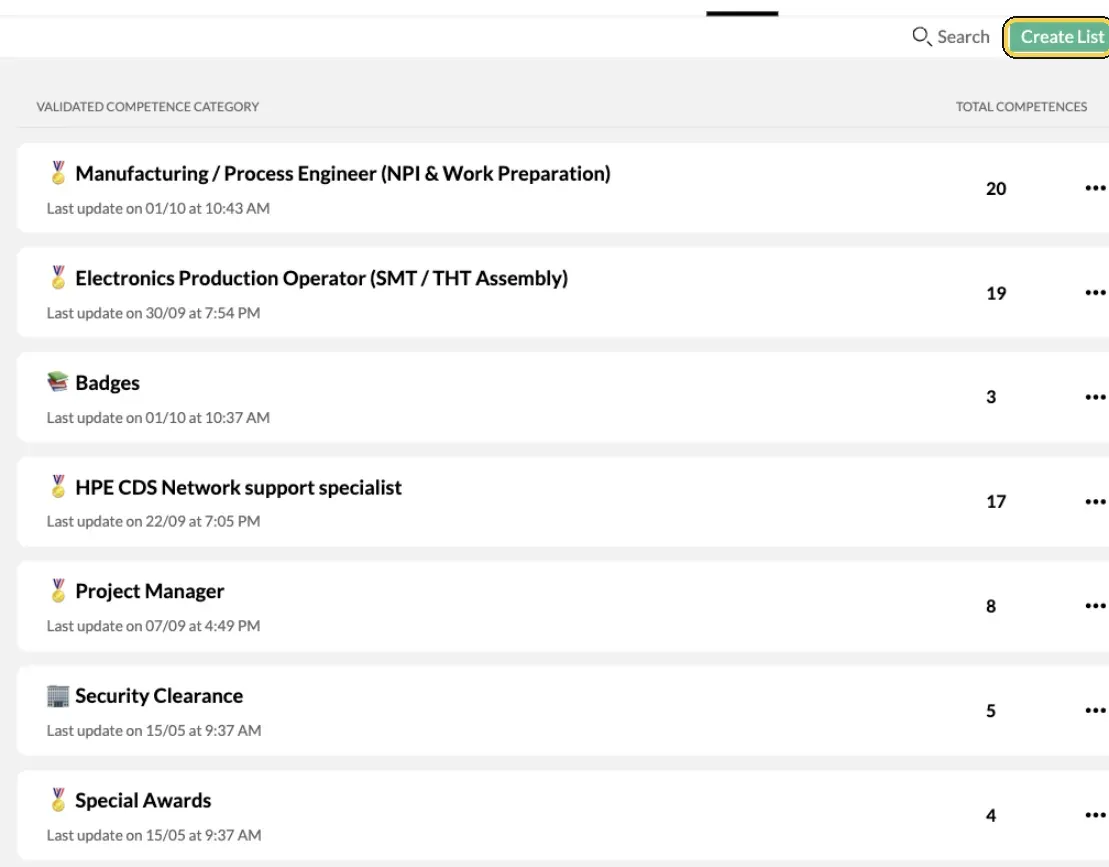
Team/Org › Settings › Manage Validated Competences.
Issue a badge
- Open the person. Go to Team/Org › Settings › Manage Members and click the person's name.
- Open the skills tab. Under Validated competences, search for the badge by name.
- Assign it. Pick the badge and, if it has a level, choose the level. It appears on the person's profile.
Managers can do the same for their direct reports from My Circle, with Validate a competence. See How to validate skills and assign badges.
What employees see
- In My Skills. Under Validated Competences in the left column, each list the person holds badges from has its own entry, with a badge icon for every badge.
- On each badge. The badge name, its level when it has one, for example Expert (1) since Oct 2026, or Validated since Oct 2026 when it has no level, and Issued by with the name of the person who issued it.
- In their gap analysis. When a published analysis list includes a validated competence, it counts towards their match in My Growth › Gap Analysis.
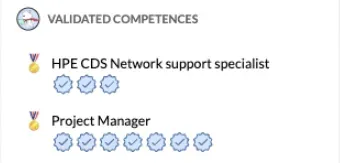
Validated Competences as employees see them.
Check it worked
- The list shows in Manage Validated Competences with its number of competences.
- The person you issued a badge to has the list under Validated Competences in My Skills.
- Team/Org › Reports, under skills, shows the badge in the badges report.
Keep lists up to date
- Edit a list. Click its name at the top of the table to change the name, description or icon.
- Copy or remove a list. Use the three-dot menu: Duplicate Category or Remove Category.
- Remove items. Use the row's three-dot menu and choose Remove, or tick several and click the delete button at the top.
- Reorder lists. Drag them in Manage Validated Competences.
- Change a shared custom badge. If the badge is used in other lists, MuchSkills shows the change and the lists affected. Click Yes, update to apply it everywhere.
Important to know
Who can validate. Only direct managers and administrators can validate competences for team members.
Showing the person's own level. In Team/Org › Settings › Team Settings, DISPLAY USER LEVEL FOR VALIDATION lets managers see the level the person chose for themselves while they validate a skill.
Levels can't always change. Once a badge is in use elsewhere, its Set level choice is locked, so decide before you issue it widely.
Removing a custom badge. If the badge only exists in this list, removing it deletes the badge completely.
Troubleshooting
| What you see | Why | What to do |
|---|---|---|
| No validated competences have been created yet. when issuing | There are no lists yet | Create a list in Manage Validated Competences first |
| Unable to find a competence across the platform. | No skill has that name | Press Enter to create it as a custom badge |
| This badge is already in the current list. | The item is already in the list | Nothing to do |
| Competence name cannot be empty | A badge name was cleared | Type a name |
| Set level can't be changed | The badge or skill is already used elsewhere | Create a new custom badge with the level choice you need |
| An employee doesn't see Validated Competences in My Skills | They have no badges yet | The section appears once someone issues them a badge |
| This name is already taken | Another list has the same name | Choose a different name |
Frequently asked questions
What is the difference between a certificate and a validated competence?
A certificate is an external qualification, such as an AWS or PMP certificate, with issue and expiry dates and proof. A validated competence is a badge your own organisation issues, for example for an internal training or a skill a manager has confirmed.
Who can issue validated competences?
Direct managers, for their own team members, and administrators, for anyone. Employees can't issue badges to themselves.
Can a validated competence have a level?
Yes, if you allow it. Skills rated on the nine-step scale always carry a level. For a custom badge, set Set level to Yes and whoever issues it chooses the level. With No, the badge simply shows as validated.
Where do employees see their badges?
In My Skills, under Validated Competences. Each list they hold badges from has its own entry, with every badge, its level if it has one, the date and who issued it.
Can we use validated competences in role lists?
Yes. Add them to an analysis list like any skill. They then count in each person's gap analysis.
Where can we report on badges?
In Team/Org › Reports, under skills, the badges report shows every badge and the members awarded it.
What happens if I change a custom badge that is used in several lists?
MuchSkills shows the old and new versions and the lists that use the badge, and asks you to confirm. The change then applies everywhere the badge is used.