SCIM and OAuth 2.0 Integration Guide
This guide explains configuring **SCIM provisioning** using **OAuth 2.0 authentication** to synchronize users between your Identity Provider (IdP) and our system. Your IdP (such as Okta, Azure AD, or OneLogin) will use **SCIM 2.0** to provision and manage users while authenticating via **OAuth 2.0**.
1. SCIM API Authentication (OAuth 2.0)
Our system acts as both:
- SCIM Service Provider (receiving provisioning requests)
- OAuth 2.0 Authorization Server (providing Bearer tokens for authentication)
Before configuring SCIM, you must obtain OAuth 2.0 client credentials or an Access token by contacting our support team. Once provided, you will enter these credentials in your IdP.
2. Configuring SCIM Provisioning
This section provides a step-by-step guide to configuring SCIM provisioning using OAuth 2.0 or Access token. The following screenshots illustrate the configuration process within an identity provider. Your UI may differ slightly, but the required fields will be similar.
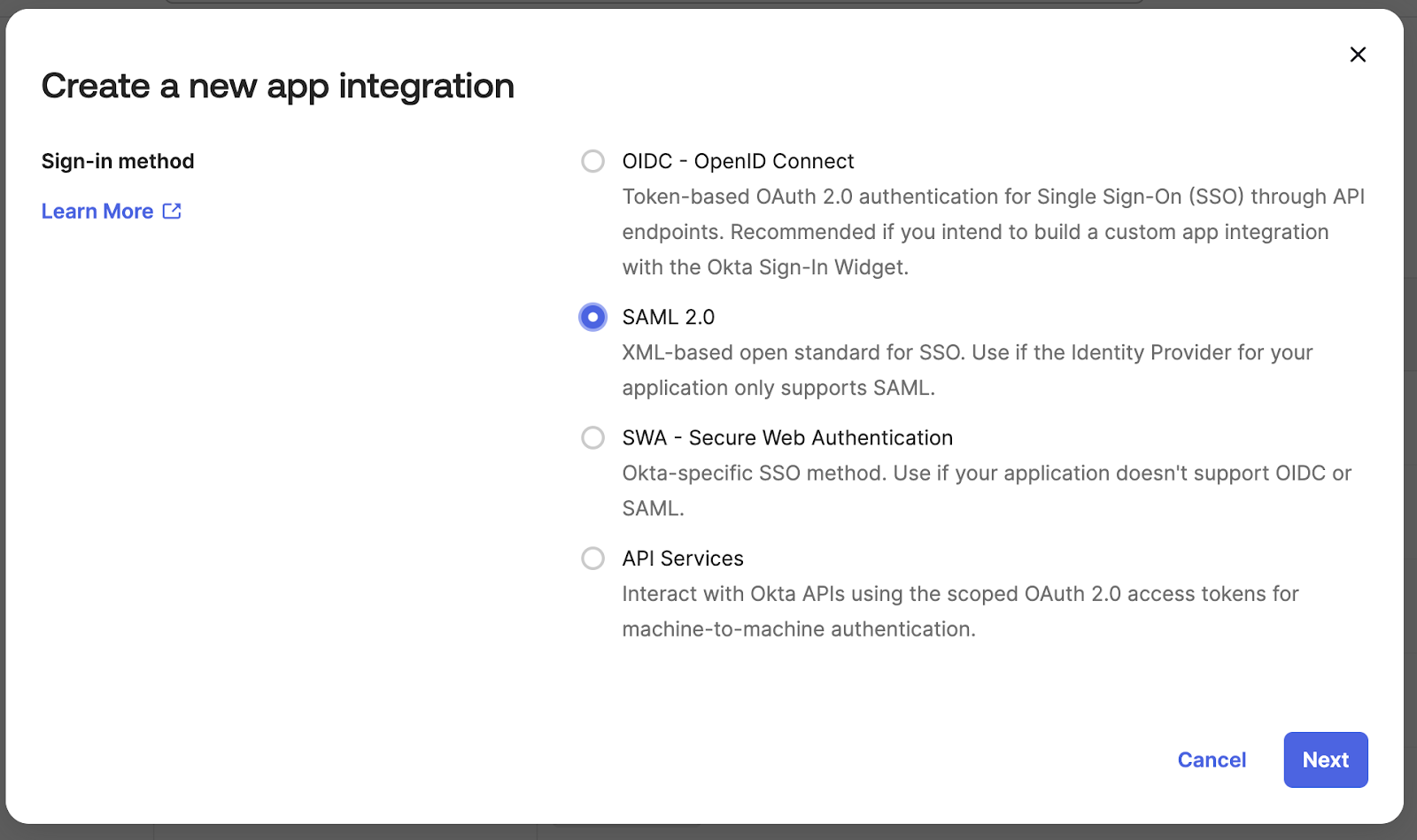
Step 1: Create a New App Integration
A new SAML 2.0 application needs to be created in the identity provider.
SAML 2.0 should be used as the authentication method.
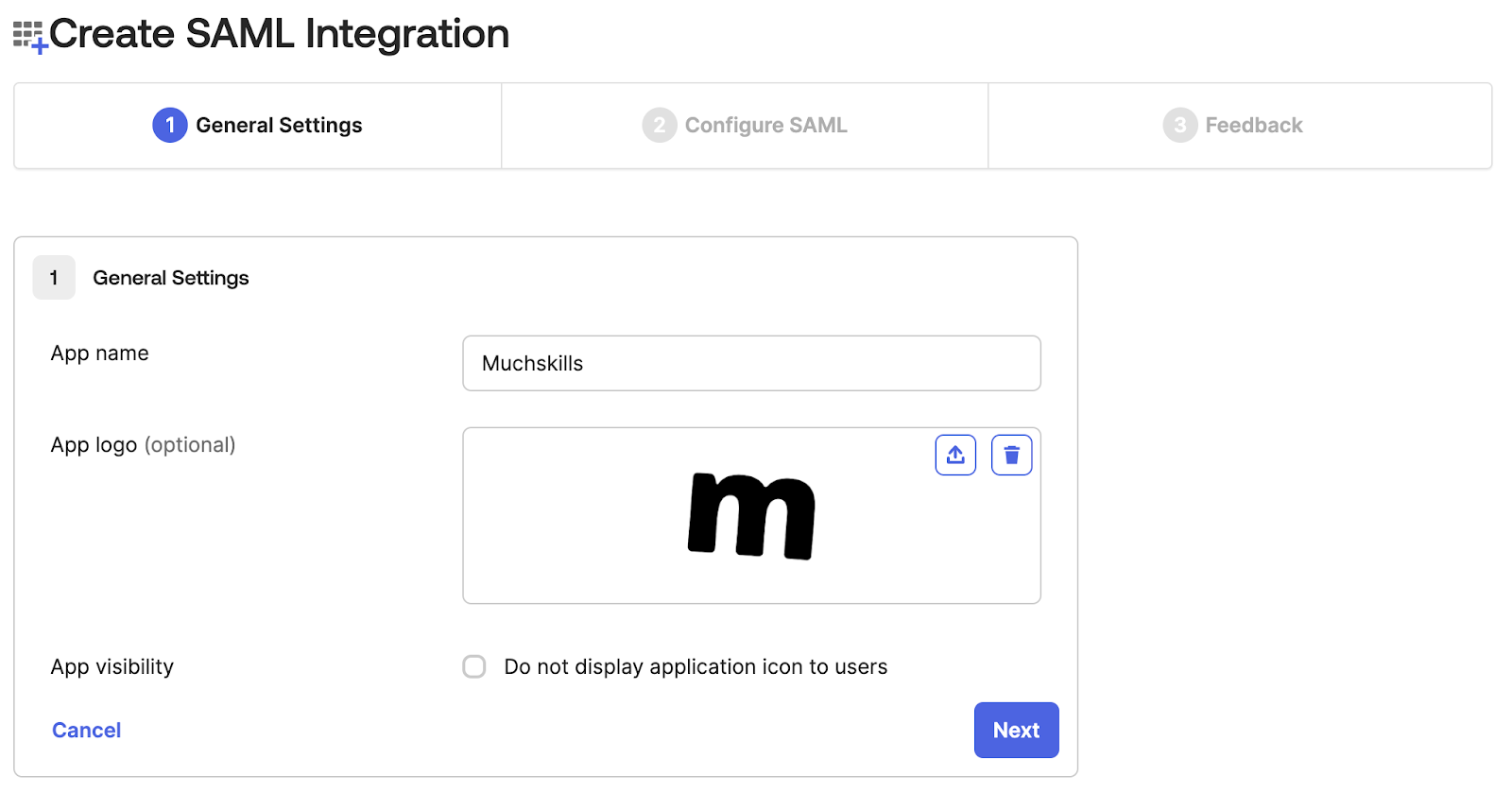
Step 2: Configure General Settings
The application requires a name and optional logo.
| Field | Value |
|---|---|
| App Name | Enter a relevant name (e.g., "MuchSkills") |
| App Logo (Optional) | Upload a relevant logo |
| App Visibility | Configure whether to display the app icon to users |
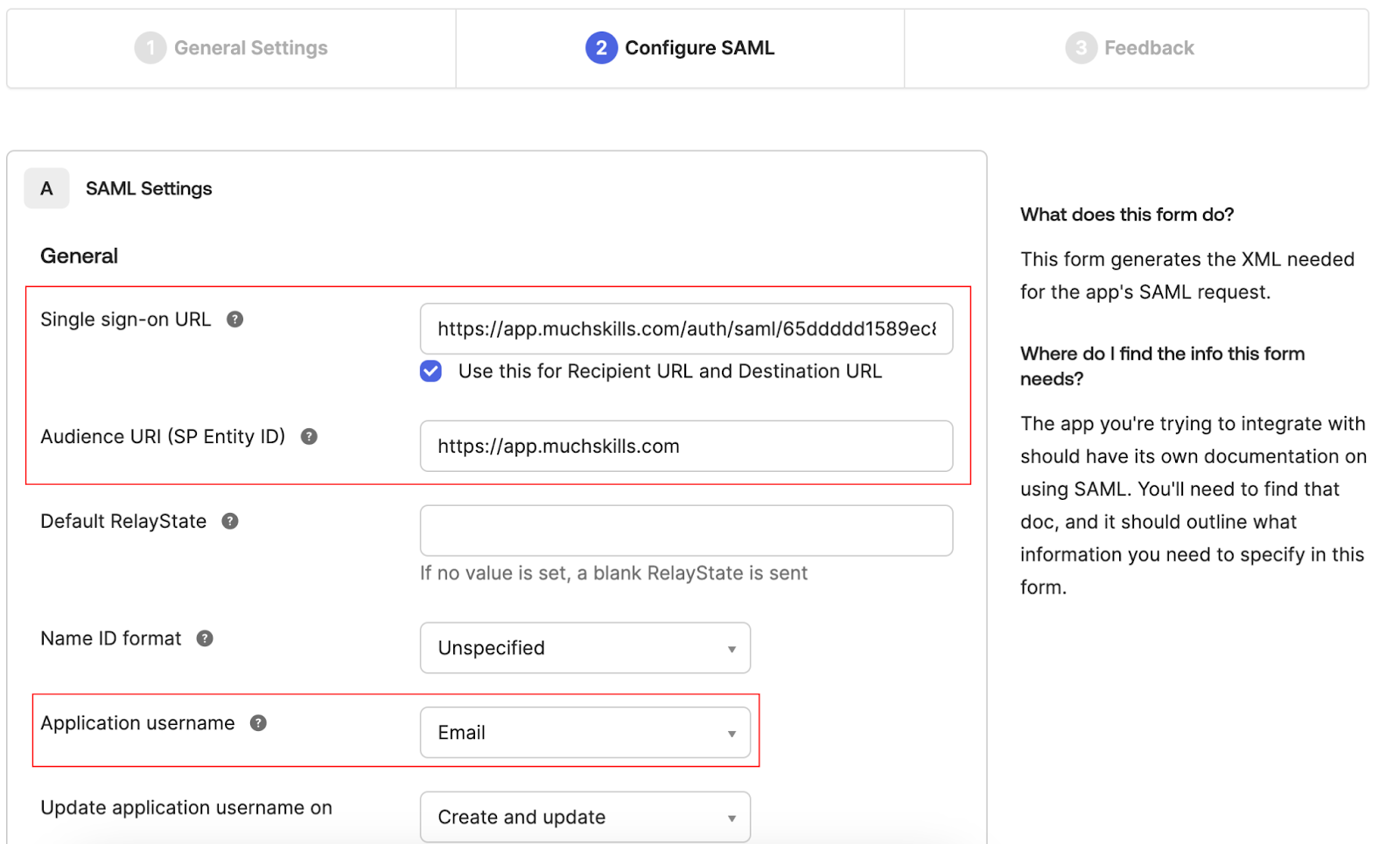
Step 3: Configure SAML Settings
SAML authentication settings require the correct endpoints.
| Field | Value |
|---|---|
| Single Sign-On URL | https://app.muchskills.com/auth/saml/{YOUR_ID} |
| Audience URI (SP Entity ID) | https://app.muchskills.com/auth/saml |
| Application Username |
Single Sign-On URL is the endpoint from which authentication requests are sent.
Audience URI uniquely identifies the system as a SAML service provider.
Application Username must be set to Email, as our SCIM integration uses email as the unique identifier.
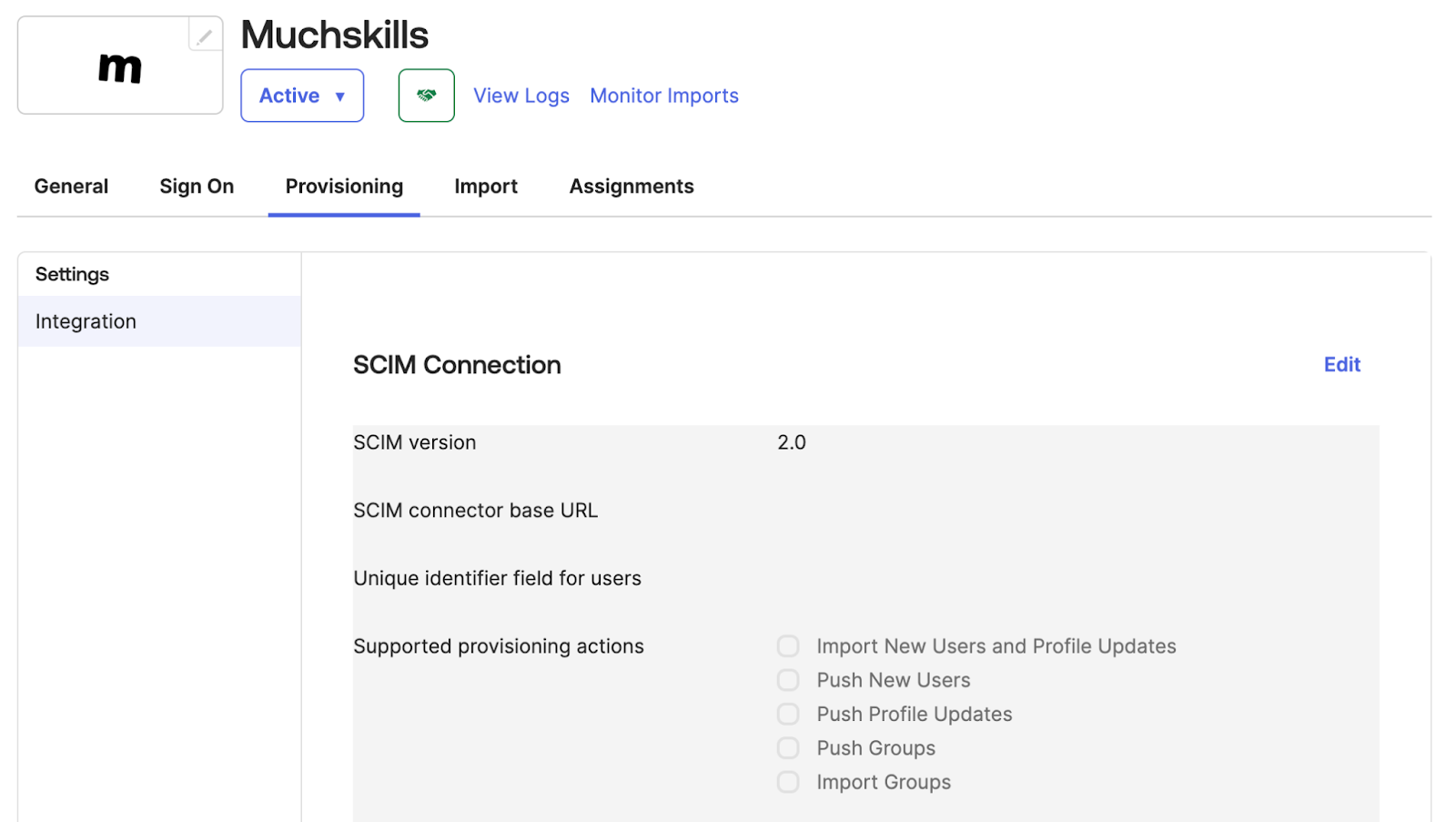
Step 4: Configure SCIM Connection
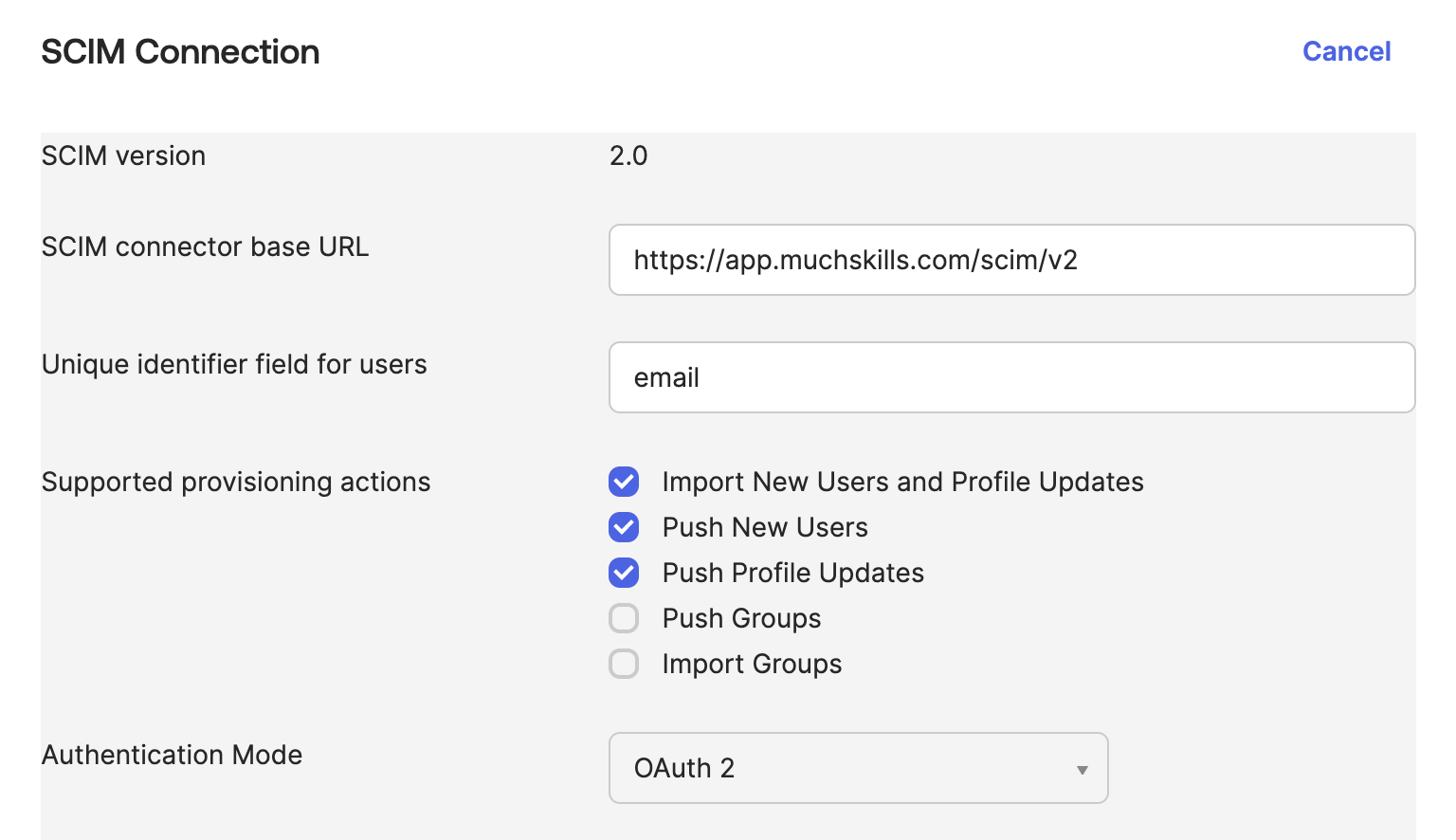
In your identity provider, navigate to the SCIM connection settings and enter the following details:
| Field | Value |
|---|---|
| SCIM Version | 2.0 |
| SCIM Connector Base URL | https://app.muchskills.com/scim/v2 |
| Unique Identifier for Users | |
| Supported Provisioning Actions | Enable: Push New Users, Push Profile Updates |
🔹 Note: Group provisioning is not supported in this SCIM implementation, so leave "Push Groups" and "Import Groups" unchecked.
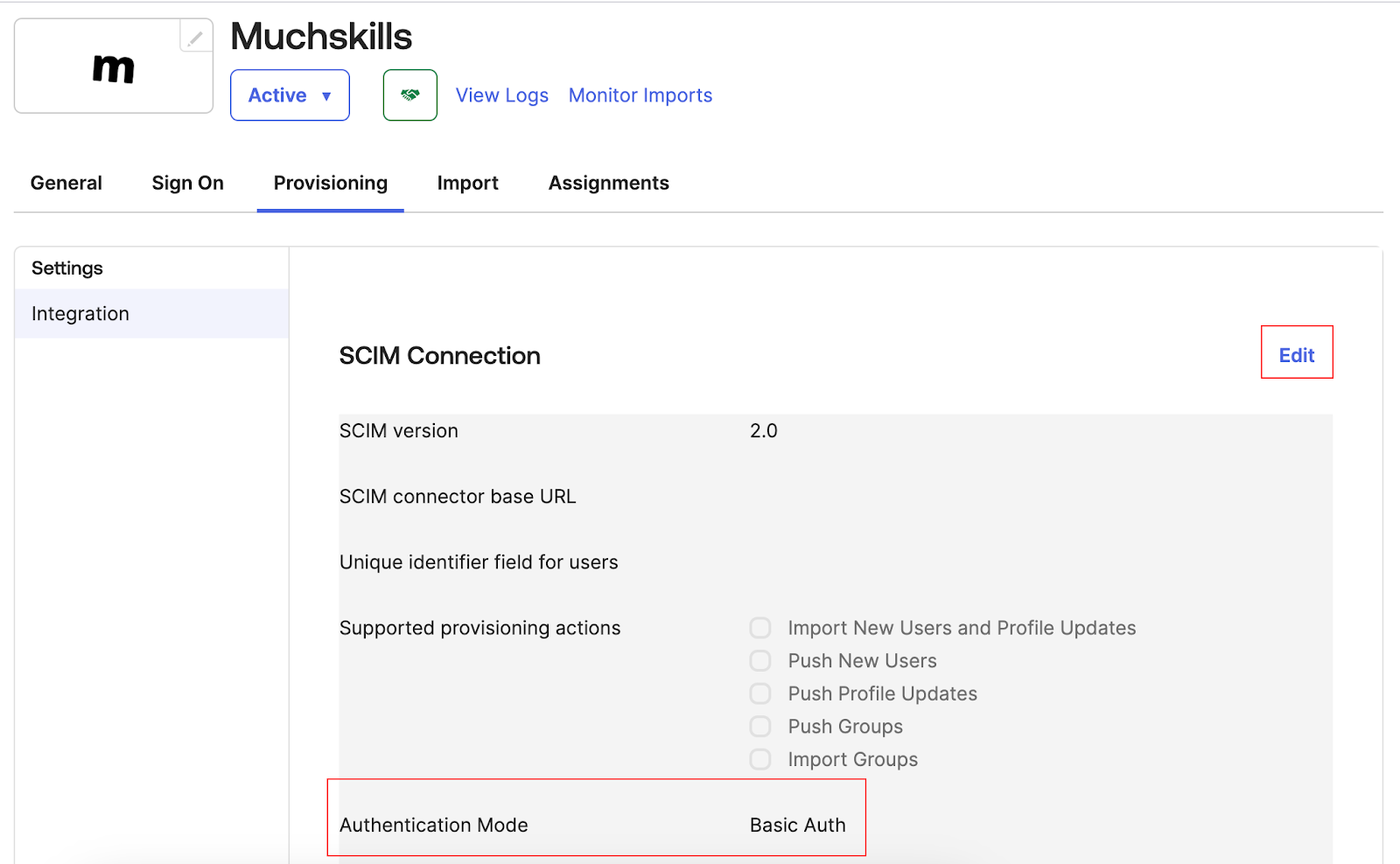
Step 5: Configuring Authentication
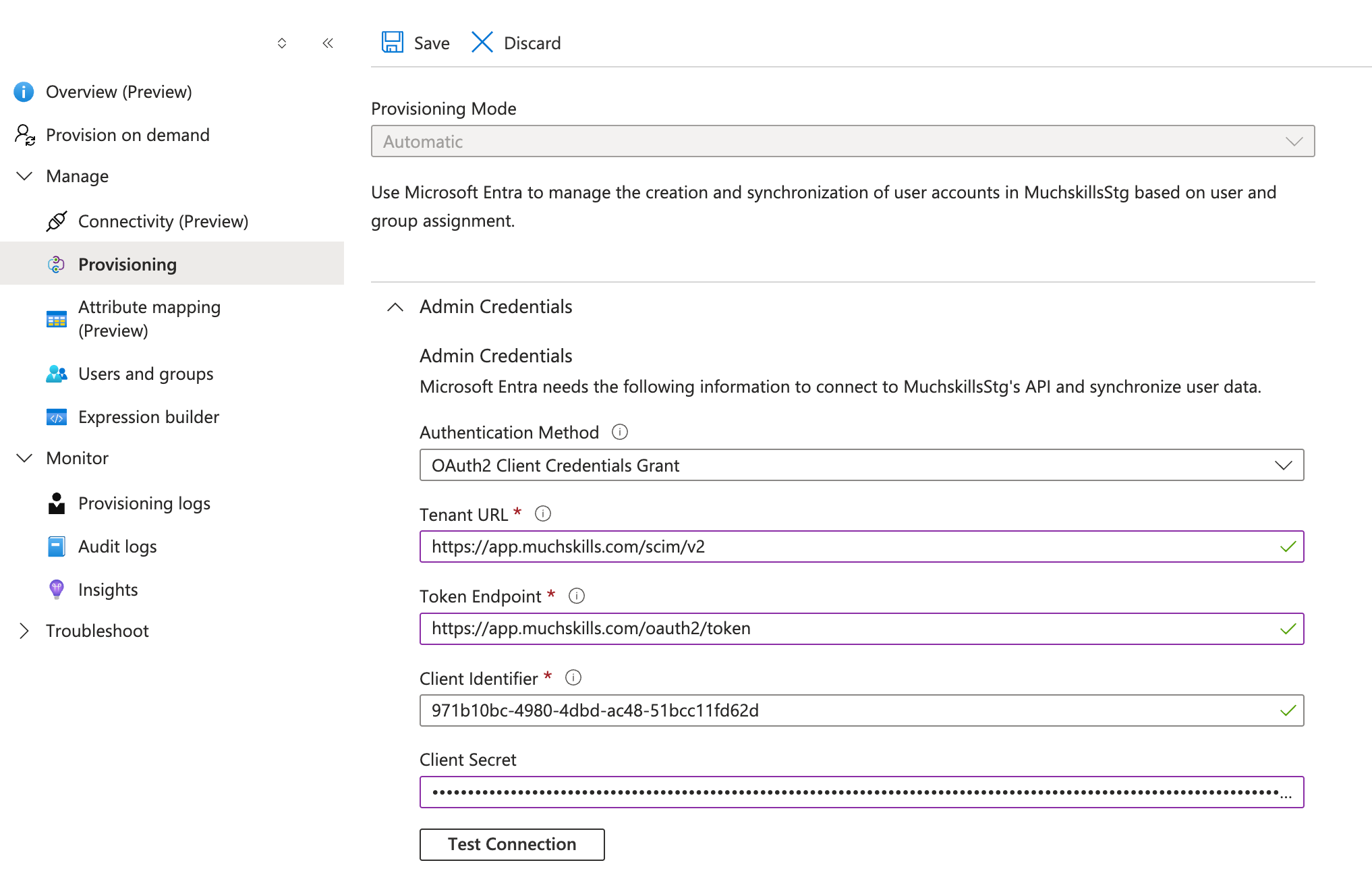
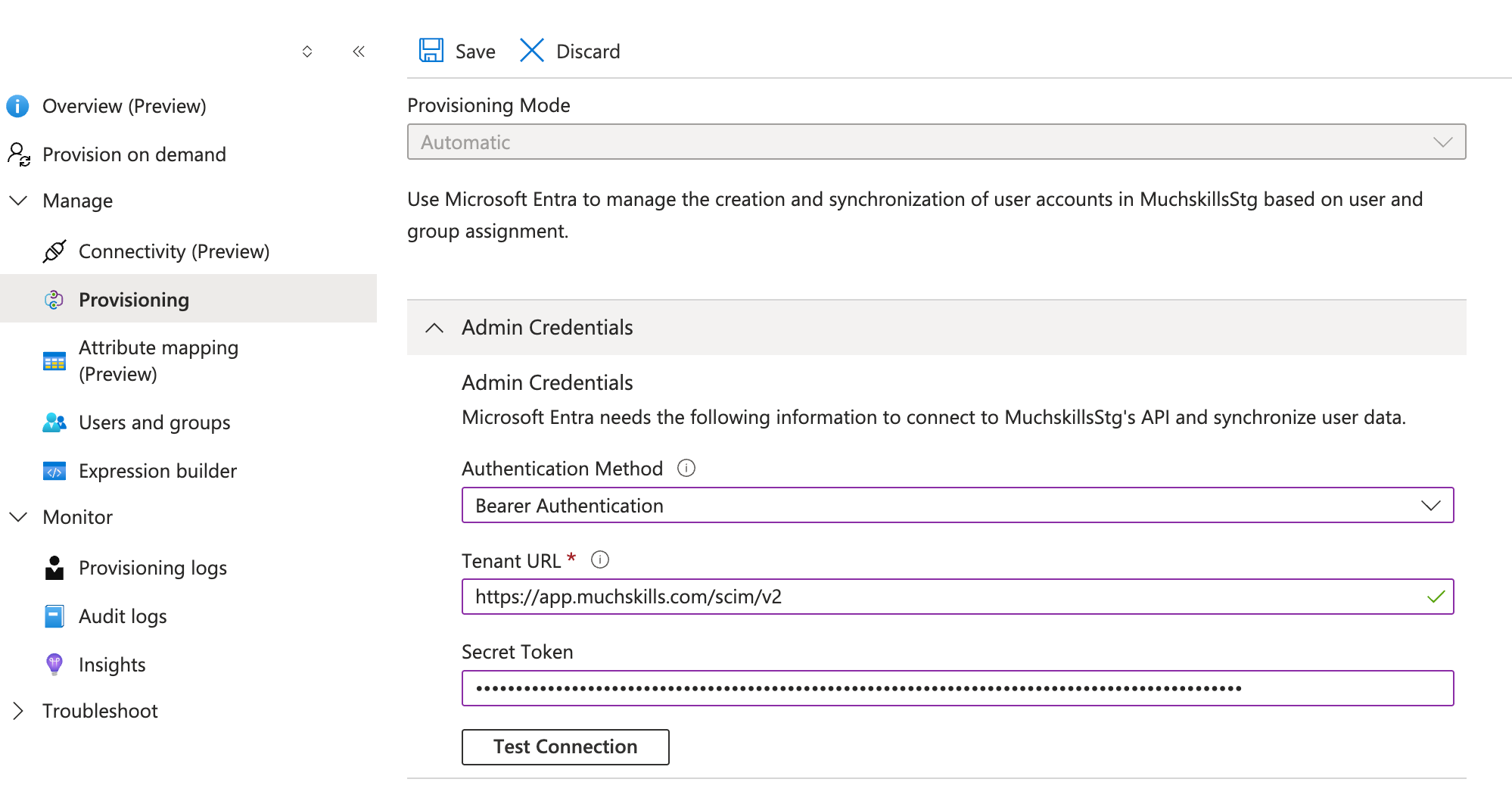
SCIM requests can be authenticated using the OAuth 2.0 flow. It is preferred to use the OAuth 2.0 flow as it provides a more secure and dynamic authentication method. However, if your identity provider does not support OAuth 2.0, you can use an access token as described in section 5.2.
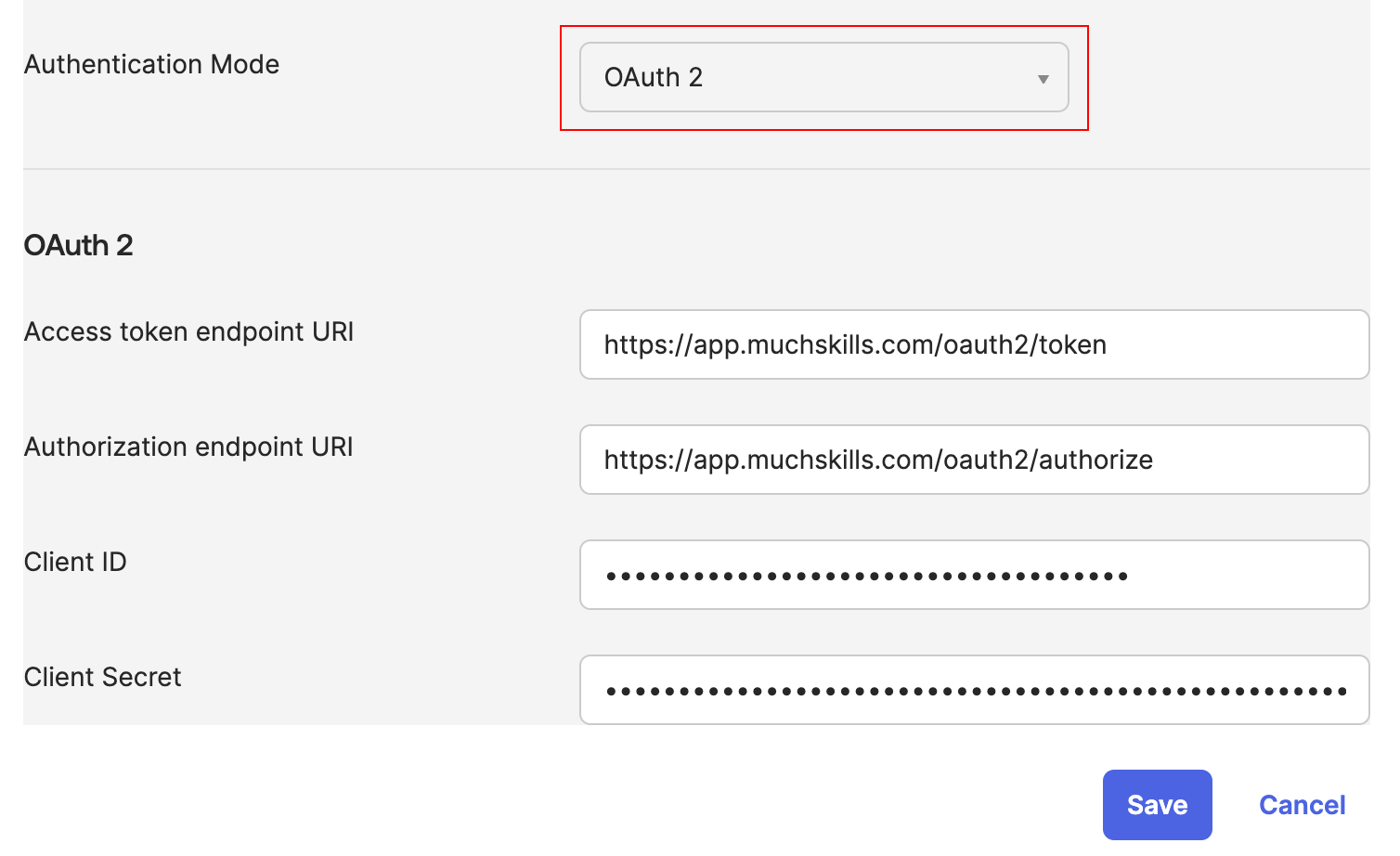
5.1. OAuth 2.0 Flow.
The identity provider requires the correct OAuth 2.0 settings to issue Bearer tokens.
| Field | Value |
|---|---|
| Authentication Mode | OAuth 2.0 |
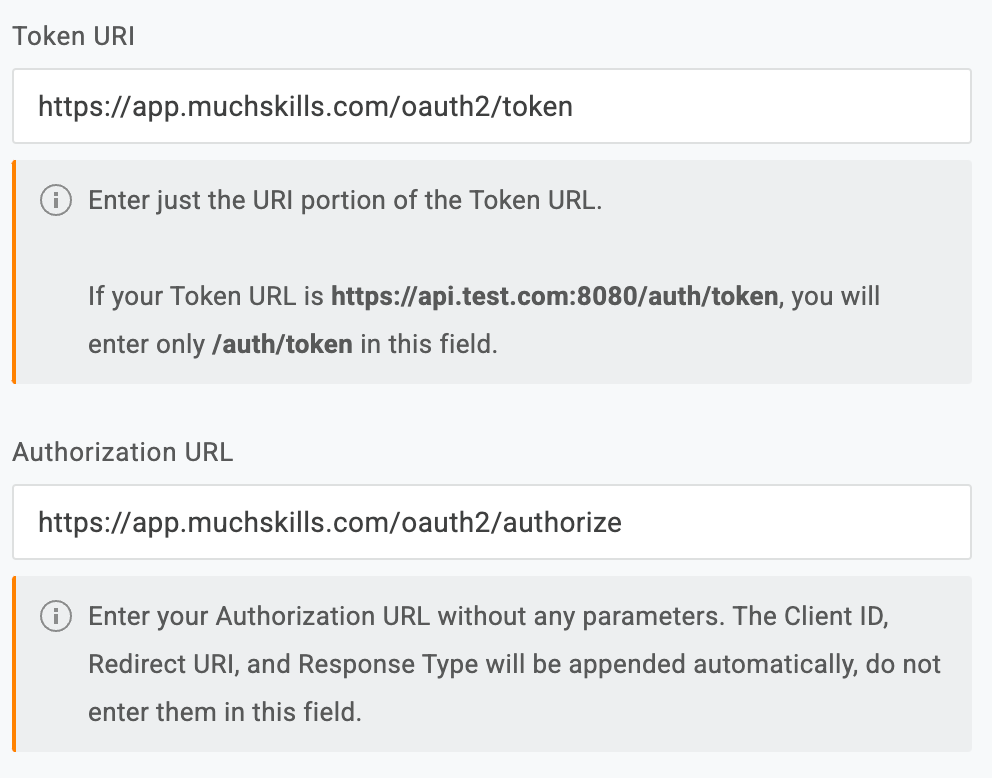
| Access Token Endpoint URI | https://app.muchskills.com/oauth2/token |
| Authorization Endpoint URI | https://app.muchskills.com/oauth2/authorize |
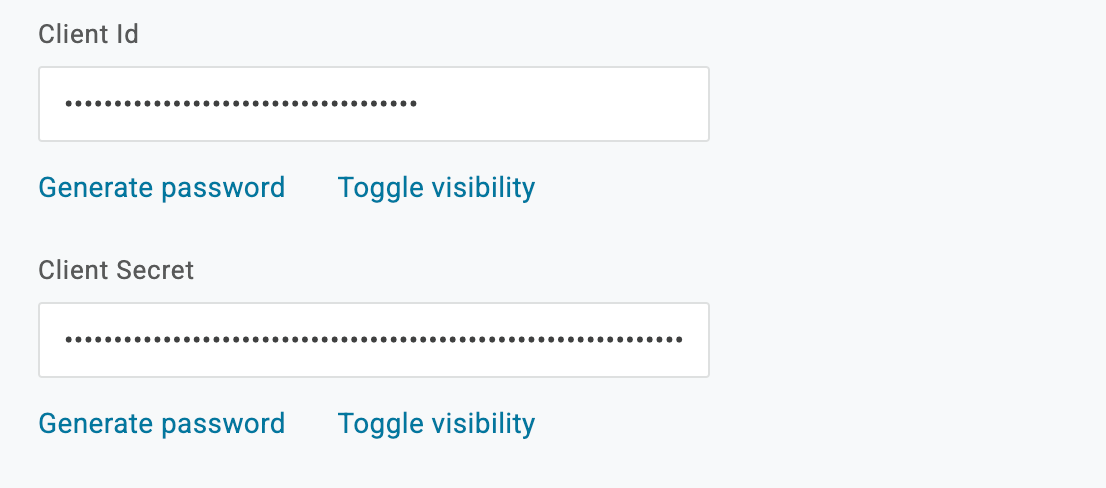
| Client ID | Provided by support |
| Client Secret | Provided by support |
Click Test Connection or Authenticate to verify the integration. The access token endpoint is used to obtain a Bearer token, which is required for all SCIM API requests. Once configured, the identity provider will automatically request new tokens as needed.
5.2. Access token.
The identity provider requires the correct OAuth 2.0 settings to issue Bearer tokens.
| Field | Value |
|---|---|
| Authentication Mode | Access token/Bearer token |
| Access Token | Provided by support |
Click Test Connection or Authenticate to verify the integration.
3. SCIM API Endpoints
SCIM Base URL
All SCIM operations use the following base URL:https://app.muchskills.com/scim/v2
Supported SCIM Operations
| GET | /scim/v2/Users | Retrieve all users (supports pagination & basic filtering) |
| GET | /scim/v2/Users/{id} | Retrieve a specific user |
| POST | /scim/v2/Users | Create a new user |
| PUT | /scim/v2/Users/{id} | Update a user (full replace) |
| PATCH | /scim/v2/Users/{id} | Update specific attributes |
| DELETE | /scim/v2/Users/{id} | Remove a user from the system |
Filtering & Pagination
- Filtering: Supports eq (equals) on userName (email). Example:filter=userName eq "email@example.com"
- Pagination: Uses startIndex and count parameters.
Group Management
The/Groups endpoint is available but only returns predefined roles (member, manager, admin).
- No support for custom groups or group membership management.
4. SCIM Field Mapping
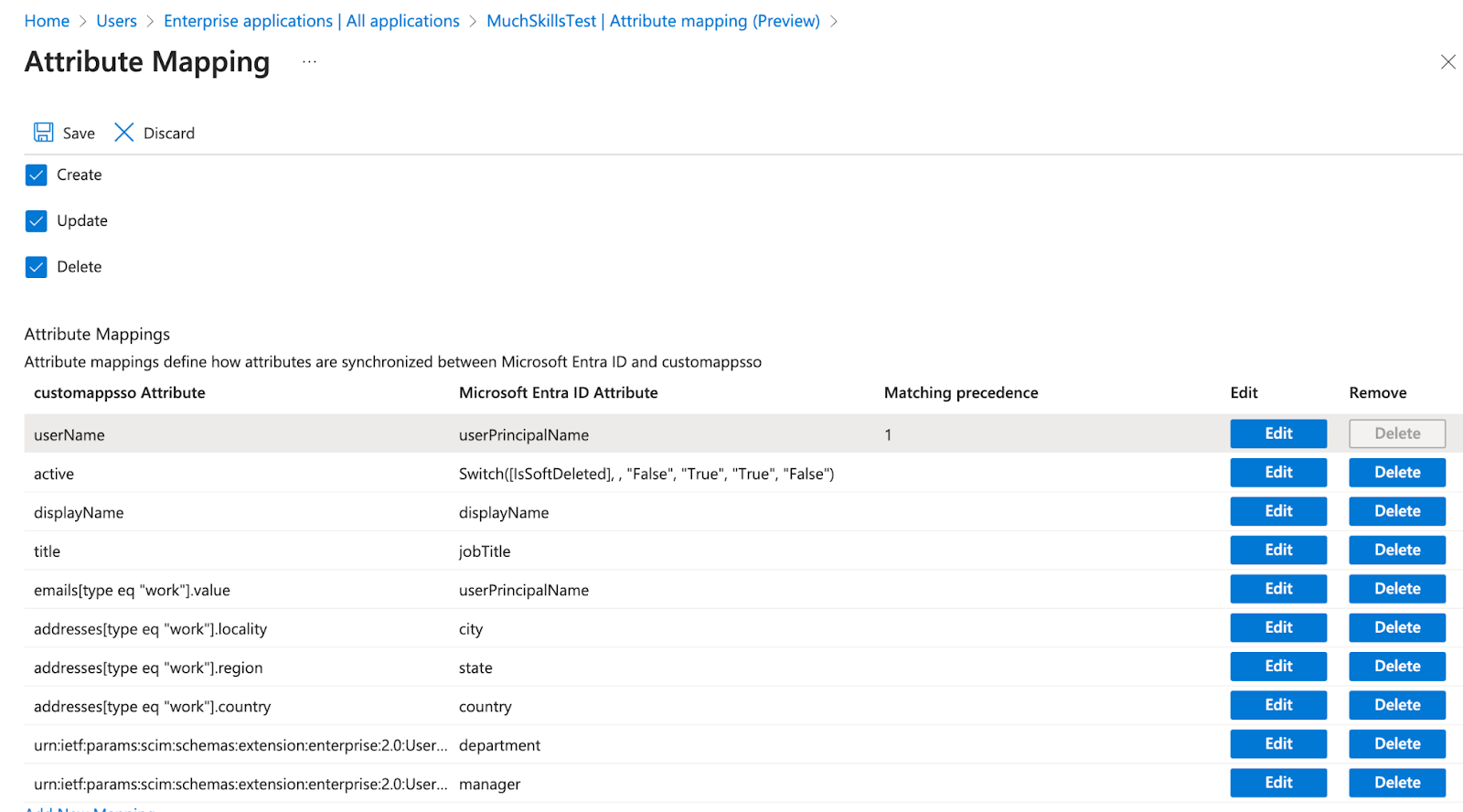
SCIM allows mapping user attributes between your identity provider and MuchSkills. The table below maps SCIM user attributes to our internal system.
| SCIM Field | SCIM Type | Our System Field | Notes |
|---|---|---|---|
| id | String | User ID | Internal unique identifier |
| userName | String | Email/Login | Must be a valid email, used for login |
| displayName | String | Full Name | Used as primary display name |
| name.formatted | String | Full Name | Same as displayName |
| name.givenName | String | Full Name | Used to construct displayName |
| name.familyName | String | Full Name | Used to construct displayName |
| emails | Array | Email(s) | Primary email is required and must match userName |
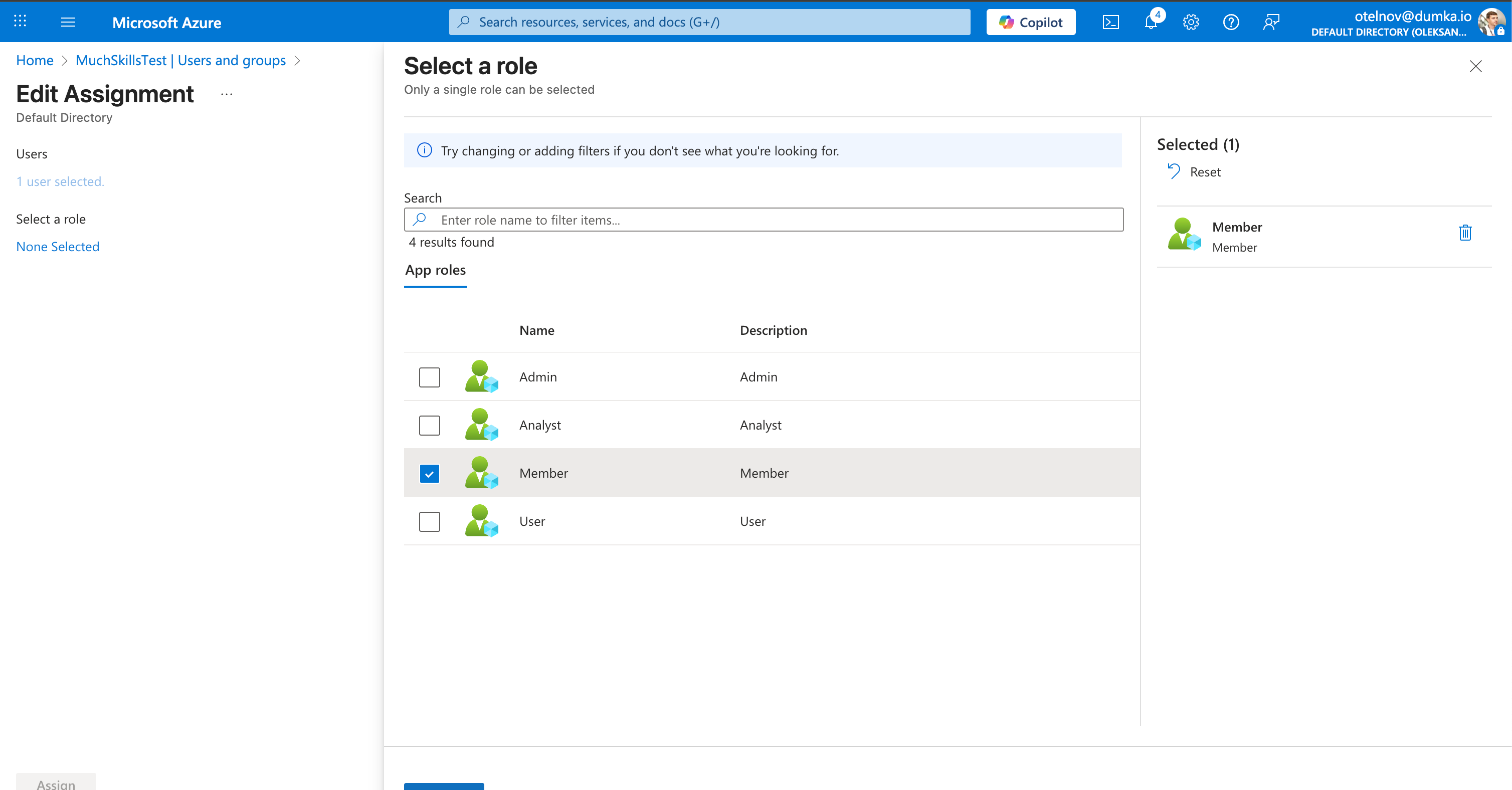
| roles | Array | User role(s) | Optional field. Primary role will be assigned to the user. Valid values: Admin, Member, Analyst. Other values will be ignored. Default value is Member |
| active | Boolean | User Status | false triggers deletion from our system |
| title | String | Job Title | Optional field |
| photos | Array | Profile Picture | Supports multiple entries, type can be 'photo' or 'thumbnail' |
| photos.value | URL | Profile Picture | If provided, the image is stored in our system |
| addresses.region | String | Location | Used to construct city part of Location |
| addresses.locality | String | Location | Used to construct country part of Location |
| addresses.country | String | Location | Can be used instead of addresses.locality to construct country part of Location |
Enterprise User Extension
| SCIM Field | SCIM Type | Our System Field | Notes |
|---|---|---|---|
| department | String | Department | Department name (created if missing) |
| manager.value | String | Manager ID or Email | Must be a valid user ID or email |
MuchSkills User Extension
| SCIM Field | SCIM Type | Our System Field | Notes |
|---|---|---|---|
| profilePicture | String | Profile Picture | An alternative and simpler way to provide a profile picture. Can be used instead of the photos array. |
5: Assign Users
- Navigate to the Users or Assignments section in your identity provider.
- Select users who should be provisioned in MuchSkills.
- Click Assign or Enable SCIM Provisioning for selected users.
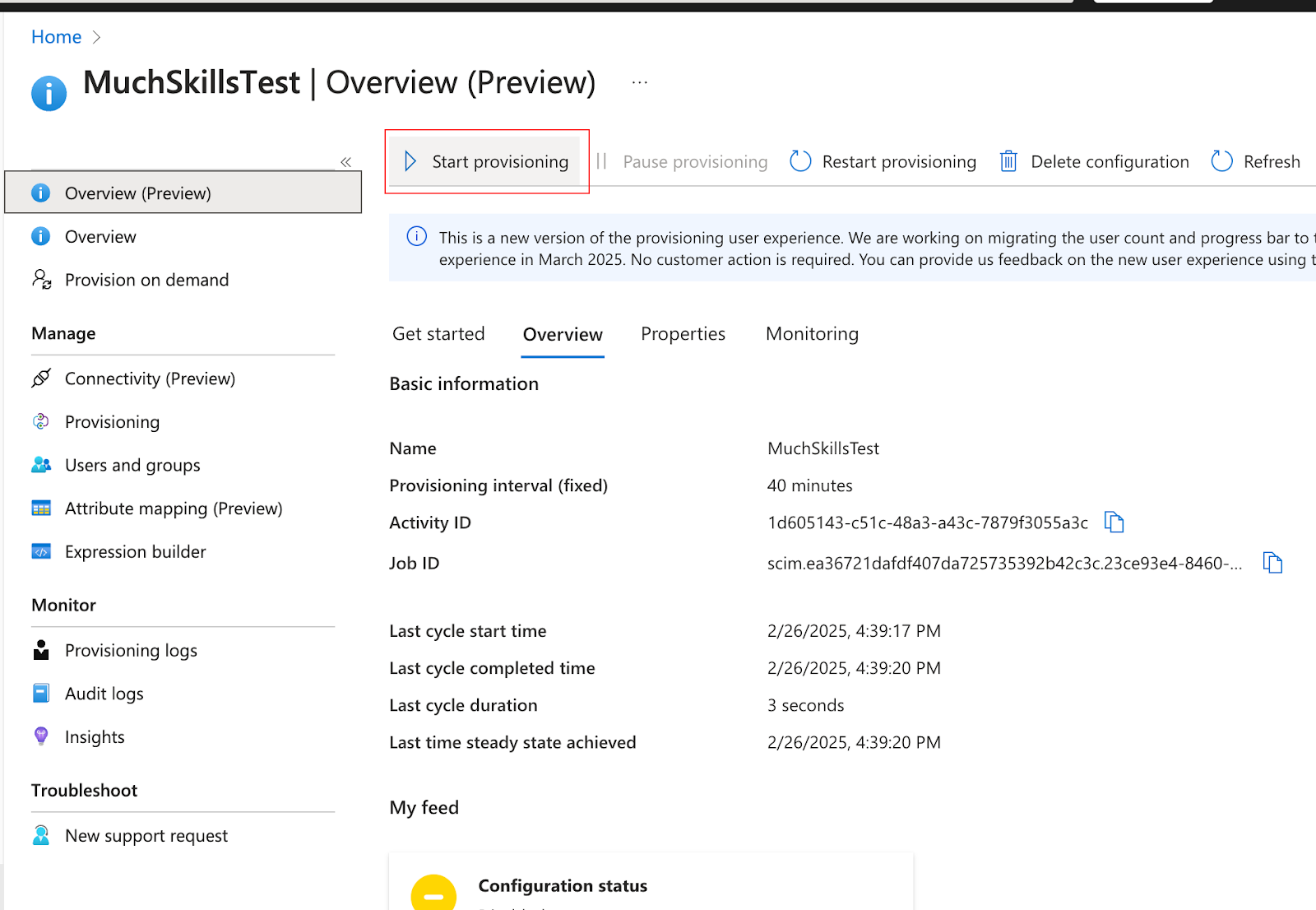
- Enable automatic user provisioning if your identity provider has this setting.
- Click Sync Now or Force Sync to trigger the initial synchronization.
- Confirm that users appear in [Your App] under the Users section.
Details:
The following JSON schema represents a SCIM user object as used in our system. This example includes core user attributes, enterprise extension and MuchSkills extension fields.
7. Troubleshooting
The table below lists common issues encountered when integrating SCIM provisioning with OAuth 2.0 in identity providers like Okta and OneLogin.
| Issue | Possible Cause | Resolution |
|---|---|---|
| SCIM requests fail with 401 Unauthorized | Invalid OAuth 2.0 credentials or Access token | Ensure the token is refreshed every 15 minutes. Verify that the correct Access token or OAuth 2.0 client credentials are used. |
| User provisioning fails with 409 Conflict | User already exists in the system | Check if the email is already in use. Ensure that userName is a unique email. |
| Users are not appearing in the system after being pushed from the IdP | The SCIM response was not processed correctly | Check provisioning logs in the IdP for errors. Ensure that the userName (email) format is valid and matches the expected format. |
| Changes to users in IdP are not reflected in the system | SCIM updates are not being sent correctly | Verify that "Push Profile Updates" is enabled in the IdP's SCIM provisioning settings. Check if PUT or PATCH requests are being made successfully. |
| Error: invalid_filter when retrieving users | Unsupported SCIM filter operator | Ensure filters use only eq for userName |
| Error: user not found when updating or deleting users | The user does not exist in the system | Verify that the user ID in the request matches an existing SCIM user. Use GET /scim/v2/Users to check if the user exists. |
| SCIM request returns 500 Internal Server Error | Unexpected error on the service side | Contact support with the request details. Verify if the issue is due to an incorrect payload format. |
Okta example:
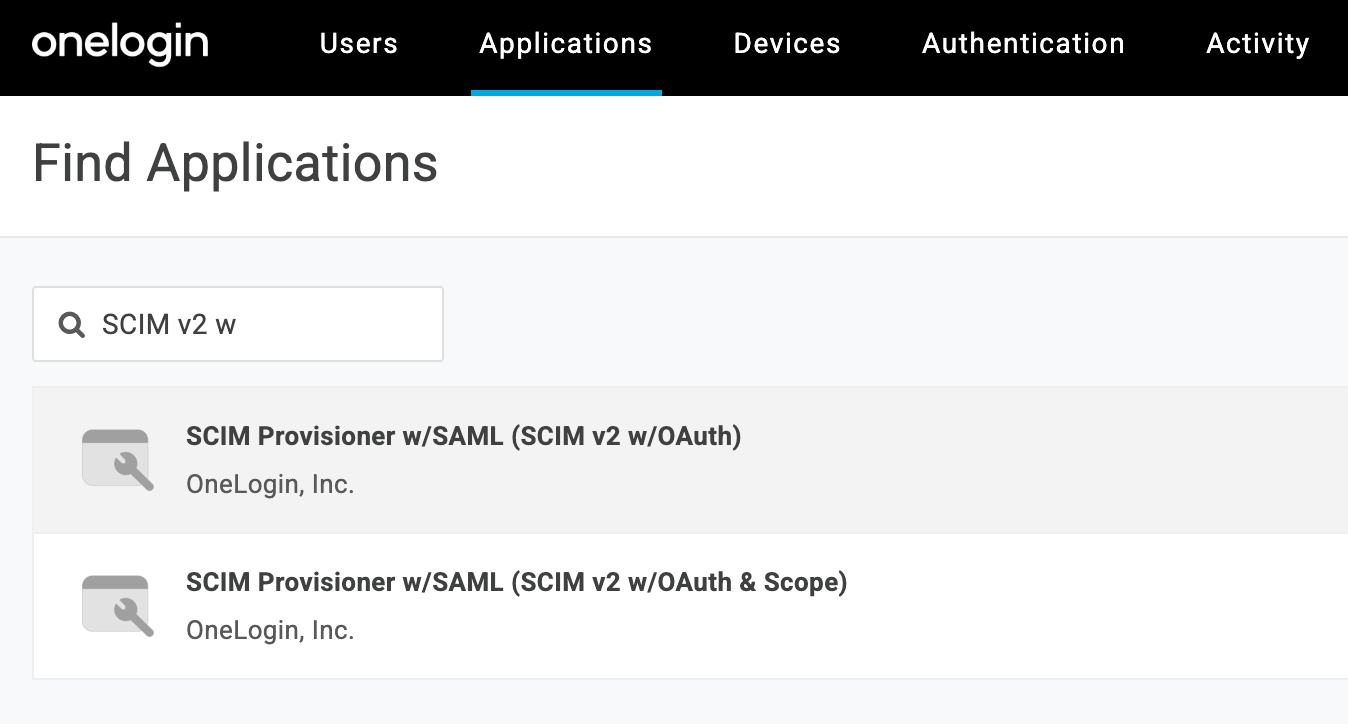
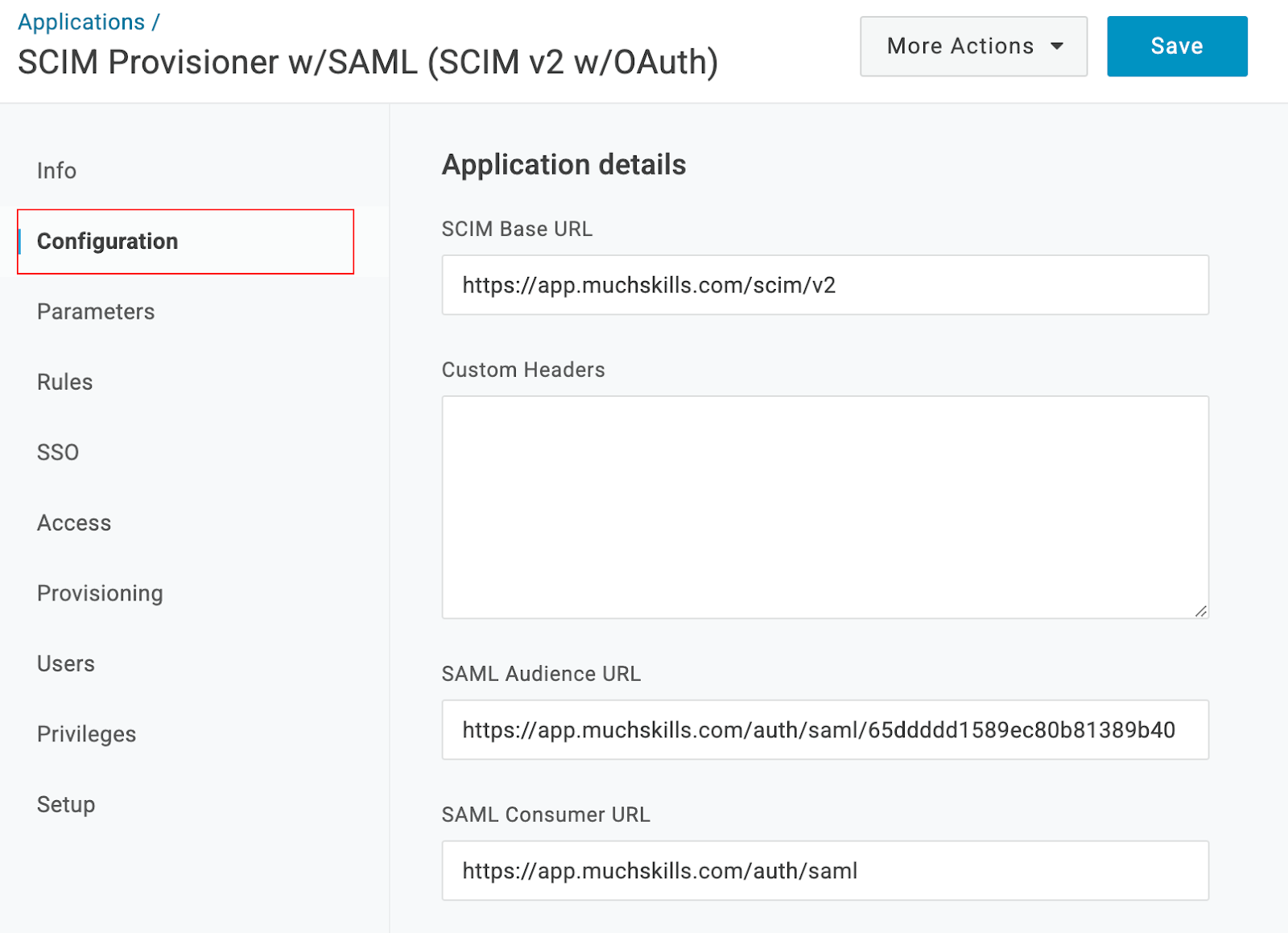
OneLogin example:
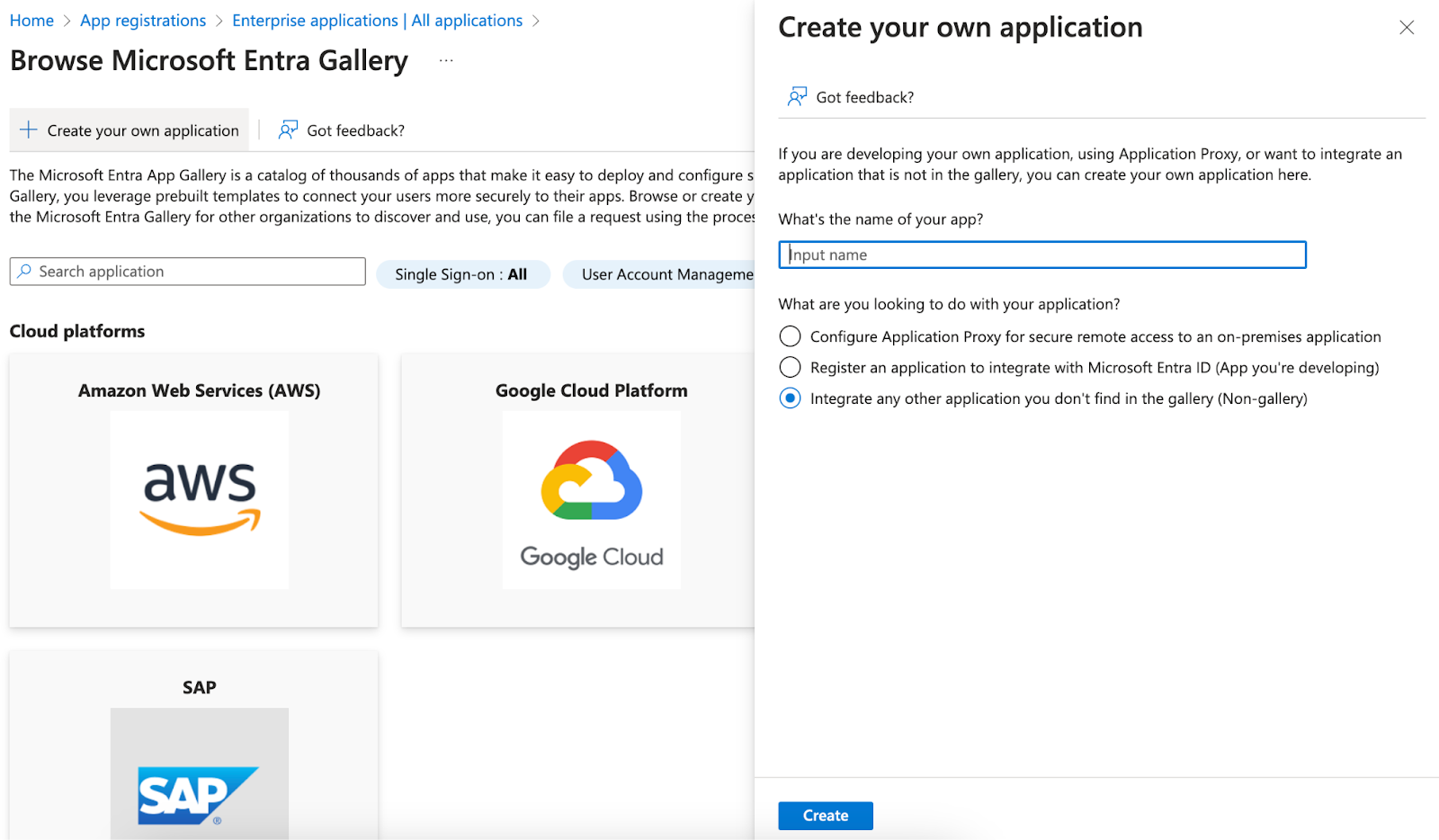
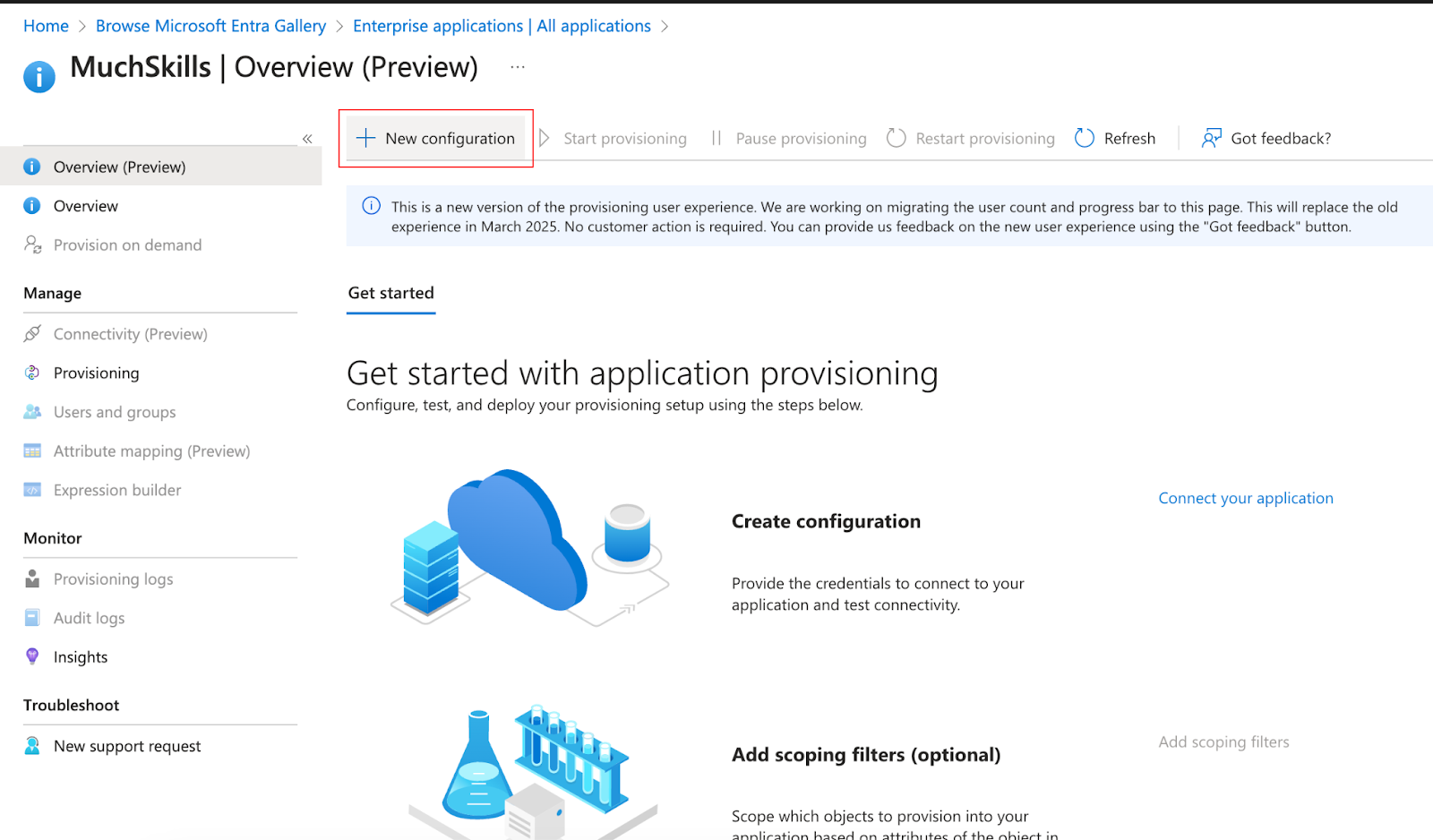
Microsoft Entra example:
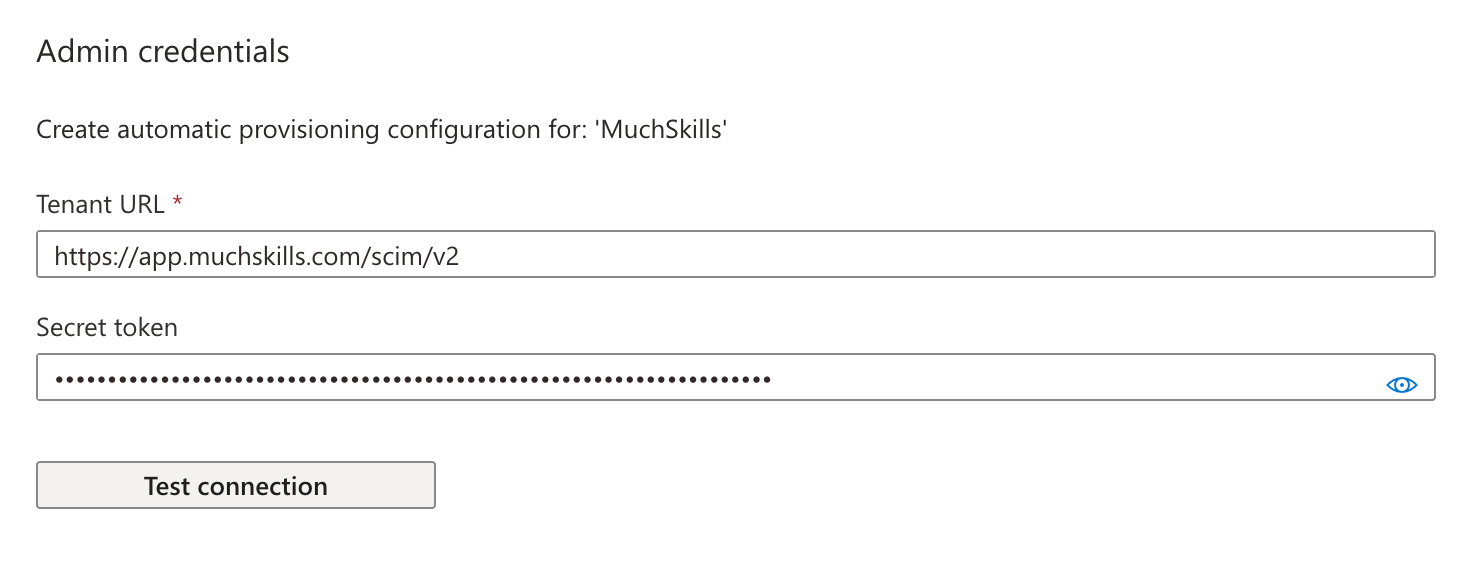
Add credentials using OAuth2 Client Credentials Grant :
Or alternatively with Bearer Authentication :
Configure attribute mapping:
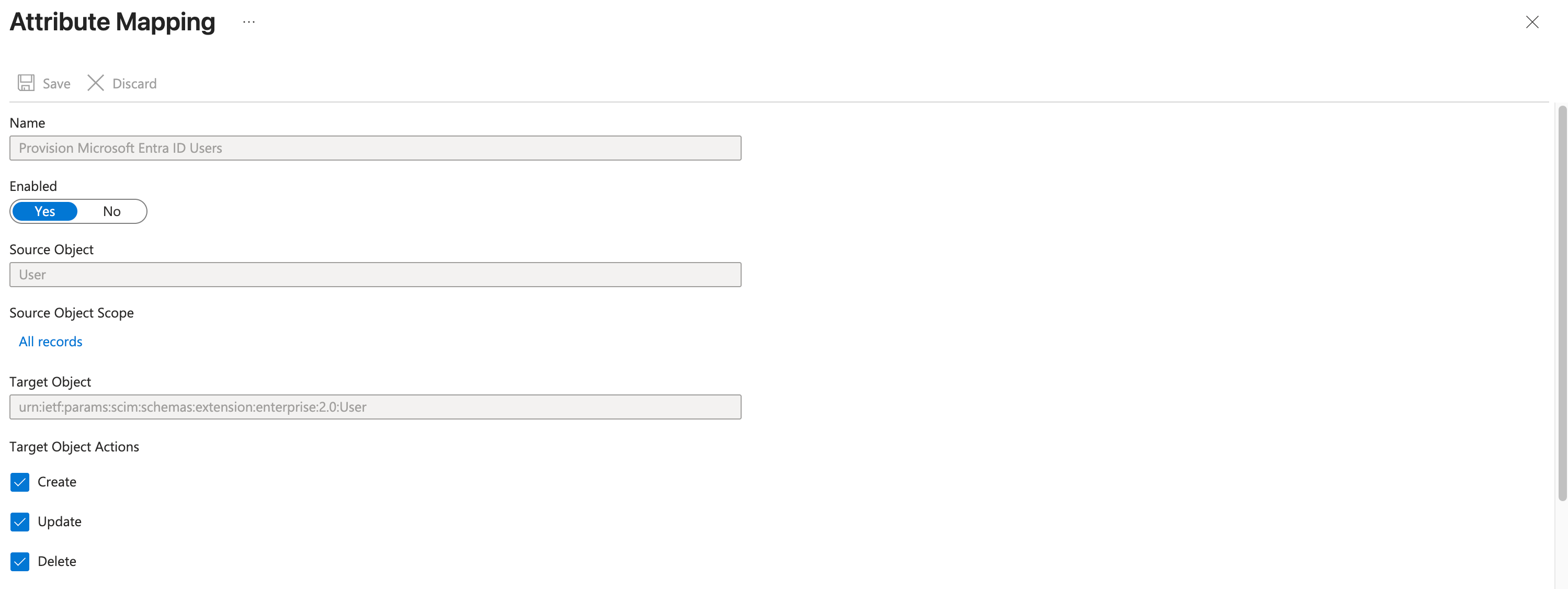
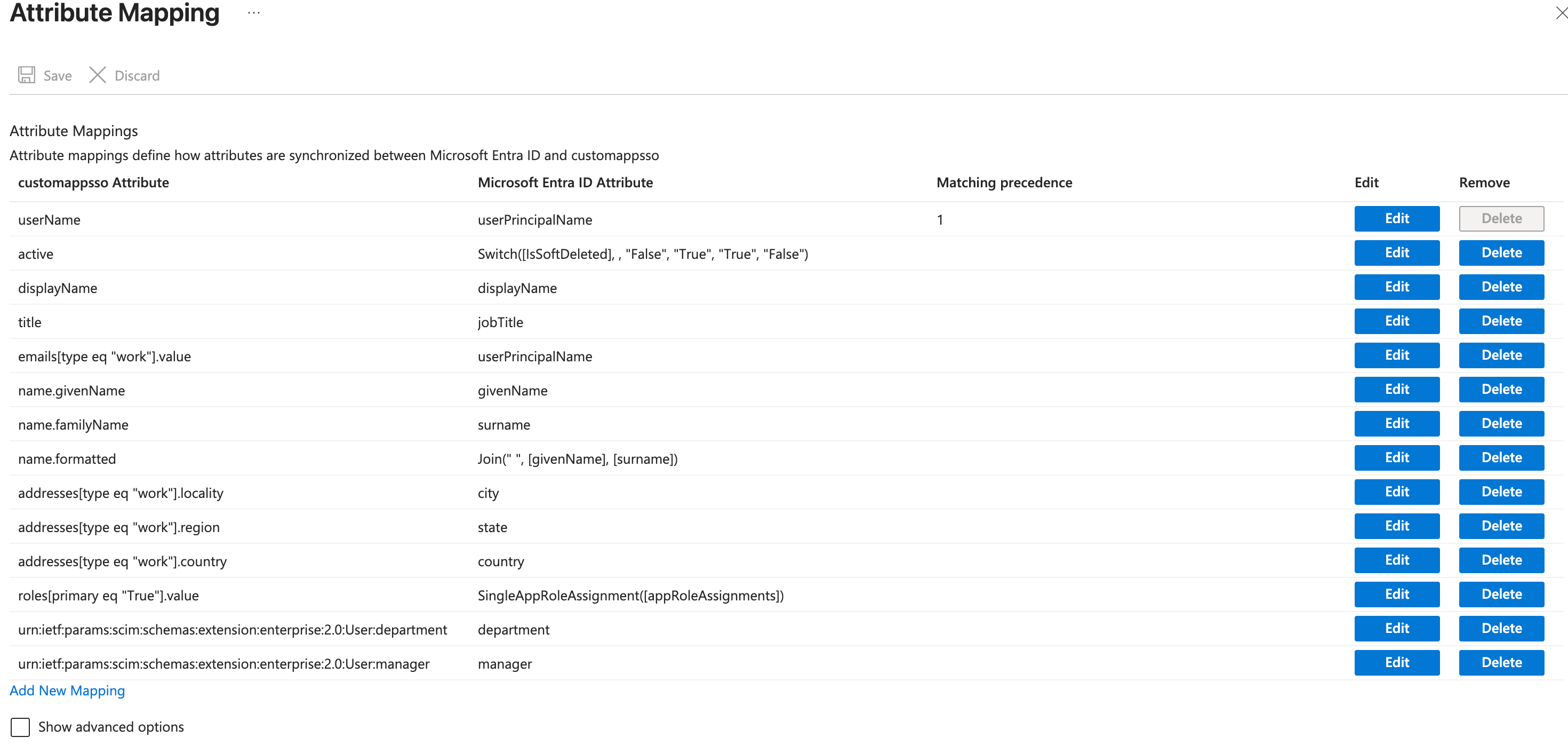
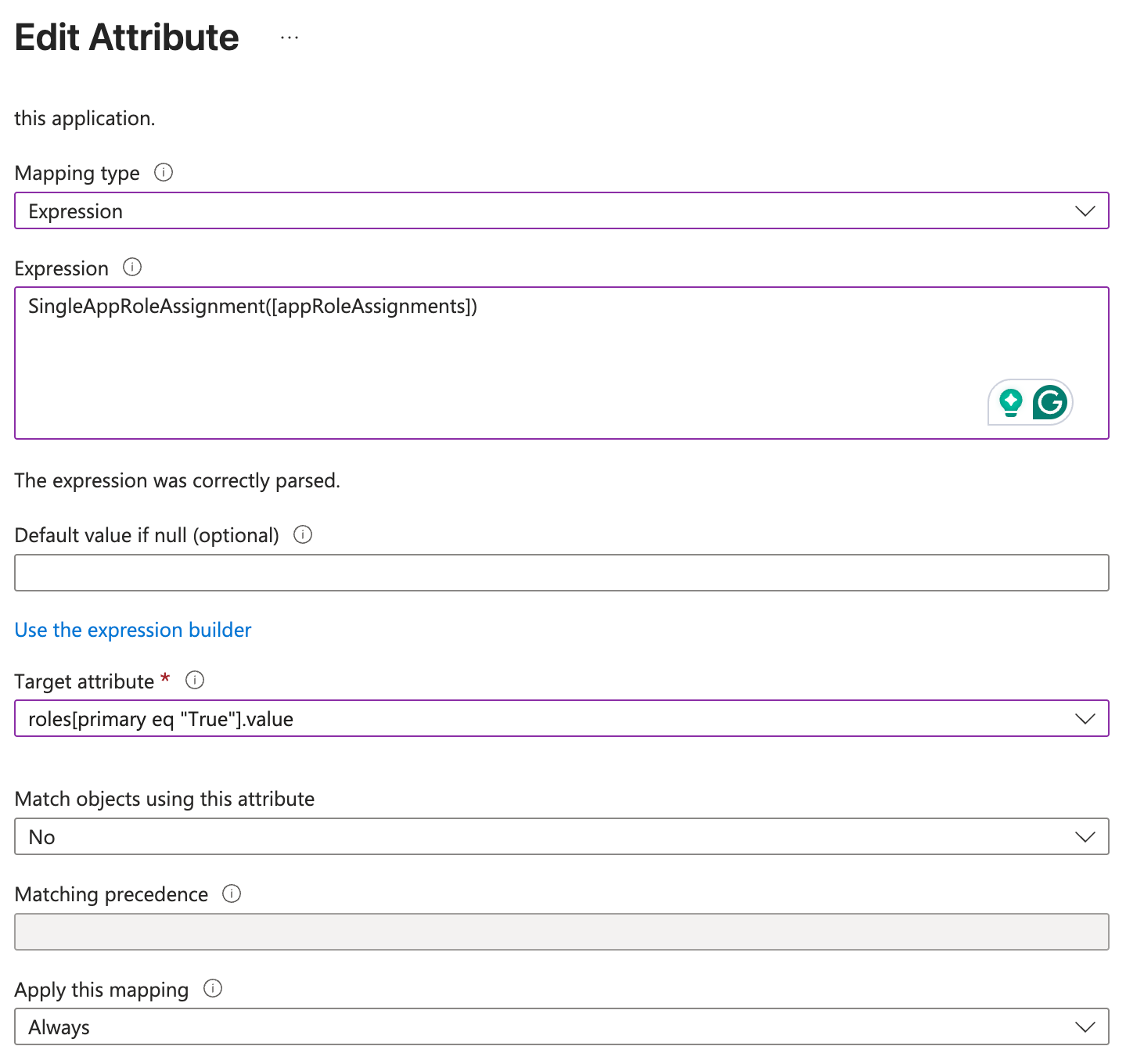
To set up role field mapping, use the following configuration:
Mapping type: Expression
Expression: SingleAppRoleAssignment([appRoleAssignments])
Target attribute: roles[primary eq "True"].value
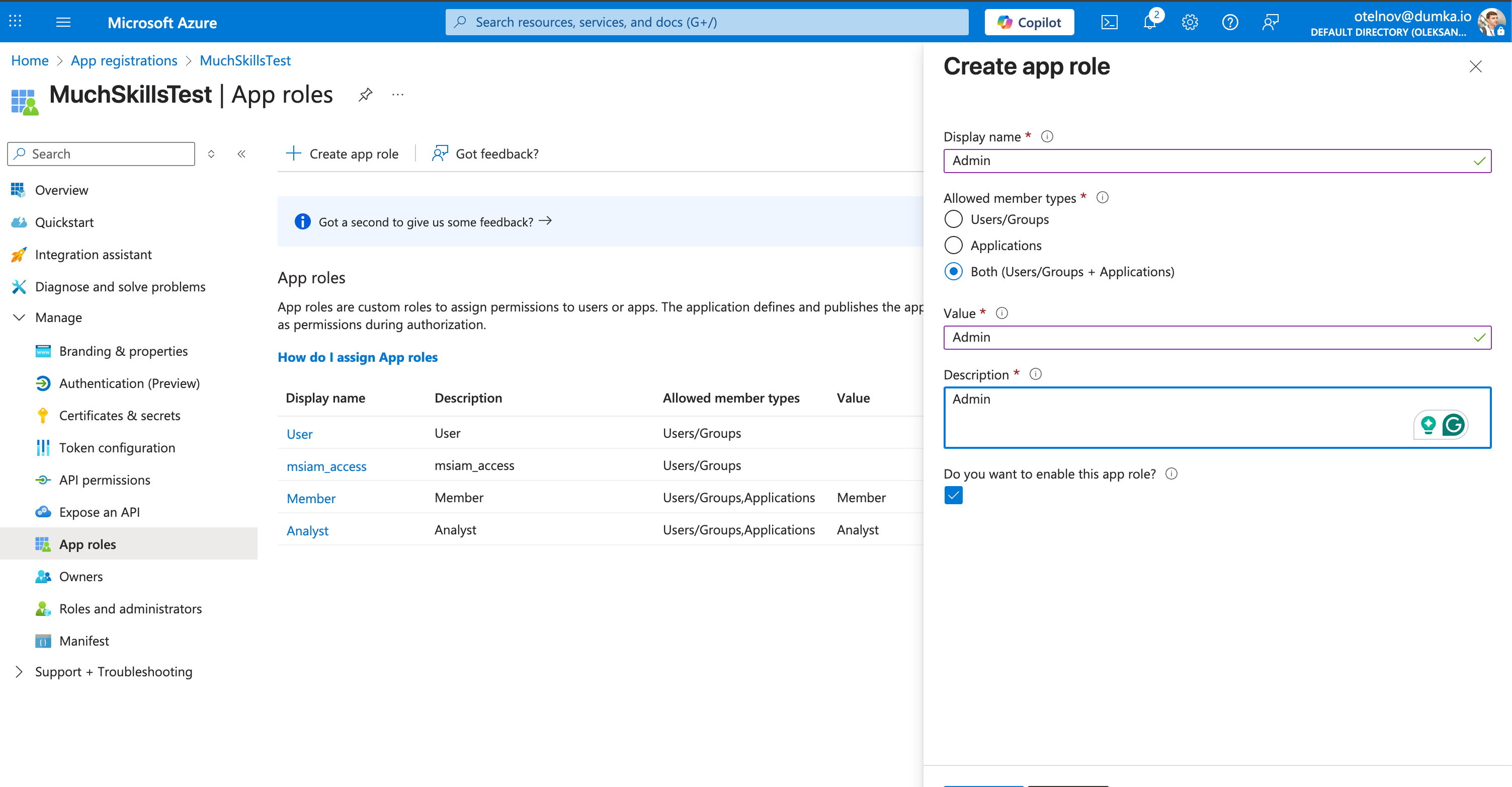
To add valid role options for your assignments:
Go to Home > App registrations > Your App > App roles
There, create roles Member, Analyst, Admin
Roles will be available to add/edit app assignments: