


Use reports to track skills data
- Who
- Owners, Admins and Analysts see everyone; managers see their people
- Where
- Team/Org › Reports
- Reports
- Dashboard, Skills, Certifications, Utilisation, Growth, Courses
- Export
- Export as CSV where the report offers it
Team/Org › Reports brings your organisation's skills data together: the dashboard, skills and badges, skill demand from projects, certifications, goals, utilisation and courses from connected learning platforms. This guide shows what each report answers, who can see it and how to filter and export it.
How it works
Open Team/Org › Reports. The menu on the left groups the reports. Each answers a different question:
| Report | Menu | Answers |
|---|---|---|
| Dashboard | Dashboard | What is the state of skills, certifications, badges and goals right now? |
| Skills | Skills › All | Which skills do we have, at which levels, and which are validated by managers? |
| Badges | Skills › Badges | Which badges have we awarded, and to whom? |
| Demand | Skills › Demand | Which skills do our projects need that we are short of? See Find skill shortages with the Demand report |
| Certifications | Certifications › All, Active, Expiring, Expired | Which certificates do we hold, and which are about to expire? |
| Certifications › By Vendor | What do we hold per vendor, such as AWS or Microsoft? | |
| Certifications › Discontinued | Which certificates has the issuer Retired or Revoked? | |
| Certifications › Lists | How do we stand against the certification lists we defined? See Manage and track certifications | |
| Utilisation | Utilisation › By Users, By Projects, By Availability, Weekly | Who is busy, who has room, and how much time goes to each project? See Utilisation reports |
| Growth | Growth › Open, Planned, Ongoing, Completed | What are people working towards, and what have they achieved? |
| Courses | Courses › one entry per platform | Who is studying and who has completed courses on a connected learning platform? See Course reports |
Who sees what:
- Owners, Admins and Analysts see reports for the whole organisation.
- Managers see reports for the people who report to them.
- The Demand report is for Owners and Admins.
- Courses appears only when a learning platform is connected.
To browse skills without numbers and filters, use Team/Org › Overview. To analyse skills against a role or competence area, use a skill list in Analysis.
Before you start
- Your role. You need to be an Owner, Admin or Analyst, or a manager with direct reports.
- Data in, insight out. Reports show what people have added. Skills and certifications come from profiles, demand from Team Builder, utilisation from planned project time, goals from My Growth, and courses from your learning platform.
Steps
Open a report
- Open Reports. Click Team/Org in the top menu, then Reports. You land on the Dashboard.
- Read the dashboard. Overview gives the headline numbers for skills, certifications, badges and goals. Skills shows who added new skills last quarter, who has added none, and your top experts. Goals shows goals created, achieved and scheduled, and who has no goals. Validated shows skill badges and custom badges, and who has none.
- Pick a report. Click a report in the menu on the left.
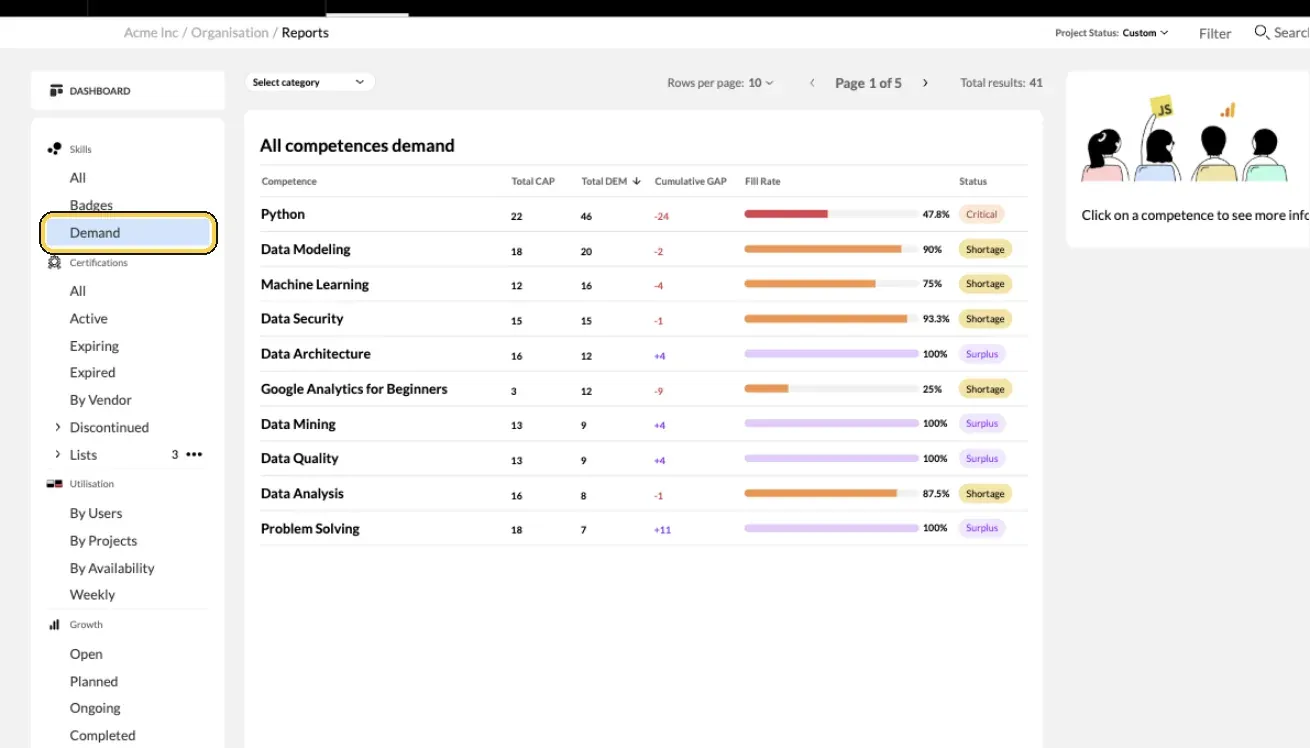
Team/Org › Reports › Skills › Demand.
Narrow it down
- Filter. Click Filter at the top to choose departments, locations, tags or job titles. Owners, Admins and Analysts can also filter by manager and role.
- Choose a period. Under Time Range, pick a start and end date to see what changed in that period.
- Choose a category or vendor. Where a report offers it, use Select category or Select vendor at the top.
Go from numbers to people
- Click an item. Click a skill, badge, certificate or goal to see the people behind it on the right. In the skills report, choose User Added or Manager Validated, and All, Experts, Intermediates or Beginners.
- Open a profile. Click a person to see their profile.
- Export. Click Export as CSV at the top, where the report offers it, to work with the data in a spreadsheet.
Read the reports well
- Skills › All. Bars show how many people have each skill at each level. Hover a bar to see how many were self validated, manager validated or both.
- Skills › Badges. Shows each badge and the Members awarded.
- Certifications. Status colours are black for active, yellow for expiring and red for expired. Switch between All, User added and Validated to see who added a certificate and whether a manager has checked it.
- Growth. Open goals have started or are due to start in the period, Planned goals are scheduled to start, Ongoing goals have their deadline in the period, and Completed goals were achieved in it. You also see how people want to get there: Take upskilling classes, Mentors requested, Self training or Need help.
- Utilisation. Timelines of people and projects, past, present and future. See Utilisation reports.
- Courses. Active courses with the number of students, and who is studying or has completed each one. See Course reports.
Tips
- Start from a question. Who is certified for the next audit? Where are we short of experts? Pick the report that answers it.
- Compare teams with filters. Run the same report for two departments to see where to focus.
- Check the dashboard monthly. Zero skills added and no goals added show who needs a nudge.
- Give HR business partners the Analyst role. They can see all reports without changing settings.
- Combine reports with Analysis. Reports show the whole organisation. Analysis lists show the same data against a role or competence area.
Troubleshooting
| What you see | Why | What to do |
|---|---|---|
| Reports is missing under Team/Org | You are a member without direct reports | Ask an Owner or Admin for the Analyst role if you need reports |
| Demand is missing under Skills | The Demand report is for Owners and Admins | Ask an Owner or Admin |
| Courses is missing | No learning platform is connected | See Course reports for the platforms you can connect |
| No skills data to show | No skills match your filters or time range | Clear the filters or widen the time range |
| No certificate data to show | No certificates match your filters, status or vendor | Clear the filters or choose another vendor |
| No goals data to show | No goals match the status, filters or time range | Choose another status or widen the time range |
| You have no reports to display | No utilisation data matches your filters | Clear the filters, or check that project time is planned |
| You see only some people | As a manager, you see the people who report to you | Owners, Admins and Analysts see everyone |
Frequently asked questions
Who can see Reports?
Owners, Admins and Analysts see reports for the whole organisation. Managers see Reports for the people who report to them. Members without direct reports do not see Reports.
Why can't I see the Demand report?
The Demand report is for Owners and Admins. It also needs Team Builder projects with skills that have a required level or are marked as important.
Why is there no Courses section?
Courses appears when your organisation has connected a learning platform, such as Skillsoft Percipio or Udemy Business. Each connected platform gets its own entry.
Can I see only one department or one manager's team?
Yes. Use Filter at the top of a report to choose departments, locations, tags or job titles. Owners, Admins and Analysts can also filter by manager and role. In the utilisation reports, Reporting to picks one manager's team.
Can I see how things changed over time?
Yes. Most reports have a Time Range in the filters. For skills it shows what was added in that period, for certifications what was added or issued, and for goals what started, is due or was achieved.
Can I export a report?
Use Export as CSV at the top of the report where it is offered, for example the skills report. Certification reports also export as CSV.
How do I give an HR business partner access to all reports?
Give them the Analyst role in Team/Org › Settings › Manage Members. Analysts see all data and reports, and cannot change settings.
Where is the skills overview I used to see in Reports?
The skills overview for browsing lives in Team/Org › Overview. Reports › Skills › All is the analytical version, with time ranges, levels, validation and export.