


Single sign-on with any SAML provider
MuchSkills works with any identity provider that supports SAML 2.0. This guide gives the values your provider asks for, the steps on the MuchSkills side, and short notes for OneLogin, JumpCloud, PingOne and AD FS.
- Who
- A MuchSkills Owner or Admin, with an administrator for your identity provider
- How it connects
- Support adds your email domain, then you finish in Settings › Security & SAML
- Standard
- SAML 2.0, with the email address as Name ID
- Plans
- Included in all plans
How to
How it works
Your identity provider confirms who a person is and sends MuchSkills a signed SAML message with their email address. MuchSkills matches that address to the person's account and logs them in. MuchSkills reads your provider's sign-in address and certificate from the metadata URL you paste in. Single sign-on only applies to email addresses on the domains support has added for you.
Before you start
- In MuchSkills: the Owner or Admin role. Only these roles can open the Security & SAML screen.
- In your identity provider: an administrator who can create a custom SAML app and give people access to it.
- Your email domains. List every domain your people log in with. Support adds them for you in step 1.
- Matching email addresses. MuchSkills recognises people by email. The email your provider sends should be the address each person uses for MuchSkills.
- A few test users. Give yourself and two or three colleagues access first. Enforce single sign-on only after they can log in.
Steps
In MuchSkills
- Ask support to add your email domains. Email support@muchskills.com or use the chat in MuchSkills. List every domain your people use. When the domains are added, they appear under Email domains on Team/Org › Settings › Security & SAML, which says No domain added until then.
- Copy your SSO URL. On the same screen, copy the SSO URL. It starts with https://app.muchskills.com/auth/saml/ followed by your organisation's ID. Keep this tab open.
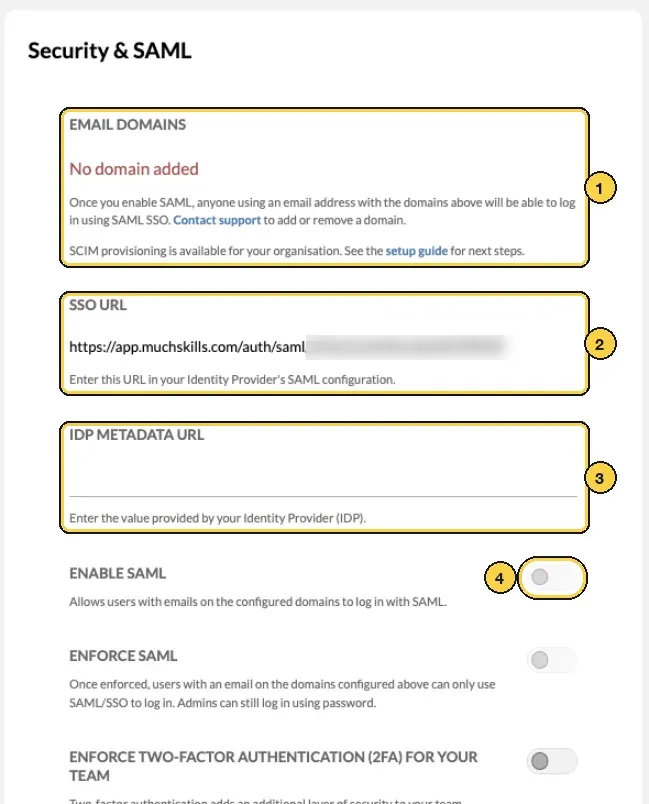
Team/Org › Settings › Security & SAML: 1 email domains, 2 SSO URL, 3 IDP Metadata URL, 4 Enable SAML.
In your identity provider
- Create a custom SAML 2.0 app. Providers call it a custom, generic or non-gallery app. The notes under Important to know give the menu path for OneLogin, JumpCloud, PingOne and AD FS.
- Enter the MuchSkills values. Providers use different names for the same fields:
| Your provider asks for | It may also be called | Enter |
|---|---|---|
| ACS URL | Reply URL, Single sign-on URL, Consumer URL, Recipient, SAML 2.0 SSO service URL | Your SSO URL from step 2 |
| SP Entity ID | Audience, Audience URI, Identifier, Relying party trust identifier | https://app.muchskills.com/auth/saml |
| Name ID format | Subject NameID format | Email address |
| Name ID value | Username, subject, NameID | The person's email address, the one they use in MuchSkills |
- Give your test users access. Assign the app to yourself and a few colleagues.
- Copy the metadata URL. Providers call it the metadata URL, IdP metadata URL, Issuer URL or federation metadata. If your provider only offers a file, see step 7.
Back in MuchSkills
- Paste the metadata URL. On Security & SAML, paste it into IDP Metadata URL. The field opens once your domain is added. If you only have a metadata file, host it at an HTTPS address that MuchSkills can reach and paste that address, or send the file to support@muchskills.com and we add it for you. Changes save as you make them.
- Turn on single sign-on. Switch on Enable SAML. Until you enforce it, people can still use a password.
- Test it. Open a private browser window and go to app.muchskills.com/login. Enter the email of a test user and click Continue. MuchSkills recognises the domain and shows Continue with SAML. Click it, sign in with your provider, and you land in MuchSkills.
- Enforce it, if you want to. When your test users get in, give everyone who needs MuchSkills access in your provider, then switch on Enforce SAML. People on your domains can then only log in with SAML/SSO. Admins can still log in with a password.
Check it worked
- Your test user reaches MuchSkills through your provider's sign-in after clicking Continue with SAML.
- In Team/Org › Settings › Manage Members, people who log in with single sign-on show a SAML label next to their name.
Benefits
What you get
- One login. People use the account they already have with your identity provider.
- Access in one place. Your provider decides who can log in, under your own sign-in policies such as multi-factor authentication.
- Leavers lose access. Once you enforce single sign-on, a person you disable in your provider can no longer log in to MuchSkills.
Important to know
Important to know
OneLogin. Go to Applications › Applications › Add Apps and search for SAML Custom Connector (Advanced). On the Configuration tab, enter https://app.muchskills.com/auth/saml in Audience (EntityID) and your SSO URL in both Recipient and ACS (Consumer) URL. ACS (Consumer) URL Validator takes a regular expression; ^https:\/\/app\.muchskills\.com\/auth\/saml\/.*$ matches MuchSkills SSO URLs. Keep SAML nameID format as Email. On the SSO tab, copy Issuer URL: that is the metadata URL for MuchSkills. OneLogin: SAML Custom Connector (Advanced) · OneLogin: configuring SAML apps
JumpCloud. Go to Access › SSO Applications › + Add New Application, select Custom Application, then Manage Single Sign-On (SSO) and Configure SSO with SAML. Enter a Display Label, click Save Application and then Configure Application. Enter https://app.muchskills.com/auth/saml in SP Entity ID and your SSO URL in ACS URLs. IdP Entity ID is a name you choose; MuchSkills reads it from the metadata. The SAMLSubject NameID is email by default, so leave it. Save, then use Copy Metadata URL. Give people access through User Groups. JumpCloud: custom SAML connectors · JumpCloud: connector fields
PingOne. Go to Applications › Applications and click the add icon. Enter an Application Name, choose SAML Application and click Configure. Choose Manually Enter, put your SSO URL in ACS URLs and https://app.muchskills.com/auth/saml in Entity ID, then click Save. On the Configuration tab, set Subject NameID format to the emailAddress format. On Attribute Mappings, map the subject to Email Address. Turn the application on with the toggle, give access on the Access tab with a Group Membership Policy, and copy the IDP Metadata URL from the Overview tab. PingOne: adding an application · PingOne: SAML settings · PingOne: IdP metadata
AD FS. In AD FS Management, click Add Relying Party Trust, choose Claims aware and then Enter data about the relying party manually. Name it MuchSkills. On Configure URL, tick Enable support for the SAML 2.0 WebSSO protocol and enter your SSO URL as the Relying party SAML 2.0 SSO service URL. On Configure Identifiers, add https://app.muchskills.com/auth/saml. Choose an access control policy and finish. Then open Edit Claim Issuance Policy and add two rules: Send LDAP Attributes as Claims, mapping E-Mail-Addresses to E-Mail Address, and Transform an Incoming Claim, turning E-Mail Address into Name ID with the Email format. Your metadata URL is your AD FS host followed by /FederationMetadata/2007-06/FederationMetadata.xml, for example https://sts.example.com/FederationMetadata/2007-06/FederationMetadata.xml. It must be reachable from the internet. Microsoft: create a relying party trust · Microsoft: send LDAP attributes as claims · Microsoft: transform an incoming claim · Microsoft: the federation metadata endpoint
Email addresses must match. If the address your provider sends differs from the email on a person's MuchSkills account, MuchSkills cannot match them.
Single sign-on handles login only. To bring people into MuchSkills automatically, use SCIM provisioning if your provider supports it, or connect your HR system.
Certificate changes are picked up automatically. MuchSkills reads the signing certificate from your metadata URL, so a certificate rollover in your provider needs no change in MuchSkills. If you host a metadata file yourself, replace the file when the certificate changes.
Domains are set up by MuchSkills. We add your email domains when we configure SAML for you; admins cannot add them in the app. To add or remove a domain later, contact support.
Admins keep a password route. With Enforce SAML on, Admins can still log in with a password. Protect those password logins with two-factor authentication.
Common errors
Troubleshooting
| What you see | Why | What to do |
|---|---|---|
| Your provider rejects the request, naming the audience, issuer or entity | The SP Entity ID in your provider does not match the Entity ID MuchSkills sends | Enter https://app.muchskills.com/auth/saml exactly. Many providers treat it as case-sensitive |
| Your provider rejects the request, naming the ACS or reply URL | The ACS URL in your provider is not exactly your SSO URL | Copy the SSO URL from Security & SAML again |
| You sign in at your provider but do not reach MuchSkills | The Name ID is not the email address, or the metadata URL cannot be read | Check the Name ID settings, and open the metadata URL in a browser to check that it loads |
| This email is not configured to use SAML/SSO | The email's domain is not listed under Email domains, or Enable SAML is off | Check the domains and the switch on Security & SAML. Ask support to add a missing domain |
| No account with this email exists | MuchSkills has no account with the email address your provider sent | Check the Name ID value. Invite the person if they have no account yet |
| The IDP Metadata URL field is greyed out | No email domain has been added yet | Ask support to add your domains (step 1) |
| Enable SAML cannot be switched on | There is no domain or no IDP Metadata URL yet | Finish steps 1 and 7 first |
| This email is enforced to log in using SAML/SSO | Enforce SAML is on and the person tried a password | Click Continue with SAML and sign in with your provider |
Frequently asked questions
Does MuchSkills work with our identity provider?
If it supports SAML 2.0 and can send the email address as the Name ID, yes. That covers OneLogin, JumpCloud, PingOne, AD FS and most others. Microsoft Entra ID, Okta and Google Workspace have their own step-by-step guides.
What values does our identity provider need from MuchSkills?
Two: the ACS URL, which is the SSO URL on your Security & SAML screen, and the Entity ID, which is https://app.muchskills.com/auth/saml for every organisation.
What does MuchSkills need from our identity provider?
A metadata URL. Paste it into IDP Metadata URL on the Security & SAML screen. MuchSkills reads the sign-in address and certificate from it.
Our provider only gives us a metadata file. What do we do?
Host the file at an HTTPS address that MuchSkills can reach and paste that address, or send the file to support and we add it for you.
Which Name ID should we send?
The person's email address, in email address format. It must be the address they use for MuchSkills.
Can we try it with a few people first?
Yes. Give only your test users access to the app in your identity provider and leave Enforce SAML off. Everyone else keeps logging in as before.
Can people still log in with a password?
Until you switch on Enforce SAML, yes. After that, people with an email on your domains can only log in with SAML/SSO. Admins can still log in with a password.
Can our identity provider create users in MuchSkills too?
If it supports SCIM 2.0, yes. See SCIM provisioning: how it works.
Is single sign-on included in our plan?
Yes. All MuchSkills plans include single sign-on (SAML) and SCIM provisioning.