


Set up MuchSkills: the overview
Setting up MuchSkills for your organisation takes seven steps, from creating the organisation to using the skills data. This page shows the whole path, who does what, and where to find the guide for each step.
- Who
- The Owner or an Admin of your organisation
- Steps
- Seven, in order
- Where
- Mostly Team/Org › Settings
- Help
- support@muchskills.com or the chat in MuchSkills
How to
How it works
An Owner or Admin sets MuchSkills up once. After that, everyone in the organisation uses it. The set-up has seven steps. Steps 1 to 4 prepare MuchSkills before anyone is invited. Step 5 is the launch. Steps 6 and 7 make sure managers and leaders use what people add.
| Step | What you do | Who takes part |
|---|---|---|
| 1. Create your organisation | Sign up, create the organisation and fill in its name, address, logo, locations and departments | The person setting up MuchSkills, who becomes the Owner |
| 2. Set up your skills taxonomy | Decide the categories and skills people choose from | Owner or Admin, with HR or L&D |
| 3. Define skills for roles | Say which skills and levels each role needs. These lists become presets employees rate themselves against | Owner or Admin, with HR, L&D or team leads |
| 4. Bring in your people and set up sign-in | Connect your HR system or identity provider, or import a file, then set up single sign-on | Owner or Admin, with your HR or IT administrator |
| 5. Launch to everyone | Invite managers first, then everyone, and run the first week | Owner or Admin, with managers |
| 6. Train your managers | Show managers My Circle, validation, retrospectives and one-to-ones | Owner, Admin or HR, with all managers |
| 7. Use your skills data | Analyse skills and gaps, report, search and plan | Owners, Admins, Analysts and managers |
Who does what
| Person | Part in the set-up |
|---|---|
| You, the Owner or Admin | Lead the set-up and own the settings. Only Owners and Admins can change settings. |
| Your HR or IT administrator | Connects your HR system or identity provider and sets up single sign-on in step 4. |
| HR, L&D or team leads | Agree the skills and the roles in steps 2 and 3. |
| Managers | Join a week before everyone else, complete their own profile, then support their teams. |
| Employees | Create their profile and rate their skills after the launch. |
| MuchSkills | Answers questions on chat and email. Adds your email domains for single sign-on, provides SCIM credentials, and runs a joint technical session with your system administrator for custom HR set-ups. |
Before you start
- Decide who is in scope. Everyone, or a first group such as one department or one country.
- Decide where people come from. Your HR system, your identity provider, a file or invitations. Step 4 helps you choose.
- Gather what you already have. Skill lists, competence frameworks and role descriptions save time in steps 2 and 3.
- Pick a launch date. Starting an HR sync or sending invitations reaches people straight away, so tell managers the date early.
- Check your role. You need the Owner or Admin role to change settings. See Roles and permissions.
Steps
- Create your organisation. Sign up, create the organisation and fill in Team Settings. Step 1: Create your organisation
- Set up your skills taxonomy. Review the built-in categories and add your own in Manage Skills. Step 2: Set up your skills taxonomy
- Define skills for roles. Create role lists in Analysis and publish them as presets. Step 3: Define skills for roles
- Bring in your people and set up sign-in. Choose an HR sync, SCIM, a file import or invitations, then set up single sign-on. Step 4: Bring in your people and set up sign-in
- Launch to everyone. Invite managers first, then everyone, and follow up in the first week. Step 5: Launch to everyone
- Train your managers. Run a one-hour session on My Circle, validation, retrospectives and one-to-ones. Step 6: Train your managers
- Use your skills data. Find gaps, report, search for people and plan. Step 7: Use your skills data
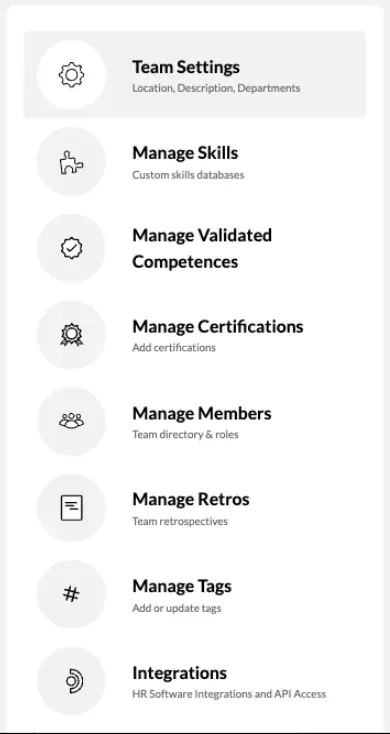
The Settings sidebar.
Check it worked
You are ready to launch (step 5) when:
- Team Settings shows your organisation's name, logo, locations and departments.
- Manage Skills holds the categories and skills you want people to choose from.
- Analysis has published lists for your key roles, and they appear under My Skills › Add Skills from Presets.
- Team/Org › Members lists your people with their managers and departments, or you know who you will invite.
- Single sign-on works for a test account, if you use it.
- Your managers know the launch date.
Benefits
What you get
- A skills map that stays current. Employees add and rate their skills against your own taxonomy and roles.
- Managers who can act on it. My Circle shows each manager their people's skills, goals, certificates and gaps.
- Answers for planning. Analysis, reports and Discover show which skills you have, where the gaps are and who can do the work.
Important to know
Important to know
Guides for your kind of organisation. After the set-up, these are the usual next reads.
| If you are | Read next |
|---|---|
| A consulting or professional services firm | How to build a team using Team Builder, How to use the Demand Report, Connect any utilisation source, How to use CV Inventory |
| An HR or L&D team | How to do skill gap analysis, Connect any learning platform, Retrospectives |
| Responsible for compliance, quality or safety | How to manage and track certifications, Credly, compliance requirement lists in Step 3 |
| A technology or product company | How to find people fast with Discover, How to build a team using Team Builder, Jira and Tempo |
| A large enterprise | How HR integrations work, SCIM provisioning: how it works, Enforce single sign-on and two-factor authentication, MuchSkills API and API Access, Power BI and Excel |
| A public sector or Nordic organisation | Enforce single sign-on and two-factor authentication, How HR integrations work, the Trust Center |
Plans. All plans include API access, single sign-on (SAML) and SCIM provisioning.
Where your data lives. In the EU, on Amazon Web Services in Stockholm.
Help at every step. Email support@muchskills.com or use the chat bubble in MuchSkills.
Frequently asked questions
Do we have to follow the steps in order?
We recommend it. Each step builds on the one before: role lists use the skills from your taxonomy, presets come from role lists, and invitations work best once your people data and single sign-on are in place. Steps 6 and 7 can run alongside the launch.
Who should do the set-up?
One Owner or Admin leads it. Bring in your HR or IT administrator for step 4, HR, L&D or team leads for steps 2 and 3, and your managers for steps 5 and 6.
Can we try MuchSkills with a small group first?
Yes. Import a few people from a file (ask support to switch file import on), or limit the first HR sync to five or ten people or one department. Check the result, then widen the scope.
What do employees need to do?
Employees do not follow this guide. They get an invitation, create their profile and rate their skills. Send them the guides Rate your skills and How to set up your MuchSkills profile.
Are single sign-on, SCIM and the API included?
Yes. All MuchSkills plans include single sign-on (SAML), SCIM provisioning and API access.
Where is our data stored?
In the EU, on Amazon Web Services in Stockholm. Security details and our sub-processors are in the Trust Center at trust.muchskills.com.
Where do we get help during the set-up?
Email support@muchskills.com, or use the chat bubble in MuchSkills. Tell us which step you are on and what you see.