


Set up retrospectives for your organisation
- Who
- An Owner or Admin
- Where
- Team/Org › Settings › Manage Retros
- How often
- Every 1 to 6 months
- Employees take them in
- Profile Settings › Retrospective
A retrospective is a short, recurring check-in where each person goes through the skills on their profile, says whether they got to use each one, and updates their level if it changed. You set the schedule once in Manage Retros, and MuchSkills sends the reminders.
How it works
Retrospectives keep skills data current without anyone chasing people. On a schedule you choose, MuchSkills emails each person a reminder to take their retrospective. They go through the skills on their profile, answer Did it come in handy? for each, and update their level where their expertise changed.
That gives you two things: profiles that stay up to date, and a view of whether people get to use the skills they listed.
The schedule is set once for the whole organisation:
- How often: every 1 to 6 months.
- When: the first Monday, the last Friday, or a set day of the month from 1 to 28.
- Who: everyone by default, or only the departments, roles or tags you choose.
Before you start
- Role: Owner or Admin.
- Check that automatic emails are on. In Team/Org › Settings › Team Settings, Automated emails must be switched on. It covers welcome messages, reminders and retrospectives.
- Tell people it is coming. Explain why you ask and what you will do with the answers.
- Make sure people have skills on their profile. A retrospective goes through the skills each person has added.
Steps
Set the schedule
- Open Manage Retros. Go to Team/Org › Settings › Manage Retros.
- Click Get started. This shows the first time you open the page.
- Open the schedule. Next to All Members, click the schedule, which says Not scheduled until you set it.
- Choose how often. Next to Every, pick a number from 1 to 6 for month(s), on.
- Choose the day. Pick the first Monday, the last Friday, or a specific date: and then the day of the month.
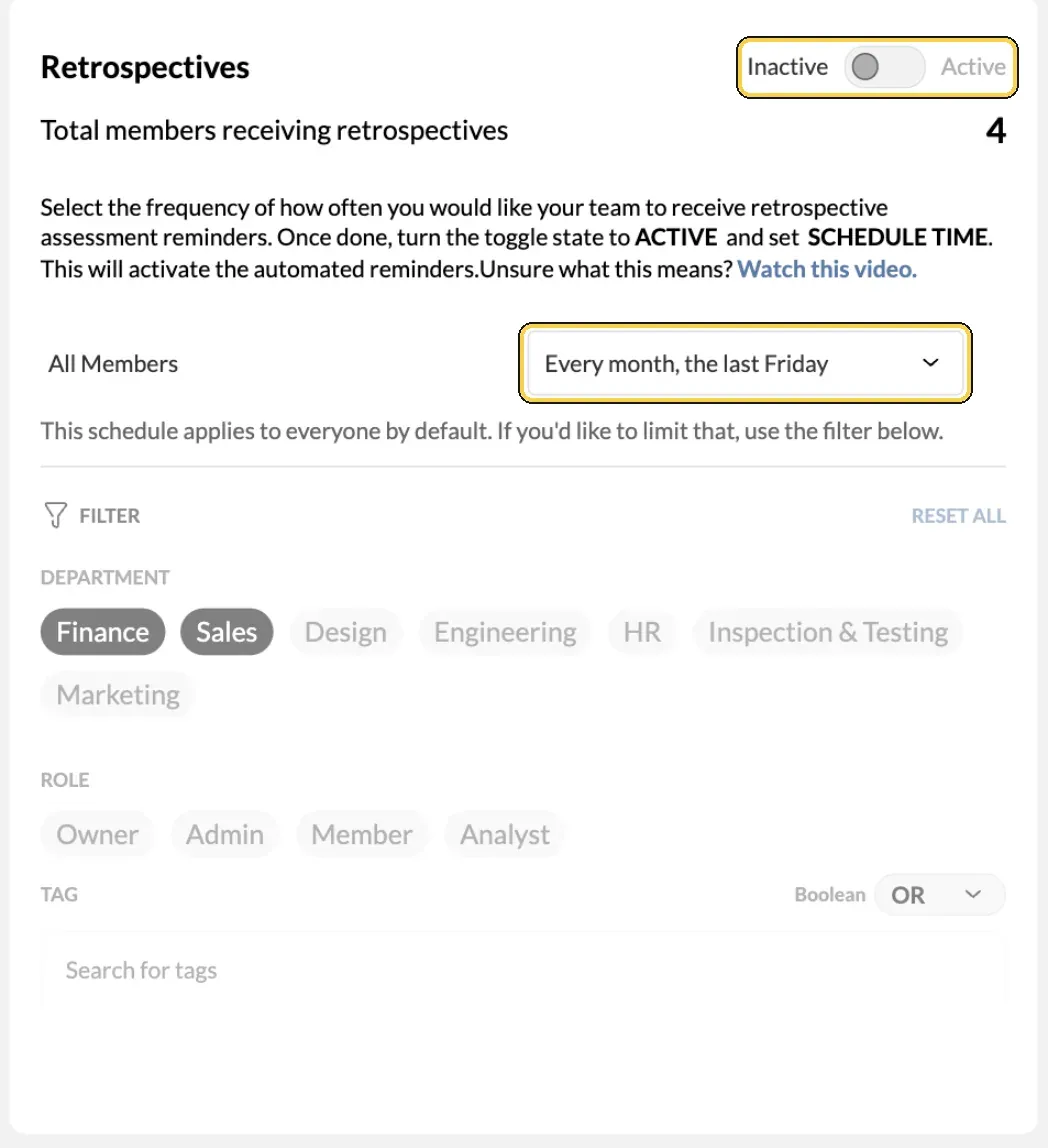
Team/Org › Settings › Manage Retros.
Switch it on
- Turn the toggle to Active. Click the toggle next to Inactive and Active at the top.
- Confirm. The message tells you how many employees will start receiving skill retrospective assessment reminders. Click Yes, confirm.
Choose who receives them (optional)
- Use the filter. Below the schedule, pick departments, roles or tags. Only people who match receive retrospectives. Changes save on their own and Your updates have been saved appears.
- Check the count. Total members receiving retrospectives shows how many people are included.
Send a reminder now (optional)
- Open the next send-out. Click the date next to Next retrospective send-out:.
- Choose Send retrospective reminder now.
- Click Yes, send. Retrospective Assessment reminders have been sent. appears. Your regular schedule is not affected.
Stop retrospectives
- Turn the toggle to Inactive and click Yes, confirm. Reminders stop until you switch them on again.
Check it worked
- The page says reminder emails are currently active and shows the number of members receiving them.
- Next retrospective send-out: shows the date of the next round, and Last retrospective send-out: the previous one.
- Ask one person to open Profile Settings › Retrospective after a send-out. Their retrospective is waiting there.
What employees see
- An email reminder on each send-out date.
- Their retrospectives in Profile Settings › Retrospective, marked Completed, Incomplete or Skipped.
- One question per skill: Did it come in handy? If their expertise also changed, they update the level and click Yes, update and continue.
- A dashboard note saying Last retrospective incomplete until they finish.
For the team and manager side, see the retrospectives guide.
Tips
- Match the rhythm of your work. Some teams ask for an update every month, others every quarter.
- Pair it with your review cycle. Schedule a send-out ahead of development talks, so managers see fresh profiles.
- Start with one department. Use the filter to try retrospectives with one group, then widen it.
Troubleshooting
| What you see | Why | What to do |
|---|---|---|
| Nobody received a reminder | Automated emails is off in Team Settings, or retrospectives are Inactive | Switch Automated emails on and set the toggle to Active |
| Not scheduled next to All Members | No schedule is set | Open the schedule and choose a frequency and day |
| The filter is greyed out | Retrospectives are Inactive | Set the toggle to Active, then use the filter |
| You can send again in a number of seconds | A reminder was just sent | Wait for the time shown before sending another |
| An employee sees No retrospective to take | Retrospectives are not active, or no round has been sent yet | Check the toggle and the next send-out date |
| An employee is told to complete their skills profile first | They have no skills in My Skills | Ask them to add their skills, then take the next retrospective |
| Fewer people than expected are included | The filter limits who receives them | Check the departments, roles and tags in the filter |
Frequently asked questions
What does an employee do in a retrospective?
They go through the skills on their profile one by one, answer whether each skill came in handy, and update their level if their expertise changed. They find their retrospectives in Profile Settings › Retrospective.
How often should we run them?
It depends on how fast your work changes. Some organisations ask for an update every month, others every quarter. You can choose every 1 to 6 months.
Can we run retrospectives for one department only?
Yes. The schedule applies to everyone by default. Use the filter in Manage Retros to limit it by department, role or tag.
Does sending a reminder now change the schedule?
No. Send retrospective reminder now sends one extra round. Your regular schedule stays the same.
Why did nobody receive the reminder?
Check three things: retrospectives are set to Active, the schedule is not Not scheduled, and Automated emails is switched on in Team Settings. Retrospective reminders are automatic emails, so they stop when that setting is off.
Do employees need anything before their first retrospective?
Skills on their profile. Someone who hasn't added skills in My Skills yet is asked to complete their profile first.
Who can set up retrospectives?
Owners and Admins, in Team/Org › Settings › Manage Retros.