


Add skills from presets
- Who
- Everyone, when your organisation has presets
- Where
- My Skills › Add Skills from Presets
- Lists come from
- Your organisation's Analysis lists
- Saves
- Each answer as you go
Your organisation can prepare preset lists of skills and certificates, for example for a role, a team or a competence area. Add Skills from Presets takes you through a list one skill at a time, so you can build a complete profile without searching for every skill yourself.
How it works
A preset is a list of skills, and sometimes certificates, that your organisation has put together, for example for a role such as Project Manager or a competence area such as Leadership. In Add Skills from Presets you pick a list on the left and answer one question for each skill: Do you actively use or practice this skill?
- Yes opens the level picker. Choose your level on the nine-step scale and save.
- No skips the skill. If the skill was already on your profile, No removes it.
- For a certificate in the list, Yes opens the certificate form so you can add your licence.
Each answer saves straight away, and the skills appear in My Skills. Rate your skills explains what each level means.
Steps
- Open the presets. Click My Skills in the top menu, then Add Skills from Presets.
- Choose a list. Pick a preset in the left sidebar. If there are many, search for your role or team. The list shows its Total competences and when it was last updated.
- Read the first skill. The name and a short description explain what the skill covers in your organisation.
- Answer Yes or No. Click Yes if you actively use or practise the skill, No if you do not.
- Set your level. After Yes, click the step on the scale that matches what you can do today, then click Save.
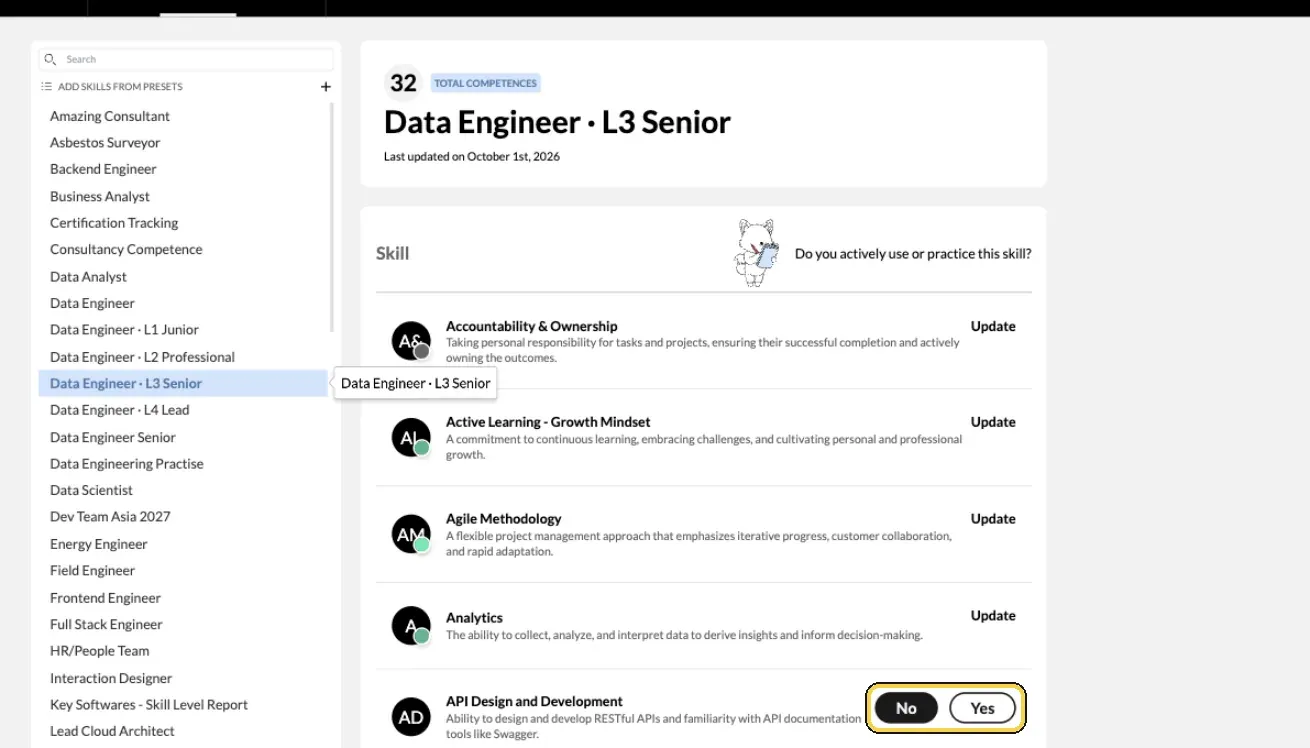
My Skills › Add Skills from Presets: answer Yes or No per skill.
- Add certificates in the list. Under Certification, click Yes for a certificate you hold and fill in the licence details. See Add your certifications.
- Change a level later. Skills you have already rated show Update instead of Yes and No. Click it to pick a new level.
- Move on to the next list. Repeat for every preset that fits your work.
Check it worked
- The skills you answered Yes to appear in My Skills, in their usual categories, with the level you chose.
- The skills counter on the Dashboard has gone up.
Tips
- Rate today, not tomorrow. Pick the level you are at now. Put where you want to be in a goal in My Growth.
- Use the panel on the right. When you click a skill, the panel shows more about it, including colleagues who work with it. It is a useful sense check for your level.
- Come back when lists change. Each preset shows when it was last updated. New skills may have been added since your last visit.
- Presets feed your gap analysis. The same lists drive My Growth › Gap Analysis, so answering them carefully makes your gaps accurate. See Find your skill gaps.
Troubleshooting
| What you see | Why | What to do |
|---|---|---|
| No presets available | Your organisation has not published any preset lists yet | Add skills in My Skills with + Add/Edit, and ask your manager whether presets are planned |
| No skill presets match your search. | No list name matches what you typed | Try a different word, for example your team name rather than your job title |
| There are no competences to display here | The list has no skills you can answer | Choose another list |
| A message about upgrading after you click Yes | Your organisation has reached its plan's limit for custom skills | Tell your MuchSkills admin |
| A skill you use is not in any preset | Presets only cover what your organisation chose | Add it in My Skills with + Add/Edit |
Frequently asked questions
Which preset should I start with?
The one for your role or team, if there is one. Then go through any other list that fits your work. You can complete as many presets as you like, and every answer goes into the same profile.
Should I say Yes to skills I know a little about?
Say Yes if you actively use or practise the skill, even as a beginner, and pick the level that matches what you can do today. Say No if you do not use it.
I clicked No on a skill I already had. Is it gone?
Yes. No removes the skill from your profile. Click Yes again and set your level to put it back.
Why does a skill have no level to pick?
Some skills are shown as bubbles rather than on the nine-step scale. For those, Yes simply adds the skill to your profile.
I see No presets available. What now?
Your organisation has not published any preset lists yet. Add your skills in My Skills with + Add/Edit instead, and ask your manager whether presets are planned.
Who creates presets?
Admins and managers who build role and competence lists in Team/Org › Analysis. Published lists with at least one skill or certificate appear here as presets. Drafts do not.
Do presets replace My Skills?
No. Skills you add from a preset appear in My Skills, in their usual category, and you can change them there at any time. Add anything a preset does not cover, such as the tools you use every day, in My Skills.