


Roles and permissions
Everyone in your MuchSkills organisation has one of four roles: Owner, Admin, Analyst or Member. Managers are people with direct reports, and they see their people in My Circle and in reports. This page explains what each role can do and how to change a role.
- Roles
- Owner, Admin, Analyst and Member
- Managers
- Anyone with direct reports
- Where
- Team/Org › Settings › Manage Members
- Who can change roles
- An Owner or Admin
How to
How it works
Each person in your organisation has one role. The role decides what they can see and change.
| Role | What they can do | Typical for |
|---|---|---|
| Owner | Everything an Admin can do, and delete the whole organisation | The person who created the organisation |
| Admin | All administration and settings: members and roles, the skills taxonomy, integrations, API Access, single sign-on and every other setting. Cannot delete the organisation | The people who run MuchSkills, often in HR, L&D or IT |
| Analyst | Sees all data, including every report, with no access to settings. The app describes it as Same as Member, plus full access to Reports. | HR business partners, L&D leads, resource managers |
| Member | Sees their own views: profile, skills, certifications, goals and gap analysis, and colleagues' profiles | Everyone else |
Managers. Anyone with direct reports is a manager, whatever their role. A manager sees their direct reports, and the people below them, in My Circle and in reports. Managers can also validate competences and set goals for their own people. Reporting lines come from your HR sync, SCIM, file import, or the Direct Manager field in Manage Members.
| What | Owner | Admin | Analyst | Manager (Member with direct reports) | Member |
|---|---|---|---|---|---|
| Delete the organisation | Yes | No | No | No | No |
| Change settings, integrations, API Access and single sign-on | Yes | Yes | No | No | No |
| Manage members and roles | Yes | Yes | No | No | No |
| Add skills to your own categories in Manage Skills | Yes | Yes | No | No | No |
| See every report | Yes | Yes | Yes | Own people | No |
| See private tags | Yes | Yes | Yes | No | No |
| Validate competences | Yes | Yes | No | Own direct reports | No |
Before you start
- You need the Owner or Admin role to change anyone's role.
- Keep at least two Admins, so the set-up never depends on one person.
Steps
Change someone's role
- Open Manage Members. Go to Team/Org › Settings › Manage Members, or choose Manage Members in your profile menu.
- Find the person. Search for their name, or use the filters.
- Choose the role. In the Role column, open the menu next to the person and choose Admin, Analyst or Member. The Owner shows as Owner.
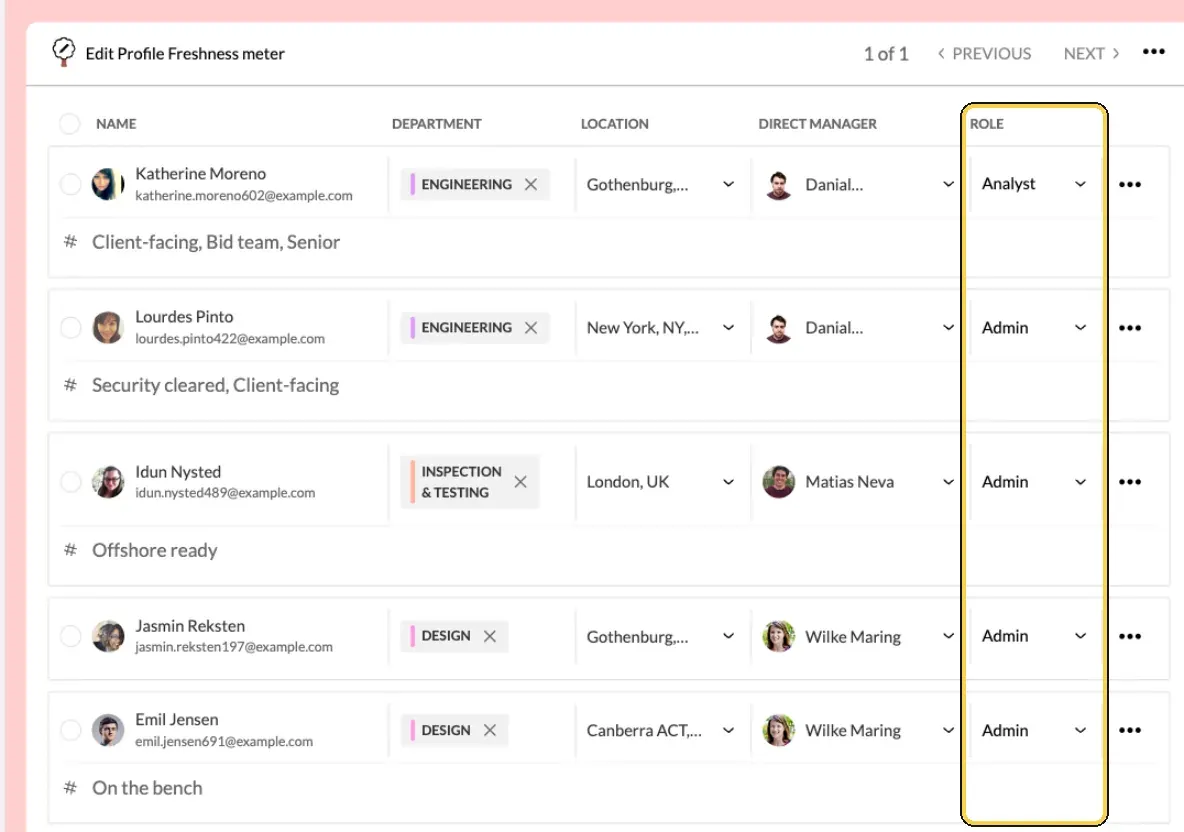
Team/Org › Settings › Manage Members: the Role column.
Make someone a manager
- Set the reporting line. For each person who reports to the manager, choose the manager in the Direct Manager column (Select Manager). You can also click Edit profile on a person and set Direct Manager on the general tab.
- If people come from an HR sync or SCIM, change the manager in your HR system or identity provider instead. The next sync brings the change into MuchSkills.
Set the member type
- Mark people as Internal or External, if it helps. The same menu in the Role column has Internal and External. The member type is a label you can filter on in Members, My Circle and reports, for example to separate contractors from employees.
Check it worked
- The Role column in Manage Members shows the new role.
- An Analyst can open Team/Org › Reports and see the whole organisation.
- A manager sees their direct reports in My Circle.
Benefits
What you get
- The right access for each job. HR business partners see everything they need without being able to change settings.
- Settings in safe hands. Only Owners and Admins can change how MuchSkills is set up.
- Managers ready from the start. Reporting lines give every manager a view of their own people.
Important to know
Important to know
The Owner. The person who creates the organisation is its Owner. Only the Owner can delete the organisation, under Delete Team in Team Settings. MuchSkills then emails a confirmation link, and nothing is deleted until the Owner confirms. To change who the Owner is, contact support.
The last Admin cannot leave. If you try to leave and no other Admin is left, MuchSkills shows You need to assign another member as Admin before leaving the team. Make someone else an Admin first.
Admins and single sign-on. When Enforce SAML is on, Admins can still log in with a password, so an Admin can always reach the settings.
Roles for new people. New people join as Member. With SCIM provisioning, send the roles attribute with Admin, Member or Analyst. After a file import, set Admin and Analyst roles in Manage Members, as described in Import people from a file.
Removing someone by hand is permanent. Remove Account on a person's panel Removes and erases this member from your team. People who leave through an HR sync or SCIM are deactivated instead, and their project history and certificates stay on record.
Switches that give Members more. In Team Settings, TEAM BUILDERS lets all members create teams in Team Builder, PUBLIC PROFILES lets all members make their profile public, and L&D RESOURCES lets all members upload learning material.
Private tags. A tag marked Make Tag private is hidden from Members. Only Admin and Analyst roles can see and use it.
Common errors
Troubleshooting
| What you see | Why | What to do |
|---|---|---|
| You need to assign another member as Admin before leaving the team | You are the last Admin | Make another person an Admin, then leave |
| You cannot see Settings in Team/Org | Your role is Analyst or Member | Ask an Owner or Admin to change your role |
| A manager does not see someone in My Circle | That person's Direct Manager is not set to the manager | Set Direct Manager in Manage Members, or fix it in your HR system |
| A role you set changes back | The person is provisioned by SCIM, and your identity provider sends a role for them | Set the role in your identity provider |
| An Analyst cannot change a setting | Analysts have no access to settings | Give them the Admin role if they need it |
Frequently asked questions
Is Manager a role?
No. Anyone with direct reports is a manager. Reporting lines come from your HR sync, SCIM, file import or the Direct Manager field, and they decide whose data a manager sees.
Which role do new people get?
Member. Change it afterwards in Manage Members. With SCIM provisioning, your identity provider can send Admin, Member or Analyst instead.
Who should be an Analyst?
People who need to see all the data but should not change settings, such as HR business partners, L&D leads or resource managers.
Can we have more than one Admin?
Yes. We recommend at least two, so the set-up never depends on one person.
Can an Admin delete the organisation?
No. Only the Owner can delete the organisation, from Team Settings. MuchSkills emails a confirmation link before anything is deleted.
How do we change who the Owner is?
Contact support at support@muchskills.com or in the chat.
What can a Member see?
Their own views: their profile, skills, certifications, goals and gap analysis, and their colleagues' profiles. A Member with direct reports also sees those people in My Circle and in reports.
What happens to someone's role when they leave?
People who leave through an HR sync or SCIM are deactivated, never deleted. They leave everyday views, and their project history and certificates stay on record.