


Step 4: Bring in your people and set up sign-in
Before you launch, decide how people get into MuchSkills and how they log in. Most organisations sync people from their HR system or identity provider and use single sign-on with their work account. A file import or invitations suit pilots and smaller teams.
- Who
- An Owner or Admin, with your HR or IT administrator
- Ways in
- HR sync, SCIM, file import or invitations
- Sign-in
- Single sign-on (SAML), Google, or email and password
- Plans
- All plans include single sign-on (SAML) and SCIM
How to
How it works
Two decisions come before the launch: how people get into MuchSkills, and how they log in.
How people get in. Choose one way to bring your people in. It decides how MuchSkills learns about joiners, leavers, managers and departments.
| Way | Best for | What stays current | Guide |
|---|---|---|---|
| HR sync | Organisations with an HR system | Joiners, leavers, managers, departments and job titles, every 5 hours | How HR integrations work, then your system's page |
| SCIM provisioning | Organisations whose identity provider assigns apps to people | Each change your identity provider pushes: people, roles, departments and managers | SCIM provisioning: how it works |
| File import (on request) | Pilots, smaller teams, or a start while your integration is prepared. Ask support to switch it on | Nothing after the import: you keep people up to date in Manage Members | Import people from a file |
| Invitations | Small teams, or people outside your HR system | Nothing: people fill in their own details and choose their manager | Step 5: Launch to everyone |
How people log in.
| Way | How it works | Guide |
|---|---|---|
| Single sign-on (SAML) | People log in with their work account through your identity provider | Microsoft Entra ID, Okta, Google Workspace, any SAML provider |
| Log in with Google | People log in with their Google account | Nothing to set up |
| Email and password | People set a password in MuchSkills, and you can require two-factor authentication | Enforce single sign-on and two-factor authentication |
Before you start
- In MuchSkills: the Owner or Admin role.
- In your HR system or identity provider: an administrator who can create read-only access or set up an app.
- Matching email addresses. The email in your HR system or identity provider must be the address each person uses to sign in to MuchSkills. HR syncs, SCIM, file imports and single sign-on all match people by email.
- Start small. There are no test tenants for HR syncs. Limit the first sync to five or ten people or one department, or assign a handful of people in your identity provider, and check the result.
- Hold the invitations. Starting an HR sync invites everyone in scope. Do it on launch day (step 5), or with a small first group.
Steps
Bring your people in
- Choose one way in, using the first table above.
- Follow its guide.
- HR sync: open Team/Org › Settings › Integrations. If your system has a Connect button there, follow its page in this help centre. If it does not, it is a custom set-up, explained in How HR integrations work.
- SCIM: ask support for SCIM credentials and follow SCIM provisioning: how it works.
- File: follow Import people from a file.
- Invitations: nothing to do now. You invite people in step 5.
- Check a first small group. Open Team/Org › Members and check names, job titles, departments and managers. Switch the view to Hierarchy to see the reporting lines as an org chart.
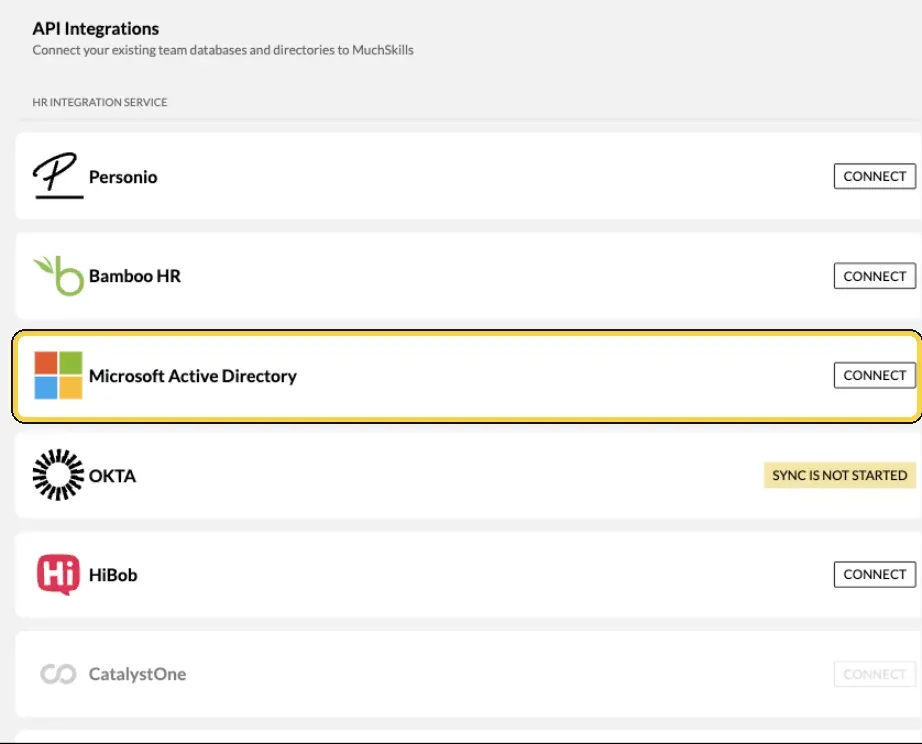
Team/Org › Settings › Integrations.
Set up single sign-on
- Ask support to add your email domains. Email support@muchskills.com or use the chat, and list the domains your people use. They then appear under Email domains on Team/Org › Settings › Security & SAML.
- Connect your identity provider. Copy the SSO URL from Security & SAML into your identity provider, and paste your provider's IDP Metadata URL back into MuchSkills. Your provider's guide has the exact steps.
- Switch it on and test it. Turn on Enable SAML. Log in with a test account: enter the email on the login page and click Continue with SAML/SSO.
- Enforce it if you want to. Enforce SAML makes single sign-on the only way in for people on your domains. Admins can still log in using a password. To protect the remaining password logins, turn on Enforce two-factor authentication (2fa) for your team.
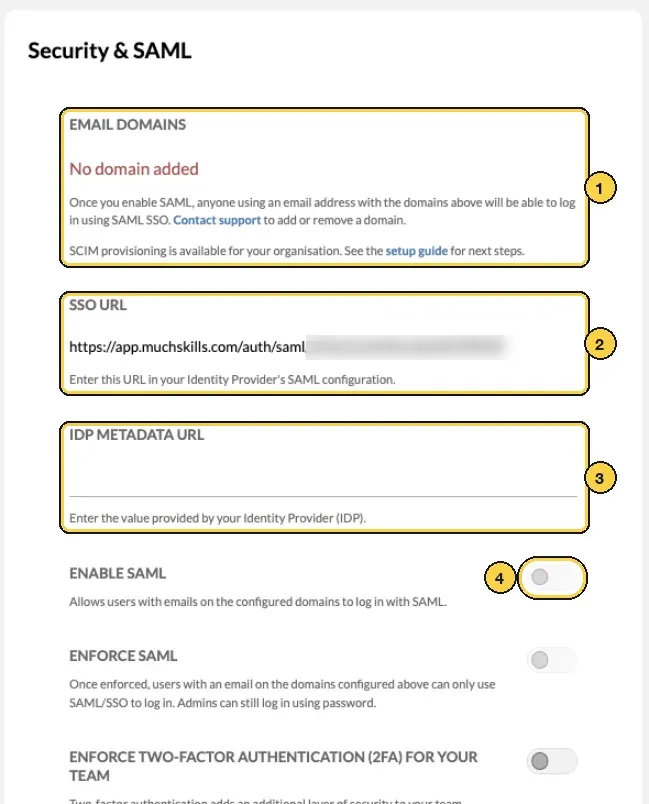
Team/Org › Settings › Security & SAML: 1 email domains, 2 SSO URL, 3 IDP Metadata URL, 4 Enable SAML.
Check it worked
- Team/Org › Members lists the people in scope, with job titles, departments and managers.
- The Hierarchy view shows the reporting lines you expect.
- With an HR sync, the connector shows Data is synced every 5 hours, with Last successful sync and Next scheduled sync.
- A test user can log in with Continue with SAML/SSO, if you set up single sign-on.
Benefits
What you get
- No manual upkeep. With an HR sync or SCIM, joiners, leavers and manager changes reach MuchSkills on their own.
- One login for your people. With single sign-on, people use the work account they already have.
- Managers who see their people. Reporting lines fill My Circle for every manager from the first day.
Important to know
Important to know
What syncs. Only email and name are required. Every other field is recommended, because each one makes MuchSkills more useful: job title, manager, department, employee status, location, profile photo, worker type and absence. Absence arrives as dates and percentages only, never reasons.
Sensitive data is blocked. MuchSkills never stores age or date of birth, salary or other compensation data, performance ratings, or political, religious or health data, even if a system sends them.
How often. HR syncs run every 5 hours. An Owner or Admin can press Sync Now to sync straight away.
Leavers are deactivated, never deleted. People who leave your HR system or identity provider, or fall out of scope, leave everyday views. Their project membership and certificate history stay on record.
Managers without a sync. When people join by invitation, each person chooses their direct manager on their profile, and the org chart builds as people join. Admins can correct the manager, department, location and role of anyone in Manage Members. Invite managers first (step 5), so employees can find them.
Large organisations. The Hierarchy view in Team/Org › Members is offered for organisations of up to 1,000 people. Larger organisations use My Circle and the filters instead.
Plans and hosting. All plans include single sign-on (SAML), SCIM provisioning and API access. Your data is stored in the EU, on Amazon Web Services in Stockholm.
Common errors
Troubleshooting
| What you see | Why | What to do |
|---|---|---|
| A person appears twice | Their email in your HR system or identity provider differs from the address they signed up with | Align the email in the source system, then contact support |
| This email is not configured to use SAML/SSO | The email domain has not been added, or Enable SAML is off | Ask support to add the domain, then turn on Enable SAML |
| This email is enforced to log in using SAML/SSO | Enforce SAML is on and the person tried a password | Log in with Continue with SAML/SSO |
| Managers are missing or wrong | The manager field holds a name or an employee ID | Send the manager's email address |
| Some people are missing | They are outside your scope, or outside what the integration user can read | Check the scope and the permissions in your system |
| There is no Hierarchy view | Your organisation has more than 1,000 people | Use My Circle, or filter Members by department or manager |
Frequently asked questions
Which way should we choose?
Use your HR system if it holds managers and departments: it keeps everything current on its own. Use SCIM if your identity provider already decides who gets which apps. Use a file or invitations for a pilot or a small team.
Can we combine an HR sync and single sign-on?
Yes, and most organisations do. The HR sync, SCIM or file brings people in. Single sign-on lets them log in with their work account. They are set up separately.
Do we need single sign-on?
No. People can also log in with Google, or with an email address and password. Single sign-on is the better choice if you have an identity provider, and all plans include it.
Who adds our email domains for single sign-on?
MuchSkills support. Email support@muchskills.com or use the chat, and list the domains your people use.
Does connecting an HR system email our people?
Starting an HR sync invites everyone in scope to create their profile. Plan the launch first (step 5), or start with a small first group.
What happens to people who leave?
With an HR sync or SCIM, they are deactivated at the next sync, never deleted. They leave everyday views, and their project history and certificates stay on record.
Can we start with a file and move to an HR sync later?
Yes. People keep their MuchSkills data when you switch, as long as their email address is the same in both.
How do managers get linked to their people?
An HR integration sets managers automatically from your HR system. With SCIM, your identity provider sends the manager as an email address or user ID. In a file, the manager column holds the manager's email address, and the manager must already be a member. People who join by invitation choose their manager on their profile, and Admins can correct it in Manage Members.