


Microsoft Entra ID: sync users
Keep people, departments and managers in MuchSkills up to date from Microsoft Entra ID, formerly Azure Active Directory. You register an app in Entra, give MuchSkills read access, and choose who to sync.
- Who
- A MuchSkills Owner or Admin, with a Microsoft admin who can grant consent
- How it connects
- Self-serve, in Settings › Integrations
- Sync
- Every 5 hours, or on demand with Sync Now
- Access
- Read-only
How to
Before you start
- In MuchSkills: the Owner or Admin role.
- In Microsoft Entra: someone who can register applications, and someone who can grant admin consent for Microsoft Graph application permissions. See the roles in the FAQ below.
- Decide who to sync first. Start small: one department, or an Entra group with five to ten people. You can widen the scope afterwards.
- Tell people first. Starting the sync invites everyone in scope to create their MuchSkills profile.
- Check email addresses. The email in Entra should be the address each person uses to sign in to MuchSkills.
Steps
In MuchSkills
- Open the Microsoft connector. Go to Team/Org › Settings › Integrations and click Connect on Microsoft Active Directory. Keep this tab open: you paste three values into it as you go.

Team/Org › Settings › Integrations › Connect on Microsoft Active Directory.
In Microsoft Entra
- Register an app. Sign in to the Microsoft Entra admin center and go to Entra ID › App registrations › New registration. Name it MuchSkills, keep Single tenant only, leave Redirect URI empty, and click Register. Microsoft's guide to registering an app
- Copy two IDs. On the app's Overview page, copy Application (client) ID into Client ID in MuchSkills, and Directory (tenant) ID into Tenant ID.
- Add the permission. Open API permissions › Add a permission › Microsoft Graph › Application permissions. Search for User.Read.All, tick it and click Add permissions. Leave the default User.Read in place. To sync by group instead of department, also add Group.Read.All and GroupMember.Read.All.
- Grant admin consent. On the same page, click Grant admin consent for your organisation and confirm. Click Refresh until every permission shows Granted. It can take a minute. Microsoft's guide to admin consent
- Create a client secret. Open Certificates & secrets › Client secrets › New client secret. Add a description, choose an expiry (Microsoft recommends less than 12 months) and click Add. Copy the Value straight away and paste it into Client secret in MuchSkills. Copy the Value column, not the Secret ID. Microsoft shows the value only once. Microsoft's guide to client secrets
Back in MuchSkills
- Connect. With all three values pasted in, click Connect. The status changes from Waiting for credentials to Api Connected.
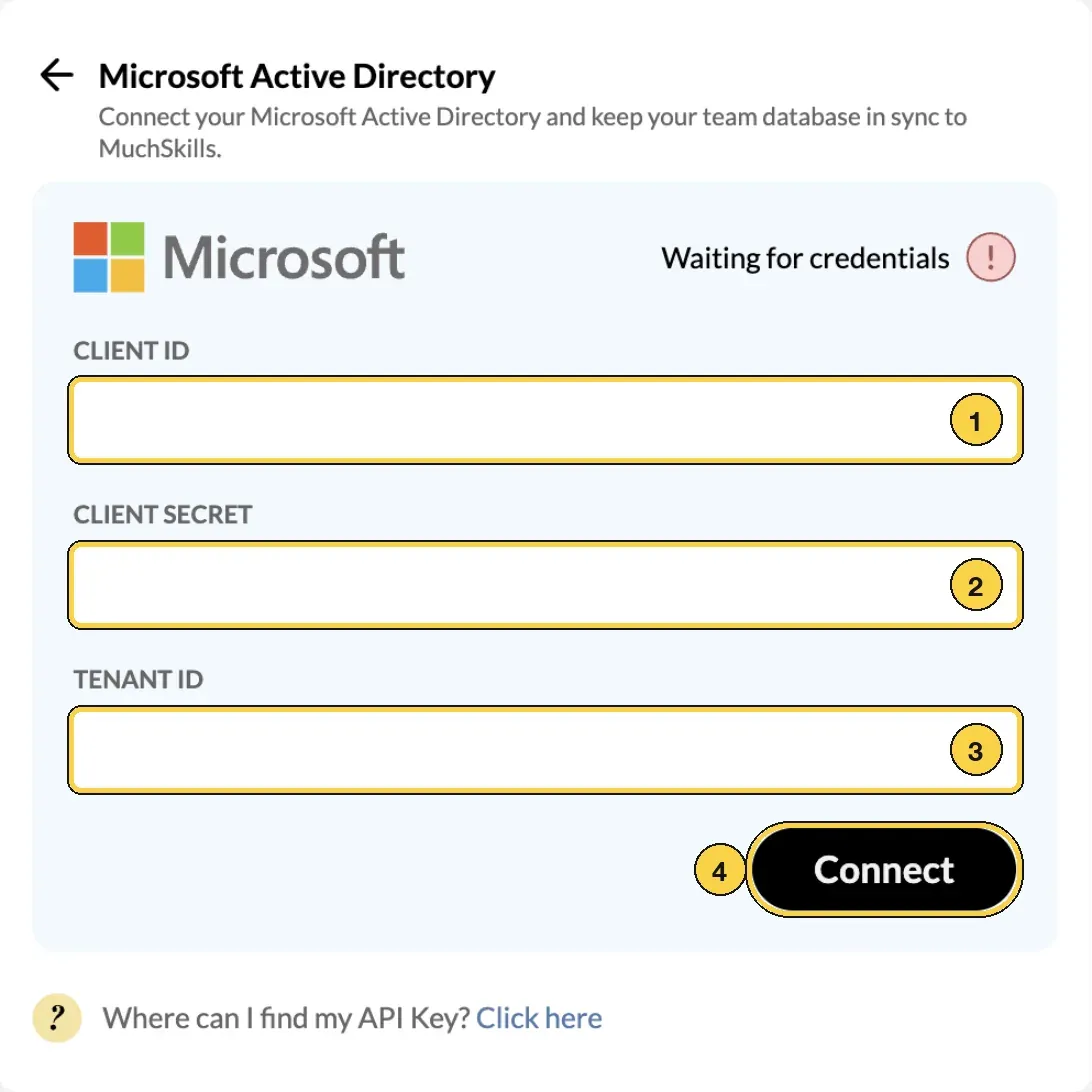
The Microsoft form: 1 Client ID, 2 Client secret, 3 Tenant ID, 4 Connect.
- Choose who to sync. Sync by department lists the departments MuchSkills found in Entra. With the toggle on, only people in the departments you tick are synced. Turn it off to sync everyone. To sync a hand-picked set of people, create a group in Entra and use Sync by group instead. That needs the two group permissions from step 4, and departments are then not created.
- Start the sync. MuchSkills shows how many employees will be synced and invited. Click Start Sync.
Check it worked
- The connector shows Data is synced every 5 hours, with Last successful sync and Next scheduled sync.
- Team/Org › Members lists the people you synced.
- The people you synced have an invitation to create their profile.
Benefits
What you get
- No manual upkeep. New starters, leavers and manager changes reach MuchSkills on their own.
- Teams from day one. Departments in Entra become departments in MuchSkills that you can filter and analyse.
- Managers see their people. Each manager's direct reports appear in My Circle as soon as the sync runs.
Important to know
Important to know
What syncs. Only email and name are required. Sync as many of the other fields as you can, because each one makes MuchSkills more useful.
| Field in MuchSkills | Needed | Used for |
|---|---|---|
| Name | Required | Profiles, search, every view |
| Required | Matching and sign-in | |
| Job title | Recommended | Profiles, roles, Discover |
| Department | Recommended | Departments, filters, Sync by department |
| Manager | Recommended | Reporting lines, My Circle, reports |
| Profile photo | Recommended | Profiles and the org chart |
How often. Every 5 hours. Sync Now runs it immediately and Pause Sync stops it until you start it again.
Profile photos. Photos are saved when an account is created and are not updated by the automatic sync. Click Sync Now to pull in changed photos.
Leavers are deactivated, not deleted. When someone is disabled or removed in Entra, or drops out of the synced scope, MuchSkills deactivates them at the next sync. Their project history and certificates stay on record, which matters for audits.
Unticking a department or group off-boards its people. After the first sync, removing a department or group from the selection off-boards everyone in it. MuchSkills asks you to confirm, and you cannot undo it from that screen.
Keep the secret current. Put the secret's expiry date in your calendar. When it expires, the sync stops until you paste in a new one.
Common errors
Troubleshooting
| What you see | Why | What to do |
|---|---|---|
| Invalid Credentials | A value was copied wrongly, often the Secret ID instead of the secret Value, or the secret has expired | Create a new client secret, copy its Value, paste it in and click Update Credentials |
| We were not able to access your Active Directory. Please make sure you have granted the required permissions: 'User.Read' and 'User.Read.All'. | Admin consent was not granted, or is still processing | Repeat step 5 and wait until the permission shows Granted |
| The same message, naming Group.Read.All and GroupMember.Read.All | You chose Sync by group without the group permissions | Add both permissions, grant consent, then reconnect |
| Your Microsoft credentials are correct, but no users were found. | No one is in the departments or groups you ticked | Check your selection, or turn off Sync by department to see everyone |
| Missing Attributes in API | Some users lack a required field, usually email | Add the missing values in Entra, then click Sync Now |
| Authentication failed multiple times | The secret expired or was deleted in Entra | Create a new secret and click Update Credentials |
| A photo has not changed | Automatic syncs do not update photos | Click Sync Now |
Frequently asked questions
Which Microsoft roles do we need?
Registering the app needs Application Developer or a higher role in Microsoft Entra. Granting consent for a Microsoft Graph application permission needs a Privileged Role Administrator or a Global Administrator. In MuchSkills you need the Owner or Admin role. One person can do all of it if they hold both.
Can we start with a few people before syncing everyone?
Yes, and we recommend it. Tick a single department under Sync by department, or create a group in Entra with five to ten people and use Sync by group. Check the result in MuchSkills, then widen the scope.
How often does the sync run?
Every 5 hours. An Owner or Admin can run it at any time with Sync Now on the connector.
What happens when someone leaves?
When a person is disabled or removed in Entra, or falls outside the synced departments or groups, MuchSkills deactivates them at the next sync. They disappear from everyday views, and their project history and certificates stay on record. Nothing is deleted.
Does MuchSkills write anything back to Microsoft?
No. The permissions are read-only. MuchSkills reads the people in scope and never changes anything in your directory.
Do employees get an email when we start?
Yes. Starting the sync invites everyone in scope to create their MuchSkills profile, so tell people about MuchSkills before you click Start Sync.
What happens when the client secret expires?
The sync stops and the connector shows an authentication error. Create a new client secret in Entra, paste the new value into Client secret, and click Update Credentials.
We run Active Directory on our own servers. Does this work?
It works if your users are synchronised to Microsoft Entra ID, which most organisations do with Microsoft Entra Connect. MuchSkills reads from Entra ID, so people who exist only in on-premises Active Directory are not visible to it.
Is this the same as single sign-on?
They are set up separately. This page brings people into MuchSkills. Single sign-on lets them log in with their Microsoft account, and has its own guide: Microsoft Entra ID: single sign-on.