


Step 3: Define skills for roles
Role lists say which skills, levels and certificates each role needs. You create them in Analysis, by hand or with AI suggestions. Once published, they appear as presets that employees rate themselves against, and as each person's gap analysis.
- Who
- An Owner or Admin, with HR, L&D or team leads
- Where
- Team/Org › Analysis
- Employees see
- My Skills › Add Skills from Presets
- Also here
- Manage Validated Competences
How to
How it works
Before people join, set up the roles they will identify with, such as Business Analyst, Marketing Manager or Frontend Developer, and the skills that matter most for each. You do this with lists in Team/Org › Analysis. There are three kinds.
| List type | Use it to | Example |
|---|---|---|
| Company role | Set the skill levels a role requires | Frontend Developer |
| General analysis | Analyse a set of skills across the organisation | Leadership, or the cloud skills you rely on |
| Compliance requirements | List the certifications your workforce needs to hold, and track who holds them | Safety certificates for field engineers |
In each list, every skill has a required level (Reqd. level): Beginner, Intermediate or Expert. Skills are either prioritised, the must-haves, or remaining, the nice-to-haves. Lists can include certifications as well as skills.
Once you launch a list, employees see it as a preset, and they see their own fit in My Growth › Gap Analysis. You see how well people match each role, which gives you a starting point for development conversations from day one.
Before you start
- Finish step 2 first. Lists use the skills in your taxonomy, and AI suggestions draw on it.
- Choose the first roles. Start with the roles most people hold, and name them the way people know them.
- Prepare what you know. Role descriptions or competence frameworks help. This example skill list per role and competence shows the shape that works well.
- Pick collaborators. Team leads who know a role can help you build its list.
Steps
Create a list with AI suggestions
- Open Analysis. Go to Team/Org › Analysis.
- Describe the role. Click Create AI powered list. Describe the role, competence area or expertise you want to analyse, for example Frontend Developer, or paste a short role description. Click Let AI help you. MuchSkills suggests a title and a description and asks Is this suggestion fine? Click Regenerate for a new one.
- Check the details. Choose the List type, for example Company role. Add a Description, any Collaborators and Tags, and set Edit access rights. Click Create list.
- Add the suggested skills. MuchSkills shows Woo hoo! We found some suggestions for you., split into Prioritised skills and Remaining skills. Click + Add all suggestions, or add them one by one. Refresh AI suggestions gives you new ones.
Or create a list by hand
- Start an empty list. Click Create List, choose the List type, give it a title and Description, and click Create list. Add skills by searching in the field Add skills to the list or get suggestions with AI.
Set levels and priorities
- Set the required level. For each skill, choose Reqd. level: Beginner, Intermediate or Expert. Choose none to keep a skill in the list without a required level. A skill set to none is left out of the Skills Demand Report.
- Mark the must-haves. Make the skills that matter most for the role prioritised. The rest stay as remaining skills.
- Add certifications if the role needs them. Search in Add certifications to the list.
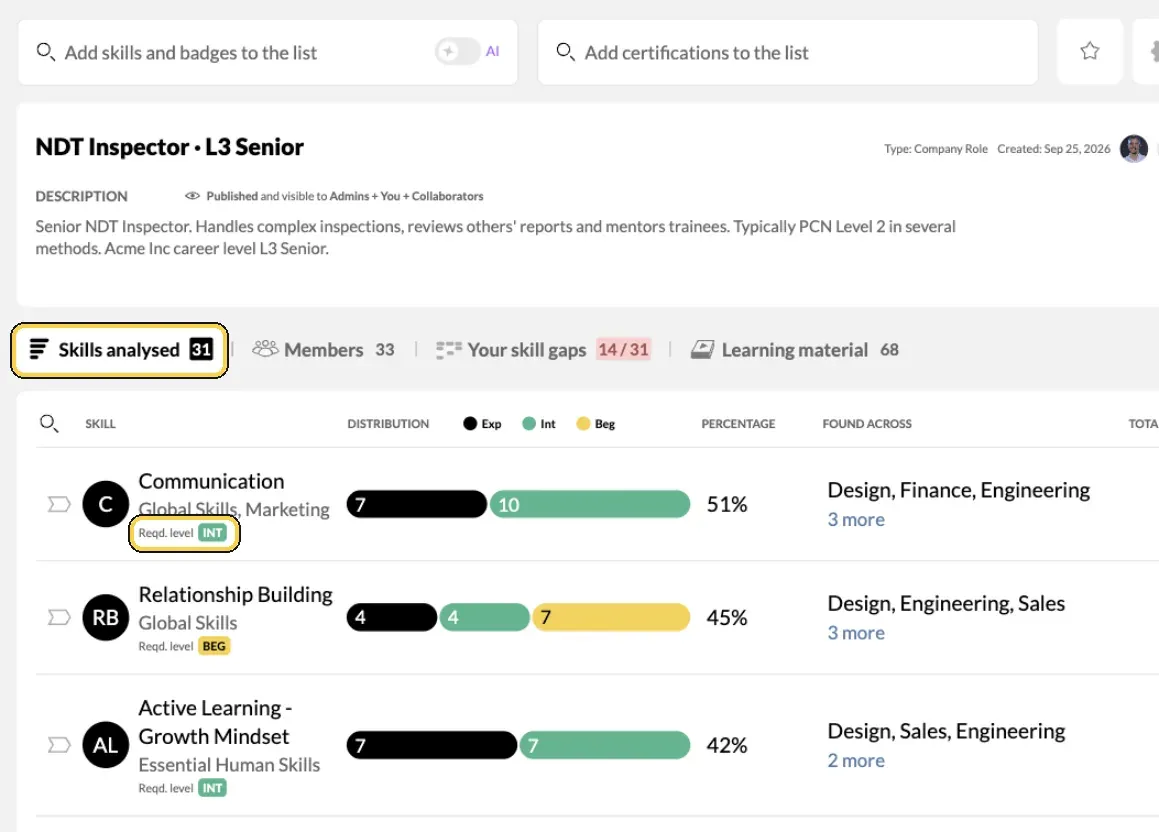
A role list in Analysis, with the required level per skill.
Publish the list
- Launch it. A new list is In Draft. When it is ready, click Launch list and choose who sees it: You, Admins + You + Collaborators or Everyone in your organisation. Choose everyone so that all employees get it as a preset. Convert to Draft takes a list back.
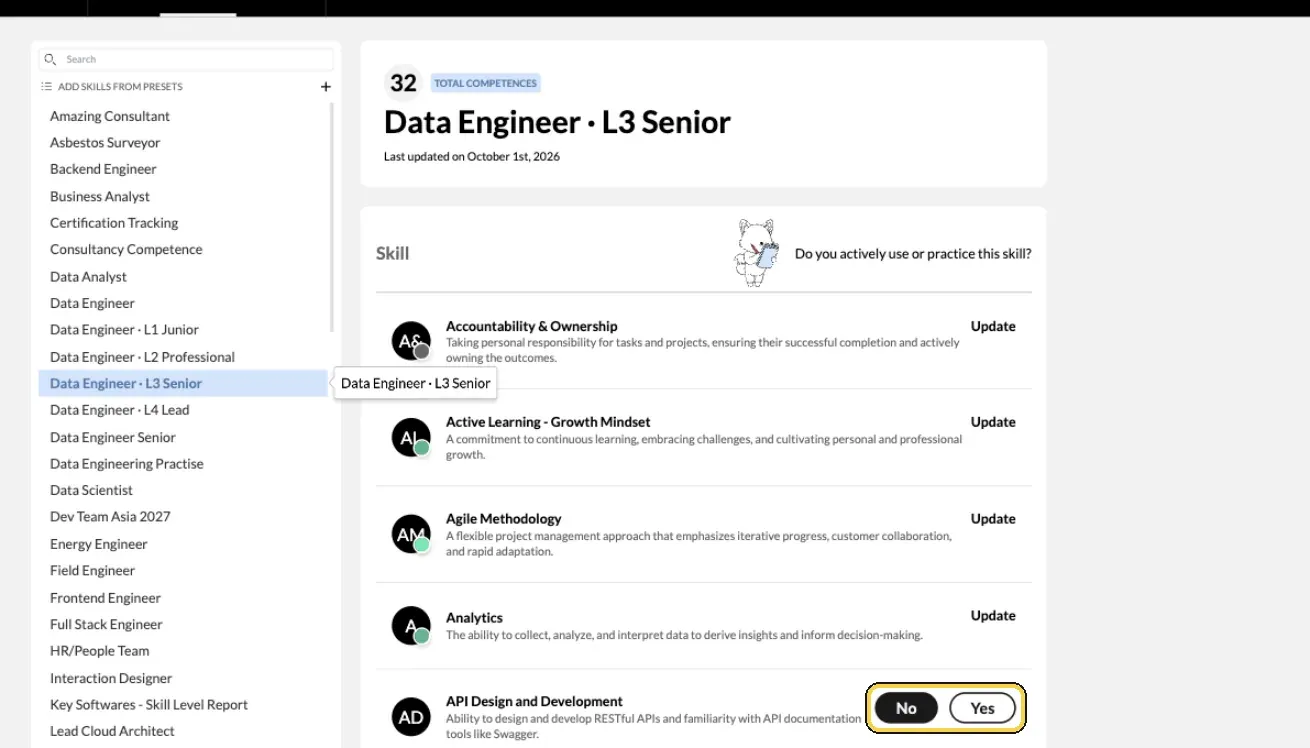
My Skills › Add Skills from Presets: answer Yes or No per skill.
Set up validated competences (optional)
- Create a badge list. Go to Team/Org › Settings › Manage Validated Competences and click Create List. Name it, for example Scrum Certifications, describe it, and add the competences you want to issue. To create a badge that is not in MuchSkills yet, type its name and press Enter.
- Issue the badges. Admins open the person in Manage Members, click Edit profile and scroll to Validated Competences. Managers use Validate a competence in My Circle.
Check it worked
- Analysis shows the list as Published and visible to Everyone in your organisation.
- Open My Skills › Add Skills from Presets yourself. The role is in the left sidebar, and each skill asks Do you actively use or practice this skill?
- My Growth › Gap Analysis shows the role with your own match, for example You match 8 of 12 required skills & certifications for this list.
Benefits
What you get
- Faster, fuller profiles. Employees start from a preset for their role instead of a blank page.
- Gap analysis from day one. Each person sees their fit and gaps for every published role, and you see coverage across the organisation.
- Shared expectations. Managers and employees work from one definition of what each role needs.
Important to know
Important to know
How employees use presets. In My Skills › Add Skills from Presets, they choose a preset in the left sidebar. For each skill, they answer Yes and pick their level, or No. They can use as many presets as they like. When they rate themselves against their own role, they should answer every skill, including the ones they are beginners at.
Only launched lists with skills become presets. Drafts and empty lists stay hidden from employees.
Who can edit a list. Under Edit access rights, choose Only admins, owners and creators can edit or Open for everyone to edit.
AI suggestions need a check. The app marks them as AI generated, and they can include unexpected skills or descriptions. Review every skill and level before you launch.
Many roles at once. MuchSkills can import role lists from a Google Sheet, with one tab per role. Contact us to get started. Imported lists are published to everyone, and MuchSkills writes a description for each one, so read the descriptions afterwards.
Common errors
Troubleshooting
| What you see | Why | What to do |
|---|---|---|
| A role does not appear under Add Skills from Presets | The list is in draft, has no skills, or is not visible to everyone | Add skills, click Launch list and make it visible to everyone in your organisation |
| Employees see No presets available | No list has been launched yet | Launch at least one list |
| Employees see No data to show here yet in Gap Analysis | No role or competence list is published | Launch your lists |
| This name is already taken | Another list has the same name | Choose a different title |
| A skill you need cannot be found | It is not in your taxonomy yet | Add it in Manage Skills (step 2), then add it to the list |
Frequently asked questions
What is a preset?
A published list from Analysis, seen from the employee's side. Employees open it under My Skills › Add Skills from Presets and answer, skill by skill, whether they actively use it and at what level.
Which list type should we choose?
Company role to set the skill levels a role requires. General analysis to look at any set of skills across the organisation. Compliance requirements to list the certifications your workforce needs to hold and track who holds them.
Can AI build the role list for us?
AI suggests skills from your taxonomy for the role you describe, split into prioritised and remaining skills. It is a starting point: review every skill and level before you publish.
Do employees have to pick one role?
No. They can rate themselves against as many presets as they like. Ask them to complete every skill in the presets for their own role, including the ones they are beginners at.
Who sees a list?
You choose when you launch it: only you, Admins plus you and your collaborators, or everyone in your organisation. Drafts are never shown as presets.
Can we import many roles at once?
Yes, from a Google Sheet. Contact us to get started.
What is a validated competence?
A badge an Admin or a manager issues to confirm a skill, competence or internal training. It shows on the person's profile under Validated Competences.
How many roles should we start with?
Start with the roles most of your people hold, so most employees have a preset on launch day. Add other roles later.