


Define roles and competencies
- Who
- Owners, Admins and list creators
- Where
- Team/Org › Analysis
- Levels
- Beginner, Intermediate or Expert per skill
- Employees see it in
- My Growth › Gap Analysis
Roles and competence areas live in MuchSkills as analysis lists. Each list names the skills, certificates and badges that matter, which ones are prioritised, and the level each skill requires. Publish a list and every employee sees how they match it, and where to grow.
How it works
In MuchSkills, a role or competence area is an analysis list in Team/Org › Analysis. You can create lists for:
- Roles, for example Backend Developer or Product Manager, with the skills a person needs to do the job.
- Competence and behaviour areas, for example Leadership or Customer First, to set expectations and give a frame for reflection and coaching.
- Organisational analysis, for example Cloud Development or AI skills, to see what the organisation has and plan development.
Each list has a List type:
| List type | What the app says | Use it for |
|---|---|---|
| Company role | Set the skill levels a role requires. | Roles and competence areas |
| Compliance requirements | List the certifications your workforce needs to hold, and track who holds them. | Required certificates, see Manage and track certifications |
| General analysis | Analyse a set of skills across the organisation. | Studying a set of skills |
Every item in a list is either prioritised or remaining. Skills rated on the nine-step scale can also have a required level: Beginner, Intermediate or Expert.
When you launch a list to everyone, each employee sees their personal fit in My Growth › Gap Analysis, and can add its skills to their profile from My Skills › Add Skills from Presets. See Add skills from presets.
Before you start
- Have your taxonomy in place. Lists draw on the skills in your workspace. See Build your skills taxonomy.
- Use your real role names. Name lists the way people know their roles, so they recognise them in Gap Analysis.
- Decide who helps. Team leads can be added as collaborators on a list.
Steps
Start a list with AI
- Open Analysis. Go to Team/Org › Analysis.
- Describe the role. In the box Describe a role, competence area or expertise you want to analyse., type the role, for example NDT Inspector, or paste a job description. Click the paper plane.
- Check the title and description. Edit them, or click Regenerate for a new suggestion.
- Click Save and continue. The list opens with AI suggestions split into Prioritised skills and Remaining skills.
- Accept the suggestions. Click + Add all suggestions, or add them one at a time. Click Refresh AI suggestions for more.
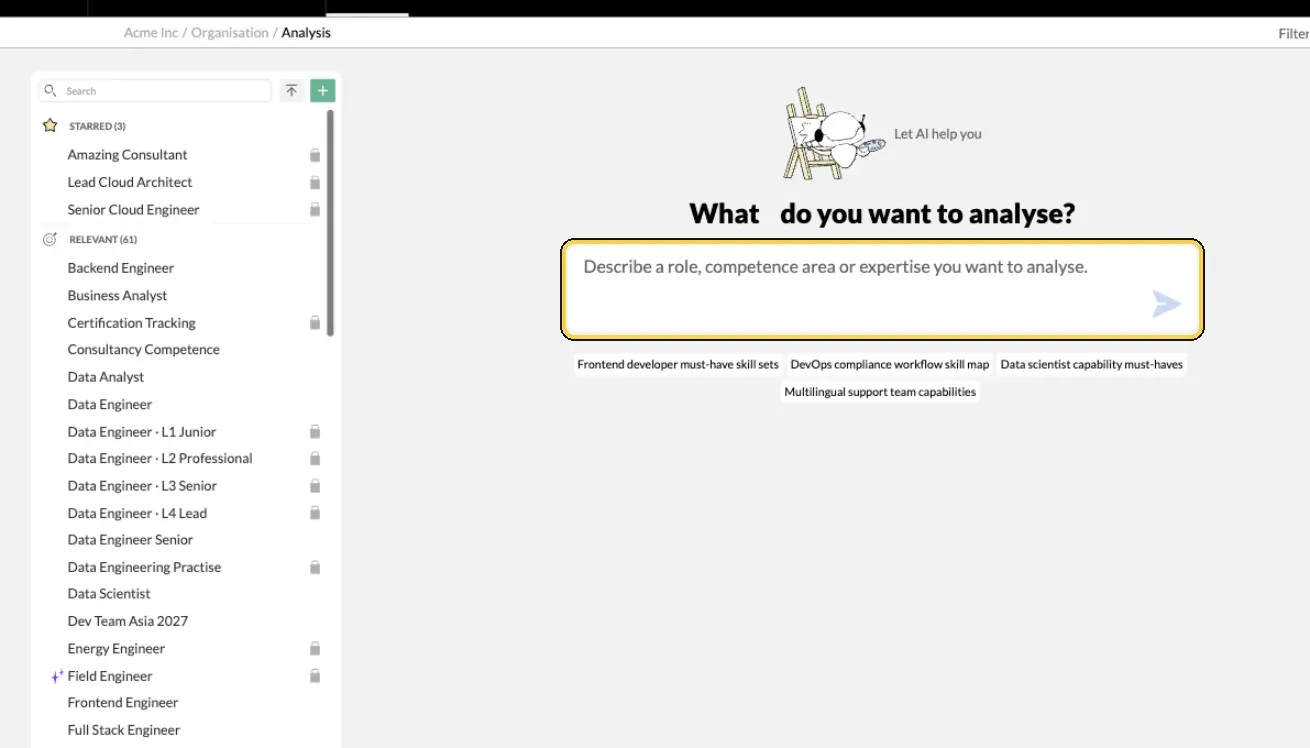
Team/Org › Analysis: describe a role and let AI suggest the skills.
Or start a list by hand
- Click the green plus at the top of the list column, or Create List if you have no lists yet.
- Fill in the form. Give the list a name, choose the List type, and add a Description. Add Collaborators who will help, and Tags if you use them.
- Choose who can edit. Under Edit access rights, keep Only admins, owners and creators can edit, or choose Open for everyone to edit.
- Click Create list.
Set the requirements
- Add skills. Type in the skills search, Add skills to the list or get suggestions with AI, and pick skills or validated competences. Add certificates the same way from the certifications search, Add certifications to the list.
- Mark the priorities. Click the prioritise icon next to the skills that matter most. They move to the prioritised group.
- Set the required level. Click Reqd. level under a skill and choose Expert, Intermediate or Beginner. Choose none to keep the skill in the list without a required level.
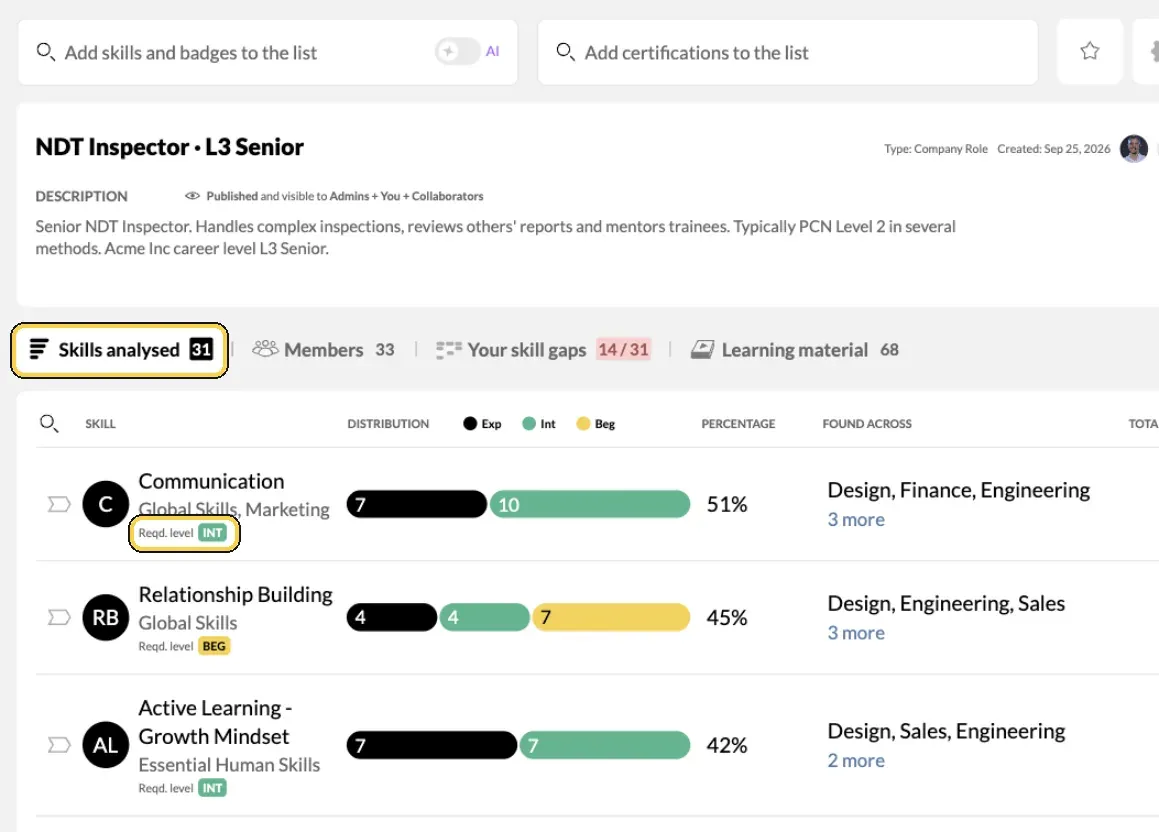
A role list in Analysis, with the required level per skill.
Publish the list
- Open the launch menu. Click Launch list at the top of the list.
- Choose who sees it. Under Visible to, choose Everyone in your organisation.
- Click Launch list. Launched Successfully appears and the state changes to Published.
Check it worked
- The list shows Published and visible to Everyone in your organisation.
- The Members tab shows each person's match against the list.
- Open My Growth › Gap Analysis yourself. The list is there, with your match on All, Match and Prioritised.
- My Skills › Add Skills from Presets lists it for people to add skills from.
Keep lists up to date
- Change the settings. Click the gear icon at the top of a list to change its name, type, access, collaborators, description or tags, then click Save.
- Copy a list. Use the three-dot menu and choose Duplicate, for example to build a related role.
- Take a list back. Open Launch list and click Convert to Draft.
- Delete a list. Owners, Admins and the list's creator can choose Delete in the three-dot menu.
- Star the lists you use most. Click the star. They move to the starred group at the top of the list column.
Tips
- Prioritise a few skills, not all. A short prioritised group tells people where to start.
- Set levels for what the role really needs. Turn off beginners in the filters when you want to see real delivery capability.
- Add certificates and badges to role lists. A missing or expired certificate then shows next to the skills gap.
- Link learning. Courses linked to the skills in a list appear in its Learning material tab and in people's gap analysis.
- Analyse after you publish. Filters, the Members tab and trends over time are covered in Run a skill gap analysis.
Troubleshooting
| What you see | Why | What to do |
|---|---|---|
| A message asks you to upgrade to let AI suggest skills | AI-suggested lists are not part of your plan | Click Create list manually, or talk to us about your plan |
| This name is already taken | Another list has the same name | Choose a different name, for example add the team or level of detail |
| No Reqd. level under an item | The item is a certificate, a bubble skill or a badge without a level | Nothing to fix. It counts as held or missing |
| Employees don't see the list in Gap Analysis | The list is a draft, or visible only to Admins and collaborators | Open Launch list, set Visible to to Everyone in your organisation and launch |
| Too many requests, with a number of seconds to wait | Many changes were made in a short time | Wait for the time shown, then continue |
| Someone can't edit a list | Edit access is limited to admins, owners and the creator | Add them as a collaborator, or change Edit access rights |
Frequently asked questions
What is the difference between a role list and a competence list?
Only what you use it for. A role list describes one job, such as Product Manager. A competence list describes an area that cuts across jobs, such as Leadership or Customer First. Both work the same way and both show in Gap Analysis.
Which list type should we choose?
Company role for a job or a competence area. Compliance requirements for the certificates people must hold. General analysis for a set of skills you want to study across the organisation, such as AI readiness.
Why can't I set a required level on some items?
Levels apply to skills rated on the nine-step scale, and to validated competences set up with a level. Skills in a bubble category and certificates have no level, so they are either held or missing.
What does a prioritised skill do?
It marks the skills that matter most for the role. Gap Analysis shows how many prioritised skills each person matches, separately from the rest, so people know what to work on first.
Who sees a list?
A draft is visible to you, or to Admins, you and your collaborators. When you launch it you choose who sees it. Choose Everyone in your organisation so every employee gets their personal gap analysis.
Can employees add skills from a role list to their profile?
Yes. Published lists appear in My Skills › Add Skills from Presets, where people go through the skills and add the ones they use.
Can we import many role lists at once?
Yes. MuchSkills can import role lists from a Google Sheet with one tab per role. Contact support to get started.
Do we need AI to create lists?
No. You can build any list by hand. If AI lists are not part of your plan, MuchSkills shows an upgrade message with a Create list manually button.