


Bring your people into MuchSkills
- Who
- An Owner or Admin, with your HR or IT administrator
- Where
- Admin › Integrations
- Best way in
- Microsoft Entra ID or your HR system
- Sync
- Every 5 hours, read-only
- Leavers
- Deactivated, never deleted
People join, leave and change name all the time, so the best way to keep your people data current is to connect another system. Connect your HR system, Microsoft Entra ID (formerly Azure Active Directory) or Okta, or let your IT team use SCIM, and people, managers and departments arrive and stay current on their own. A file import is the fallback when no sync is possible, and from then on you keep it up to date by hand. This guide shows which way to choose, what to switch off first, how to connect safely and how to check the result.
How it works
Why a sync beats manual updates. People join your organisation, they leave and some change their name. Things happen all the time. The best way to keep your people data as current as possible is to connect MuchSkills to another system. MuchSkills reads from it every 5 hours, so new starters, leavers, manager changes and department changes arrive on their own, and the org chart, My Circle and reports follow. MuchSkills only reads: nothing is written back to your systems.
There are five ways to bring people in. Pick the first one that fits.
| Way | Best for | What stays current | Where |
|---|---|---|---|
| HR system sync | Organisations whose HR system holds the best people data | People, managers, departments, status, location and more, every 5 hours | Admin › Integrations, or a custom set-up with us |
| Microsoft Entra ID or Okta sync (recommended) | Organisations that use Microsoft 365 or Okta, where the directory holds department and manager | People, job titles, departments and managers, every 5 hours | Admin › Integrations |
| SCIM provisioning | IT teams that assign apps to people in Entra ID or Okta | People, roles, departments and managers, as your identity provider pushes them | Your identity provider, with credentials from us |
| The MuchSkills API | Teams with developers who want to send people data themselves | Whatever your integration sends | API documentation |
| File import | A pilot, or when no sync is possible | Nothing after the import: you keep people up to date by hand | Admin › Members |
Our advice: if you can do any type of sync, it is always the best option, because you do not have to do things manually. Most organisations already have Microsoft Entra ID, which makes it the quickest way to a complete, current organisation in MuchSkills.
You can always connect first. Connecting a system does not bring anyone in. No employees are synced until you click Start Sync. So you can connect, see that everything works, decide whom to sync, and only then start.
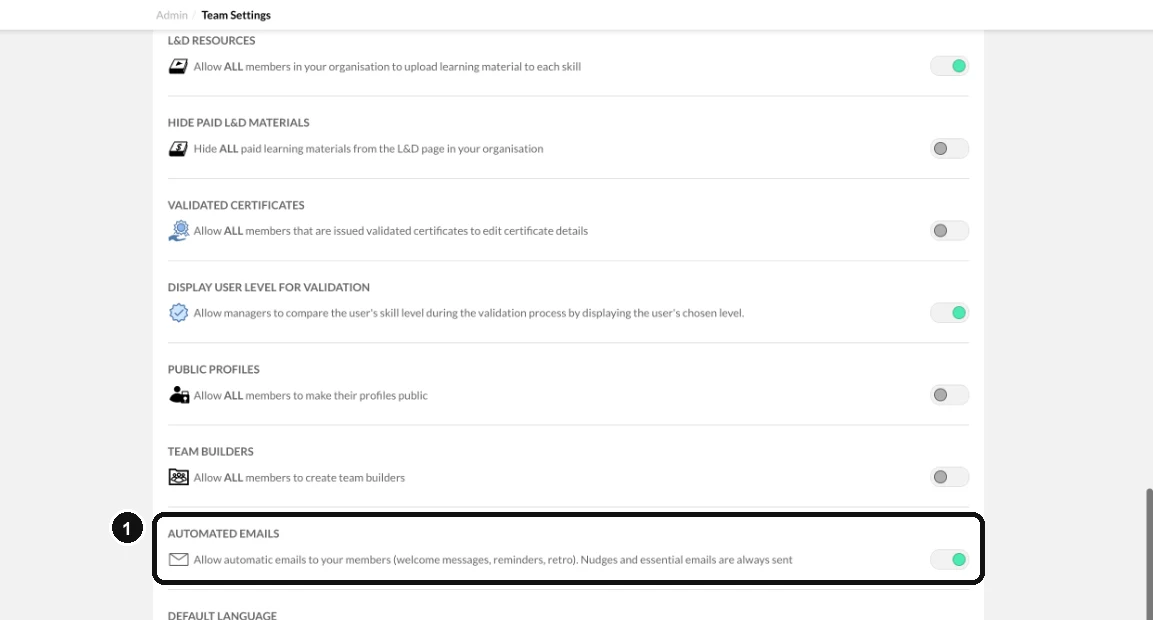
Switch off Automated emails first. If you add people through a system, MuchSkills automatically invites them and sends them an email straight away. Either make sure you are ready for a full deployment, or go to Admin › Team Settings and turn Automated emails off while you add everybody. Turn it on again when you are ready to launch.
Before you start
- Role: Owner or Admin in MuchSkills, with your HR or IT administrator.
- Set up the basics first. Your skills taxonomy, role presets and Team Settings should be in place before people arrive. See Get started with MuchSkills.
- Switch off Automated emails until launch day. In Admin › Team Settings, keep Automated emails off. Otherwise every person in scope gets an email the moment they arrive, before you have told them about MuchSkills. This is the first thing to do.
- Decide who should be in MuchSkills. Everyone, or a selection by department, group, country or worker type.
- Start small. There are no test tenants for syncs. Make the first sync one department or five to ten people, and check the result.
- Check email addresses. The email in your HR system or directory must be the address each person signs in with.
Steps
Connect your HR system
- Open Integrations. Go to Admin › Integrations. You see every integration you can connect directly.
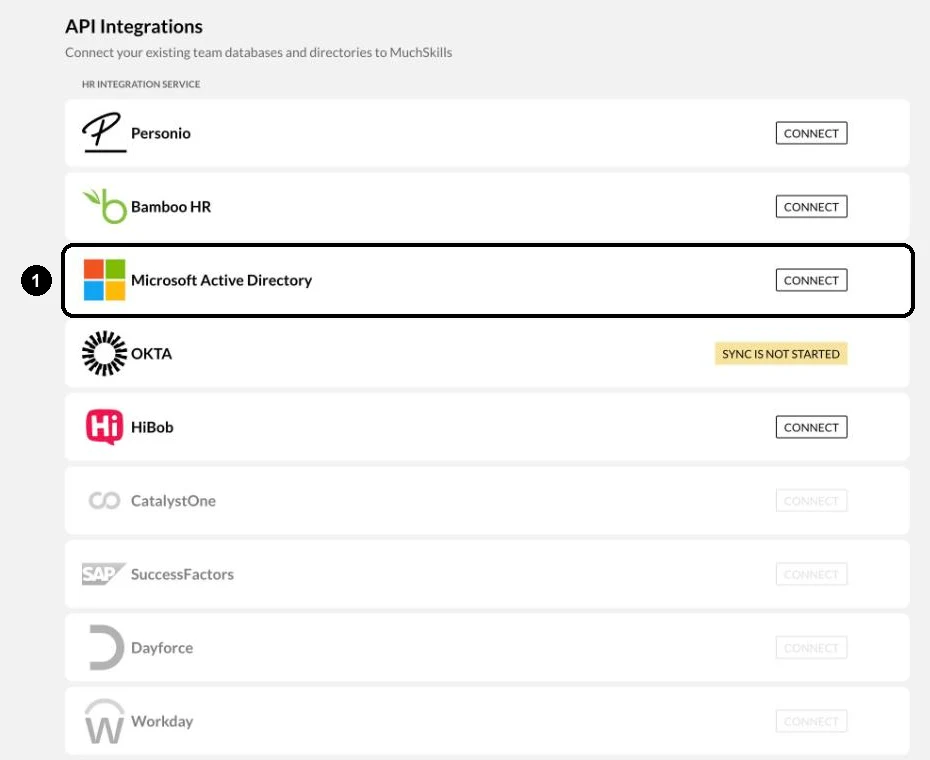
- Connect it. Some systems are very easy to connect. Personio, BambooHR and HiBob have a CONNECT button: create read-only credentials in your system, paste them in and connect. Your system's page in the documentation lists exactly what to create.
- Check, then start. After you connect, no one is synced yet. Check that everything works, choose who to sync, for example by department, and then click Start Sync.
- Custom set-up. Systems shown in grey, such as CatalystOne, SuccessFactors, Dayforce and Workday, and every other HR system, are more complex to connect, so we connect them with you. Your system administrator prepares read-only access and the list of fields, and a joint technical session with our CTO maps the fields and tests the connection. We run a first sync for a few people, you check it, and then it runs for everyone. Book an onboarding call to start.
Connect Microsoft Entra ID or Okta (recommended)
Most organisations already have Active Directory, so this is probably the easiest way for you. There are step by step instructions for exactly how to do it.
- Open the connector. Go to Admin › Integrations and click CONNECT on Microsoft Active Directory. Keep the tab open. For Okta, click CONNECT on its card and follow its guide.
- Register MuchSkills in Entra. Your Microsoft administrator registers an app called MuchSkills, gives it the User.Read.All permission with admin consent, and creates a client secret. Microsoft Entra ID: sync users has every click.
- Paste the three values. Enter the Client ID, Client secret and Tenant ID and click Connect. The status changes to Api Connected.
- Choose who to sync. With Sync by department, tick the departments to include. To sync a hand-picked set of people instead, create a group in Entra and use Sync by group.
- Start the sync. MuchSkills shows how many people will be synced and invited. Click Start Sync. Before that, no one is synced.
Or let your identity provider push people (SCIM)
SCIM is a way to send and control all the information that goes to MuchSkills automatically. Your IT team most likely knows how to set it up.
- Ask us for SCIM credentials. Email support@muchskills.com or use the chat, and say which identity provider you use.
- Set up provisioning. Your identity administrator adds provisioning to the MuchSkills app in Entra ID or Okta, maps the email address and the roles Member, Analyst and Admin, and tests it with a few people. See SCIM with Microsoft Entra ID or SCIM with Okta. Talk to your IT department, and they will help you with all of it.
Use one way in for the same people: either the Entra ID sync or SCIM, not both.
Find the step by step documentation
- Open the documentation. On muchskills.com, open Resources, then Documentation. You find instructions for every kind of set-up: people data and HR systems (for example how to set up BambooHR, with every step), Microsoft Entra ID sync users, single sign-on and security, SCIM provisioning for Okta and for Microsoft Entra ID, and the data API and MuchSkills API.
- Search. Type what you need, for example Okta SCIM Provisioning, in the search box and open the guide.
- Use the API. The MuchSkills API can be used to add and sync data. Your developers find it at the API documentation.
Import people from a file (only when no sync is possible)
A file import is a manual route. You have to update, add and remove people yourself from then on, so use a sync whenever you can.
- Open Members. Go to Admin › Members and click the three-dot menu. It offers Import Members from CSV file, Import Managers from CSV file and Download template. If you do not see the menu, contact support through the chat and we switch it on.
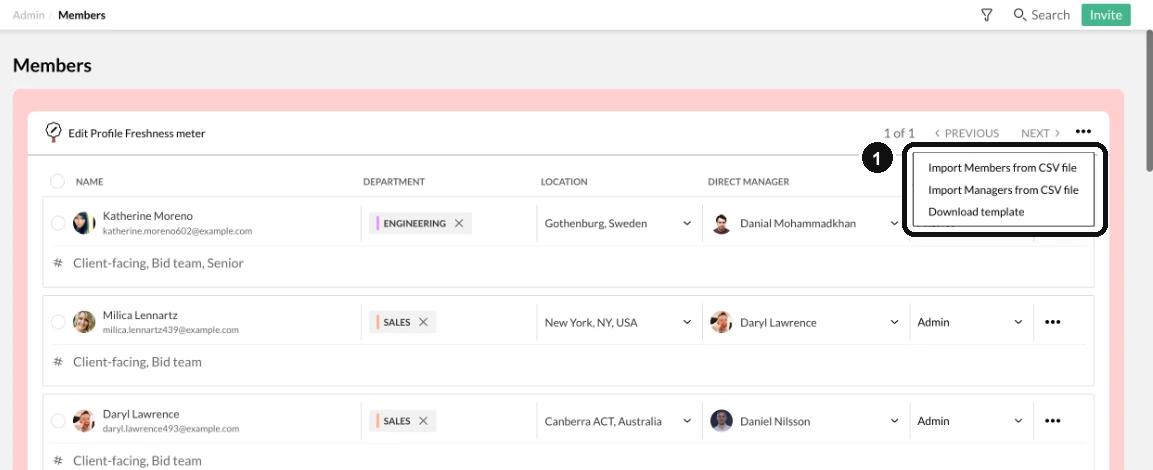
- Download the template. Choose Download template.
- Fill in one row per person. Keep the header row and fill in First name, Last name, Email, Title, Direct report (the manager's email address), Department, Location, Tags and Role. Import managers first, because Direct report only works for managers who are already members. Save the file as CSV, up to 10 MB.
- Import it. In the same menu, choose Import Members from CSV file and select your file. Import people from a file has the full guide. If you have questions, the chat in the bottom right corner is there to help, because we may need to help you.
Set roles
- Open the Role menu. In Admin › Members, click the role on a person's row.
- Choose the role. Pick Member, Analyst or Admin. The change saves at once. Reload the page to check it.
| Role | What they can do |
|---|---|
| Owner | Everything, including deleting the whole workspace |
| Admin | All administration and settings, but cannot delete the workspace |
| Analyst | Sees all data, including full access to Reports, but no settings |
| Member | Sees their own views. A manager also sees their direct reports in My Circle and in reports |
Depending on how your organisation has set up MuchSkills, people can open every colleague's profile, or their own and their team's. Corporate organisations can also use access roles, where each role sees only the people, profiles and reports it should. For a restricted set-up or detailed access roles, contact MuchSkills.
Check it worked
- The connector in Admin › Integrations shows Last successful sync and Next scheduled sync.
- Workforce › Members lists the people in scope, with job titles, departments and managers.
- The Org chart in Workforce › Members shows the reporting lines you expect. See The org chart in MuchSkills.
- Managers see their direct reports in My Circle.
Important to know
Leavers are deactivated, never deleted. A person who is disabled or removed in your system, or falls out of the synced scope, is deactivated at the next sync. Their project history and certificates stay on record, which matters for audits.
Unticking a department or group off-boards its people. After the first sync, removing a department or group from the selection off-boards everyone in it. MuchSkills asks you to confirm, and you cannot undo it from that screen.
Keep the Entra secret current. Put the client secret's expiry date in your calendar. When it expires, the sync stops until you paste in a new one.
A file import is manual from then on. After a file import, nothing updates on its own, and importing again does not overwrite anyone. You add joiners, handle leavers and change managers yourself in Admin › Members, and remove users by hand. That is why a sync is always the best option.
Sensitive data is blocked. MuchSkills never stores age or date of birth, salary or other compensation data, performance ratings, or political, religious or health data, even if a system sends them.
Profile photos. Photos are saved when an account is created. Click Sync Now on the connector to pull in changed photos.
Single sign-on is separate. A sync brings people in; single sign-on lets them log in with their work account. Set it up in Admin › Security & SAML. See Enforce SSO and 2FA.
Tips
- Connect first, start later. Connect, check that everything works, and decide whom to sync before you click Start Sync.
- Deploy in three waves. First a test group of about ten people who try everything, then all managers about a week before everyone else, then the whole organisation. Managers with complete profiles show the way for their teams.
- Hold a short launch session. Show people how to create their profile, add skills and certifications, set their Skill Will and see their skill gap. The launch emails and training decks are on Get started with MuchSkills.
- Follow up. After the launch, check who has completed their profile in Reports › Profiles › Health, and use Nudge to send a reminder. See Profile Health.
Troubleshooting
| What you see | Why | What to do |
|---|---|---|
| Invalid Credentials on the Microsoft connector | A value was copied wrongly, often the Secret ID instead of the secret Value, or the secret has expired | Create a new client secret, copy its Value, paste it in and click Update Credentials |
| We were not able to access your Active Directory | Admin consent was not granted, or is still processing | Grant admin consent in Entra and wait until the permission shows Granted |
| The same message, naming Group.Read.All | You chose Sync by group without the group permissions | Add Group.Read.All and GroupMember.Read.All, grant consent, then reconnect |
| Synced people have no managers | Your system sends the manager as a name or employee ID | Send the manager's email address, then click Sync Now |
| A person appears twice | They signed in with a different email address from the one in your HR system or file | Align the email address in your system, then contact support |
| There is no three-dot menu in Admin › Members | File import is not switched on yet | Contact support and we switch it on |
| Maximum file size must be up to 10 MB | The file is larger than 10 MB | Split it into smaller files and upload them one by one |
Frequently asked questions
Which way should we use?
Microsoft Entra ID (formerly Azure Active Directory) if it holds each person's department and manager. Most of our customers connect it, and your IT team can set it up themselves in Admin › Integrations. If your HR system holds better data, connect that instead. Import from a file only when no sync is possible.
Is our HR system supported?
Personio, BambooHR, HiBob, Microsoft Entra ID and Okta connect self-serve in Admin › Integrations. CatalystOne, SAP SuccessFactors, Dayforce, Workday and many other systems are connected as a custom set-up with us. How HR integrations work (https://www.muchskills.com/docs/how-hr-integrations-work) lists every system.
Will people get an email when we start the sync?
Yes, starting a sync invites everyone in scope and sends them an email straight away. Either be ready for a full deployment, or switch Automated emails off in Admin › Team Settings while you add everybody, and switch it back on when you are ready. Start with a small group, and tell people about MuchSkills before they hear from it.
If I connect my HR system, are people synced straight away?
No. You can always connect first. No one is synced until you click Start Sync, so you can check that the connection works and then decide who to bring in.
Where do I find the step by step instructions?
On muchskills.com, open Resources, then Documentation. You find a guide for each HR system, for example BambooHR, Microsoft Entra ID sync users, single sign-on and SCIM provisioning for Okta and Microsoft Entra ID, and the MuchSkills API. Use the search at the top of the documentation.
Can we start with a few people?
Yes, and we recommend it. Sync one department, or an Entra group of five to ten people, and check the result. Widen the scope afterwards.
What does MuchSkills read from our systems?
Only name and email are required. Job title, manager, department, employee status, location, profile photo, worker type and absence are recommended. MuchSkills never stores age or date of birth, salary, performance ratings, or political, religious or health data, even if a system sends them. Nothing is written back.
What happens when someone leaves?
When someone is disabled or removed in your system, or falls out of the synced scope, MuchSkills deactivates them at the next sync. They disappear from everyday views. Their project history and certificates stay on record. Nothing is deleted.
Can we import a file first and connect a sync later?
Yes. MuchSkills matches people by email address, so they keep their profiles, skills and certificates when the sync takes over. Use the same email addresses in both. But a sync is always the better choice: with a file you update, add and remove people by hand.
Why not invite people by email or with a link?
MuchSkills is built to run on your HR data. People who join by invitation are not kept current by any system, so managers, departments, joiners and leavers all become manual work. For an organisation, use a sync.
Does the sync also give us single sign-on?
No, they are two separate set-ups. The sync brings people in; single sign-on lets them log in with their work account. Set up single sign-on in Admin › Security & SAML. See Enforce SSO and 2FA (https://www.muchskills.com/docs/enforce-sso-and-2fa).
How do I make someone an Admin?
In Admin › Members, open the Role menu on their row and choose Admin. Choose Analyst for people who need all data and reports without changing settings. With SCIM, roles come from the app role you assign in your identity provider.