


Decide what a healthy profile is with Profile Health
- Who
- Admins set it; managers see the report for their team
- Settings
- Admin › Profile Health
- Report
- Reports › Profiles › Health
- Remind
- Nudge on any row, one click
Profile Health lets you decide what a complete, up-to-date profile means in your organisation: the minimum for each part of a profile and how long a profile stays fresh after a skills update. The Profile Health report then shows one row per person, with anything below your minimum in red and a Nudge button that reminds them in one click.
How it works
Every person in MuchSkills has a profile: name, email address, skills, certificates, Skill Will (what gives them energy), education, work history and project history. Profile Health lets you decide what you expect each person to add, what counts as a complete profile and how often it should be updated. Then it shows you, managers and employees where each profile stands.
Profile Health has two parts.
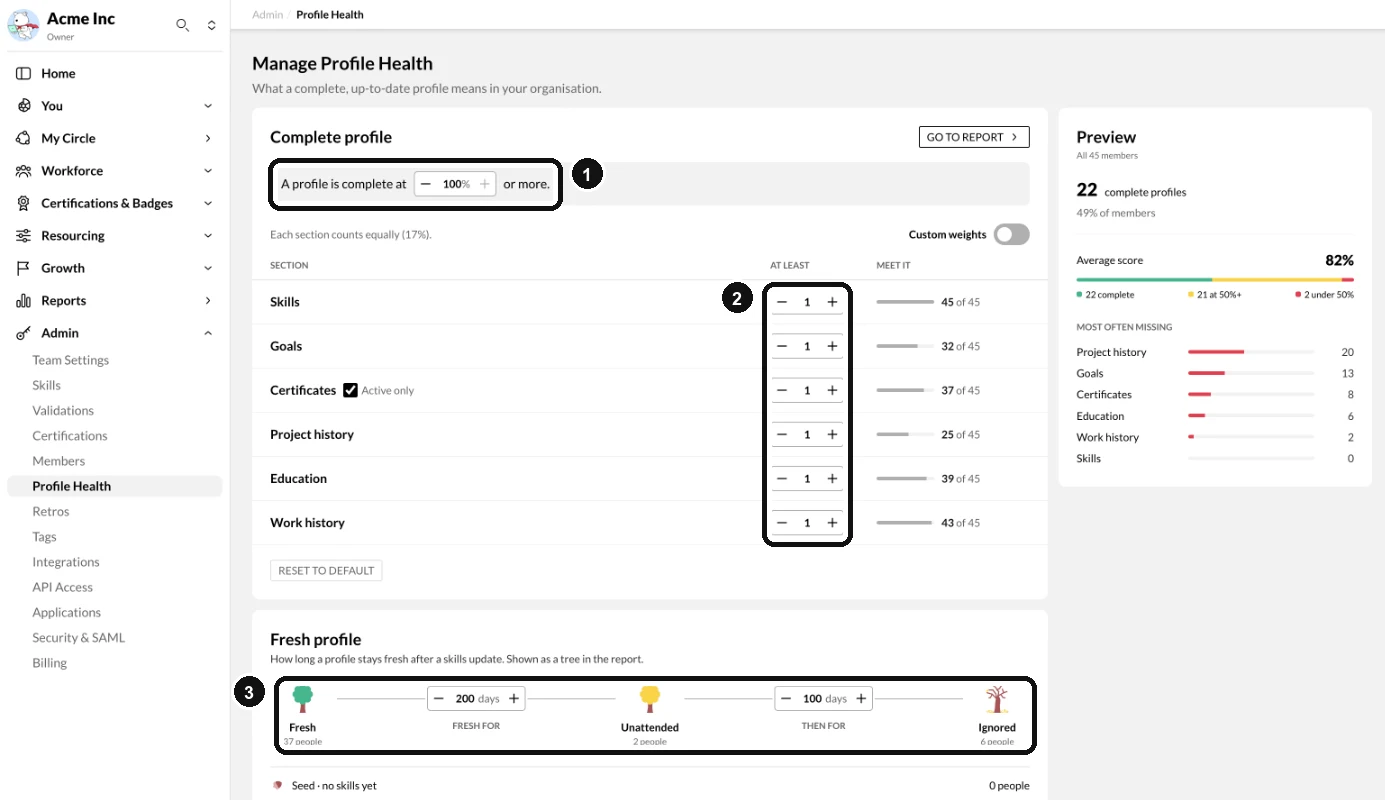
The settings in Admin › Profile Health ("Manage Profile Health") decide what a complete, up-to-date profile means in your organisation:
- Complete profile. The minimum for each section of a profile: Skills, Goals, Certificates, Project history, Education and Work history. For certificates, Active only counts only certificates that are still valid. Then choose the percentage at which a profile counts as complete. Each section counts equally unless you turn on Custom weights. Project history matters because it becomes searchable across your organisation.
- Fresh profile. How long a profile stays fresh after a skills update. A profile is Fresh for the number of days you set, then Unattended for a further period, then Ignored. Seed means no skills yet.
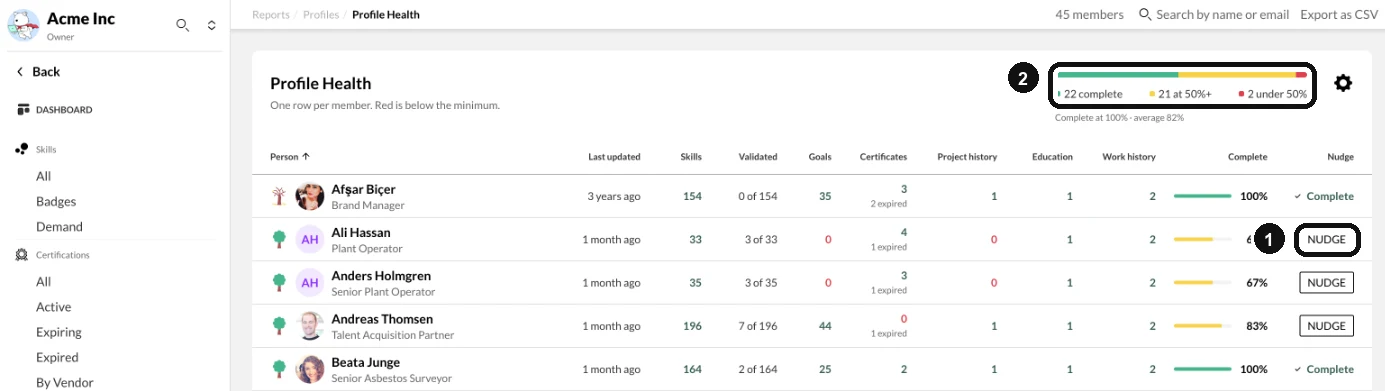
The report in Reports › Profiles › Health shows one row per member, with anything below your minimum in red. Each row has a Nudge button that reminds the person in one click.
The same definition is used everywhere, so admins, managers and employees all work from one picture:
- Employees see a profile completion bar on Home that says what their profile still needs. They see it every time they sign in.
- Managers see profile completion for their circle in My Circle, and the Profile Health report for their direct reports and everyone below them.
- Profile cards follow the same settings.
Steps
Set what a healthy profile is
- Open the settings. In the side menu, click Admin, then Profile Health.
- Set the minimum for each section. Next to each section, enter the number under At least. Meet it shows at once how many people meet that minimum today. Our recommendations:
- Skills: 30 to 60, depending on how you use skills data. For example 50 for consulting, 40 for technical organisations, 30 if you mainly use MuchSkills for learning and development.
- Goals: 1 is the most common.
- Certificates: only needed if certifications matter to your organisation.
- Project history: 1 to start; 3 to 5 for consulting.
- Education: 0 is fine if you want it to be voluntary.
- Work history: as important to you as it is.
- Choose certificates that count. Keep Active only on to count only valid certificates.
- Set when a profile is complete. Enter the percentage in A profile is complete at … % or more. To give some sections more weight, turn on Custom weights. For example, leave certificates at 1% if they matter little, and set the percentage to 80 so that a person with 30 skills and a goal but no certificates still counts as complete.
- Set how long a profile stays fresh. Under Fresh profile, enter the days a profile stays Fresh and the days it is then Unattended. Twice a year works well: 183 days Fresh, then 183 days Unattended, so after a year a profile counts as Ignored. The number of people in each stage updates as you type.
- Read the preview. It shows your complete profiles, the average score and the sections most often missing.
- Click Save Changes. To undo your changes, use Reset to default.
Find and nudge incomplete profiles
- Open the report. Click Go to report on the settings page, or click Reports and choose Profile Health at the bottom of the menu.
- Read the bar at the top. It shows how many profiles are complete, how many are at 50% or more and how many are under 50%. Click a part of it to filter to those people.
- Find who needs care. Each row shows the person, when they last updated, their skills, validated skills, goals, certificates, project history, education, work history and how complete the profile is. Red is below your minimum. For example, someone with two project histories when you require three shows red in that column. Search by name or email, sort a column, or show 100 profiles in one view instead of paging.
- Click Nudge on a row. The person gets an email asking them to complete their profile.
Check it worked
- The preview on Admin › Profile Health shows the number of complete profiles you expect.
- In Reports › Profiles › Health, the red cells match the minimums you set.
- Profile completeness on profile cards and in My Circle follows the same settings.
- An employee sees the completion bar on Home and can click it to go straight to what is missing.
Tips
- Fit it to your rhythm. If you hold one-to-ones and development talks twice a year, a twice-yearly freshness setting is a good match.
- Start simple. Two or three minimums at launch, raised once people are used to them.
- Look once a month, and always before review season or a bid that needs current CVs.
- Nudge is one way to remind. A manager can also remind people in Slack, Teams or whatever you already use.
- Managers: use the report for your direct reports and the tree on each person in My Circle. See Keep your team's profiles up to date.
- Pair it with retrospectives. A scheduled retrospective asks everyone to reflect on their skills at set times. See Run a skills retrospective.
- Remind people about Skill Will. When you nudge someone, ask them to fill in Skill Will too, so their profile shows what gives them energy as well as what they can do. See Skill Will.
Troubleshooting
| What you see | Why | What to do |
|---|---|---|
| Almost nobody is complete | The minimums are higher than your profiles are today | Lower one or two minimums, then raise them after launch |
| Certificates are red for people who hold certificates | Active only is on and their certificates have expired | Ask them to add the renewed licence, or nudge them |
| You cannot find Profile Health under Admin | Only admins can change the settings | Ask an admin. Managers can open the report from Reports (Profile Health) |
Frequently asked questions
What counts as a complete profile?
You decide. Set the minimum for each section (skills, goals, certificates, project history, education and work history) and the percentage at which a profile counts as complete. By default each section counts equally; turn on Custom weights to make some count more.
What does Active only mean for certificates?
Only certificates that are still valid count towards the minimum. An expired certificate does not.
What is a fresh profile?
A profile updated recently. You set how many days a profile stays Fresh after a skills update and how many more days it is Unattended before it counts as Ignored. Seed means the person has no skills yet. The stage shows as a tree in the report and in My Circle, where the same stages are called Fresh, Getting dry, Dry and Seeds.
What happens when I click Nudge?
The person gets an email asking them to complete their profile. A manager can also remind people in Slack, Teams or whatever you already use.
Who sees the Profile Health report?
Admins see every member. Managers see the same report, but only for their direct reports, their reports' reports and so on down the line.
How many skills should we ask for?
Our recommendation: 30 to 60, depending on how you use skills data. For example about 50 for consulting organisations, where skills drive resource planning; about 40 for more technical organisations, because of all the tools people use; about 30 if you mainly use MuchSkills for learning and development. You decide for your organisation.
How often should people update their profile?
Most organisations we meet choose twice a year. That means 183 days as Fresh, another 183 days as Unattended, and after a year a profile counts as Ignored. It fits well with development talks twice a year.
What do employees see?
On Home, a bar shows what their profile still needs, following your settings (for example that project history is missing). Click it to go straight to the right place. Managers see profile completion in My Circle.
Do changes to the settings show at once?
The preview on the settings page shows straight away how many profiles meet your definition today, the average score and what is most often missing. Click Save Changes to keep your settings.
Where should we start?
With two or three minimums, for example a number of skills and one goal. Raise them once people are used to keeping their profile current.