


Find your way in MuchSkills
- Who
- Everyone
- Where
- The side menu on the left
- Search
- The search icon at the top of the menu
- What you see
- Depends on your role
A quick tour of MuchSkills. You land on Home, where the Profile completion bar tells you what your profile still needs. The side menu on the left is grouped by what you want to do: everything about you sits under You, your team under My Circle, and the organisation under Workforce, Resourcing, Growth and Reports. Admin holds the settings. What you see depends on your role.
How it works
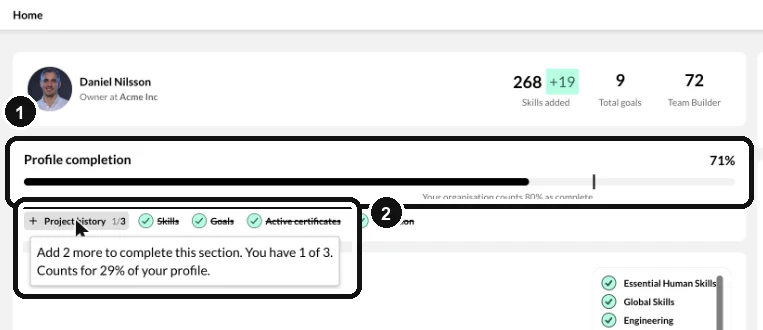
Once you are signed in, you land on Home. It is an overview of what you have added, what you have not added yet and what your organisation expects from you. The Profile completion bar is the one to keep an eye on. A tick means that part is done. If something is missing, for example project history, click the bar and MuchSkills takes you straight to the right page, so you can add it and reach 100%. You also see your skills and how they have grown over time, your notifications and when you last refreshed your profile.
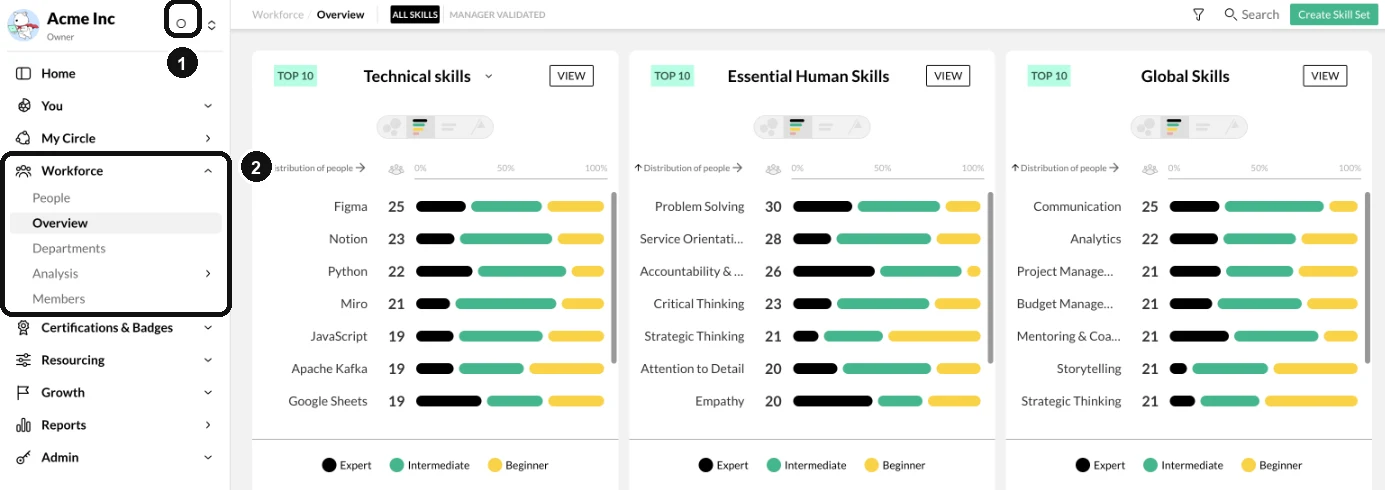
The side menu on the left is grouped by what you want to do, from your own profile at the top to the organisation's settings at the bottom. At the top you see your organisation's name and your role, with the search icon next to it. At the bottom you see your own name and job title, your notifications and your account menu.
What you see in the menu depends on who you are. Some people only have You, which holds everything about themselves. Managers also see My Circle. Admins also see Admin. Everyone has Home and You, and the rest of the menu follows your role.
A quick tour
Follow the menu from top to bottom. Each stop below links to the page that explains it in full.
- You. Everything about you. Open My Profile to see your own profile page with your skills, talent, competence, certifications, education and projects. Update your experience, education and project history there, and make sure everything your organisation asks for is added.
- Add skills from presets. Open Add Skills from Preset to add the skills for a role, a practice area or a service area in one go.
- My Skills. Open My Skills and pick a skill area to add skills from, for example Technical skills or Skill Will. Skill Will is your energy: what you really like working with and are really good at, in one single view. See Skill Will.
- Certifications and gaps. Add your certifications in My Certifications, and use My Gap Analysis to see which courses or roles fit the skills you have added.
- Growth. Set up your personal development plan in My Growth, and find learning in the Learning Library. Have a look around and develop yourself.
- My Circle (managers). If people report to you, My Circle shows all your direct reports. It is made for one-to-ones and development talks, and for getting to know your people better. You see how many profiles are complete and how many skills, goals and certificates there are, and you can open a change log. Click a person to see their change log, send a nudge or a reminder, check their gaps and validations, validate their skills, follow their development goals and see how their profile has developed over time. The buttons at the top of a person's page, for example View skills summary, show all their skills. See Use My Circle to coach your team.
- Workforce. Where you discover everybody. In People you describe who you need in a sentence, for example who is a Java developer, or who knows graphic design in New York, and you can search for almost anything. Overview shows all the skills, talent and competence in the organisation by skill and level. Departments shows the same split by department. Analysis is where you build a role or any report you want to see. Members shows your people as an org chart or as a list, and you switch between the two. See Find people fast with People and Explore your organisation.
- Certifications & Badges. A report of all your organisation's certificates and badges.
- Resourcing. If you use the resourcing tools, Utilisation shows everybody's utilisation, and Team Builder is the tool for building teams. See Build a project team in Team Builder.
- Growth. Everybody's development goals, and the Learning Library.
- Reports. All the reports in one place: skills, demand, certifications, utilisation, growth and more.
- Admin. If you are an administrator, you have full access to the administration panel.
Questions? Use the chat in the bottom right corner and send us a message at any time.
What is where
Home
Your overview: the Profile completion bar, which tells you what your profile still needs according to your organisation's Profile Health settings (for example Project history 1/3, which means two more projects to add), your skills over time per category, with Skill Will as its own bar, your skill levels, the goals you have set and your notifications. Home used to be called Dashboard.
You
Everything about you.
- My Profile: your profile overview and the tabs Profile Details, Teams, Experience, Education, Project History, Account and Retrospective.
- Add Skills from Preset: add the skills for your role from the lists your organisation prepared.
- My Skills: the skills your company wants you to specify, your Technical skills and Skill Will, the skills you love using. See Skill Will.
- My Certifications: add and renew your certificates.
- My Gap Analysis: compare your skills with a role.
- My Growth: your goals.
- Learning Library: courses and learning material.
My Circle
For managers: your team's profiles, your own skills overview and everyone reporting to you. Open a person to see their updates, how their profile has changed, their goals, certificates and gaps, and to validate their skills. See Use My Circle to coach your team.
Workforce
- People: find the right person by describing who you need in a sentence. People used to be called Discover. See Find people fast with People.
- Overview: the organisation's skills, including what your people love doing in the Skill Will card.
- Departments, Analysis (your analysis lists) and Members.
Certifications & Badges
Your organisation's certificates and badges, with shortcuts into the certification and badge reports.
Resourcing
Utilisation (a shortcut into the utilisation reports) and Team Builder, for staffing projects by skill.
Growth
Goals (a shortcut into the goal reports) and the Learning Library.
Reports
All reports in one place: Dashboard, Skills, Certifications, Utilisation, Growth and Profiles, where Health shows how complete and fresh each profile is. See Profile Health.
Admin
For admins: Team Settings, Skills, Validations, Certifications, Members, Profile Health, Retros, Tags, Integrations, API Access, Applications, Security & SAML and Billing.
Where the old pages went
| You used to click | Now |
|---|---|
| Dashboard | Home |
| My Skills in the top menu | You › My Skills |
| Profile settings | You › My Profile |
| My Skills › My Certifications | You › My Certifications |
| Gap Analysis | You › My Gap Analysis |
| My Growth | You › My Growth |
| Job Focus | You › My Skills › Skill Will |
| Discover | Workforce › People |
| Team/Org › Overview, Departments, Analysis, Members | Workforce › Overview, Departments, Analysis, Members |
| Team Builder | Resourcing › Team Builder |
| Team/Org › Settings | Admin (Team Settings, Skills, Members, Integrations and the rest) |
Steps
- Open what is yours. Click You to see your profile, skills, certifications, gap analysis, growth and the Learning Library.
- Open a group. Click a group name such as Workforce or Reports to see what is in it.
- Go back. Groups that open their own menu, such as My Skills, have Back at the top.
- Search. Click the search icon at the top of the menu and type a skill, a certificate or a person's name.
Check it worked
- The page you opened is highlighted in the side menu.
- The path at the top of the page, for example You › My Skills › Skill Will, shows where you are.
Tips
- Keep an eye on the Profile completion bar on Home. Click it when something is missing and you land on the right page.
- Start with Skill Will. It takes a few minutes and gives you something real to bring to your next one-to-one. See Skill Will.
- Update your profile while you are in. See Set up your profile.
- Bookmark the pages you use most. Every page in MuchSkills has its own address.
Troubleshooting
| What you see | Why | What to do |
|---|---|---|
| A menu group you expected is missing | Your role does not include it | Ask your admin which role you have |
| You cannot open a colleague's profile | Depending on how your organisation has set up MuchSkills, you can open every colleague's profile, or your own and your team's | Ask your manager or admin |
| A guide or bookmark points to the old top menu | The top menu is replaced by the side menu | Use the table above to find the new place |
Frequently asked questions
Where did the top menu go?
It is replaced by the side menu on the left. Every page is still there, grouped by what you want to do. The table on this page shows where each one went.
Why do I not see My Circle or Admin?
The menu shows what your role can use. My Circle appears when people report to you, and Admin when you are an admin.
Where is Discover?
Discover is now called People, under Workforce › People.
Where is Job Focus?
Job Focus is now called Skill Will, under You › My Skills › Skill Will.
How do I get back from a sub-menu?
Some groups, such as My Skills, open their own menu. Click Back at the top to return to the main menu.
Can I search instead of clicking through the menu?
Yes. Click the search icon at the top of the menu and search for skills, certificates or people.
What is the Profile completion bar on Home?
It shows what your profile still needs, following your organisation's Profile Health settings. A tick means it is done. If something is missing, for example project history, click the bar and MuchSkills takes you straight to the right page, so you can reach 100%.
Who can I ask if I get stuck?
Use the chat in the bottom right corner of MuchSkills and send your question. MuchSkills support replies as soon as possible.